7. Cues - Page 159
TitanUniversal_Man_v10_QU.doc 15 March 2016
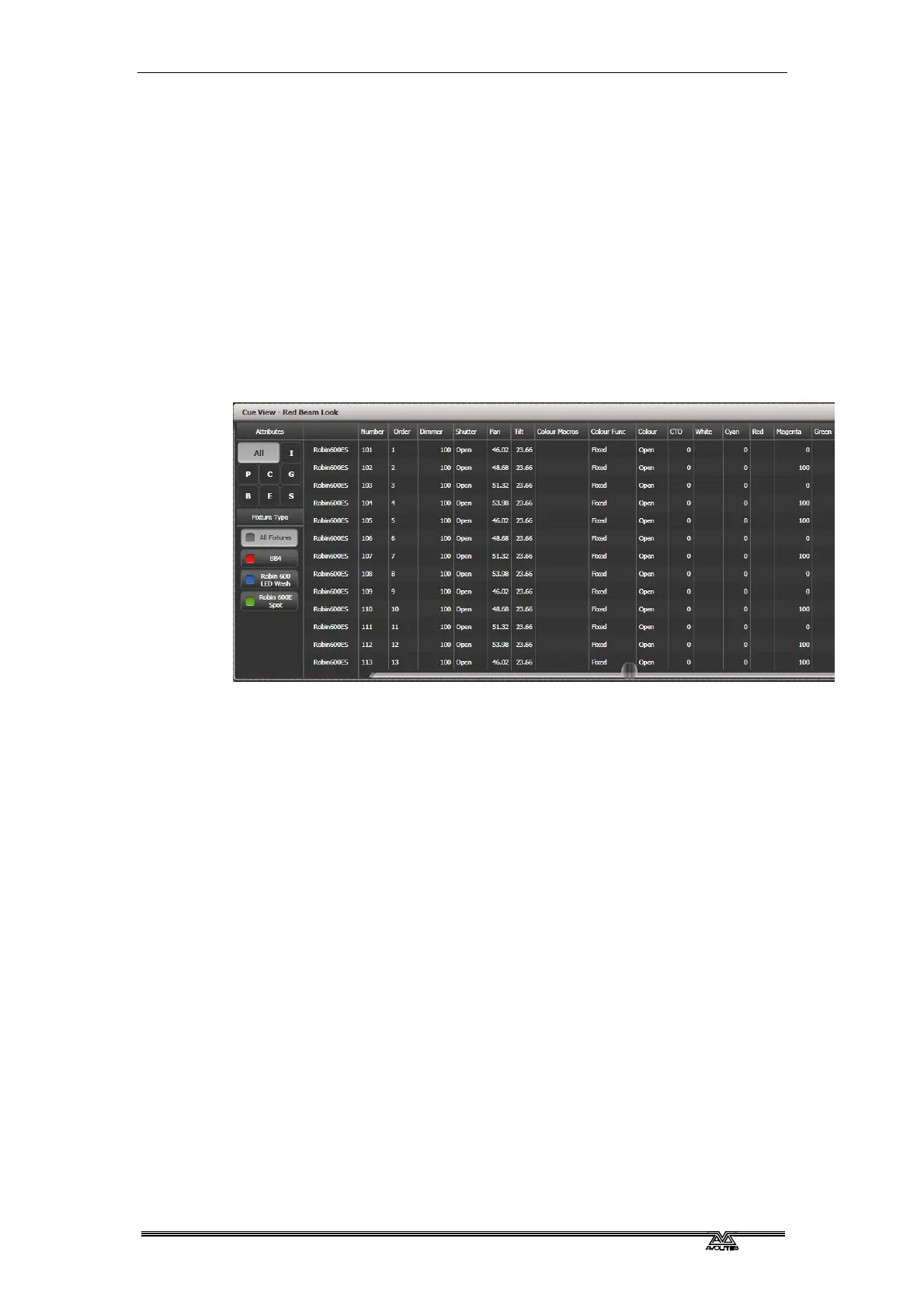
The Cue View has four different views: Levels, Palettes, Times,
Shapes. Views are selected using the context buttons to the left of
the menu buttons.
• The Levels view shows the individual attribute values for each
fixture.
• The Palettes view shows which palettes have been used to
record the cue. Palettes are shown by their legends. Where an
absolute value was saved rather than a palette, the value is
shown instead. Again you can edit or remove the values.
• The Times view shows individual attribute timings for fixtures.
If global timings are set, no times are shown in the cue view.
• The Shapes view shows which attributes of each fixture are
running shapes.
Filter which attributes you are shown using the All/IPCGBES buttons
in the top left corner.
Filter which fixtures you are shown using the fixture type buttons on
the left.
You can edit or remove one or more individual control values in the
cue:
Touch or drag over the required control values in the grid to select
them – they will be highlighted in blue.
The softkeys then give you available settings for that control value, or
you can directly edit values by typing numeric values and pressing
enter.
You can delete the selected control(s) using the [Delete] softkey.
You can turn attributes On and Off using the Off button and the [On]
softkey. Off temporarily removes a value from the cue, it can later be
restored using [On].
You can remove a fixture completely from the cue by selecting the
fixture then pressing the [Remove Fixtures] softkey.
Any changes take immediate effect.
• The context menu option View Tracking Values allows you to
highlight in grey values which are tracked from previous cues.


 To Next Page