9. Cue Lists - Page 185
TitanUniversal_Man_v10_QU.doc 15 March 2016
• You can change the tracking mode of each cue. See section
9.2.3 on page 189.
9.1.2 Changing legends for cues in a cue list
You can set a legend for each cue, which is shown on the screen
when running the cue list and can be helpful for keeping track of
where you are.
1> Press [Set Legend] in the top level menu. If you are setting
legends for several cues, press Menu Latch to latch the Set
Legend menu.
2> Press the Select button of the Cue List.
3> The cues in the cue list are shown on the screen. Touch the list
or use Wheel A to select the cue which is to have a legend set.
5> Press [Cue Legend] and type the legend on the keyboard, then
press Enter.
6> If you latched the menu, you can continue to set legends for
other cues, or press Exit to finish.
9.1.3 Shape tracking in cue lists
Shapes can track between cues in cue lists. If shape tracking is
enabled, a shape started in a cue will continue through following
cues. Shape tracking is enabled using the [Shape Tracking] option in
the Playback Options for the cue list – see section 9.6.4.
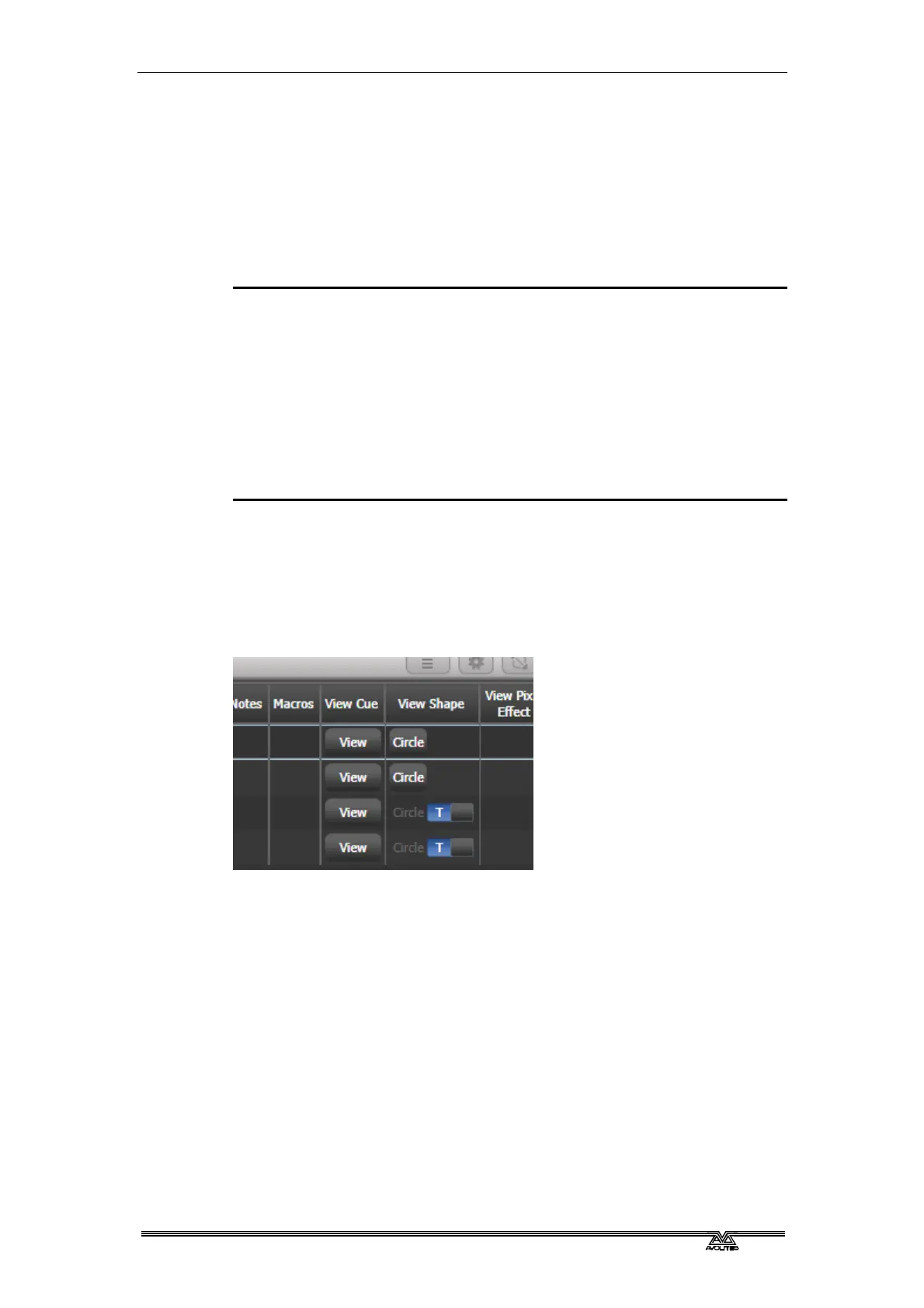
Cues contai
ning shapes have a button for each shape.
In the following cues where shapes are tracking, an option switch is
shown for each active shape.
T – Allows the shape to track to the next cue
B – Blocks the shape so it will not appear in following cues
The cue itself can also have options set to block all shapes, see
section 9.6.7.
You can al
so block attributes for shapes independently during
recording using the @ menu. Select the Attribute using the attribute
bank buttons, press @ then the FX group button. The softkeys will
then give the options [Block Shape] and [Unblock Shape]. If an
attribute is set to Blocked the wheel display will show a “Blocked”
watermark.
If Shape Tracking is not enabled, shapes in each cue are independent
from each other. If an identical shape (with the same size and speed)


 To Next Page