Page 32 – 2. Setting up and using the console
TitanUniversal_Man_v10_QU.doc 15 March 2016
If a chase is being controlled, information about the chase is shown
here.
Above this, the screen shows which attribute group (Intensity,
Position, Colour, Gobo, Beam, Effect and Special) is selected (grey
box) and which are currently modified (blue circle).
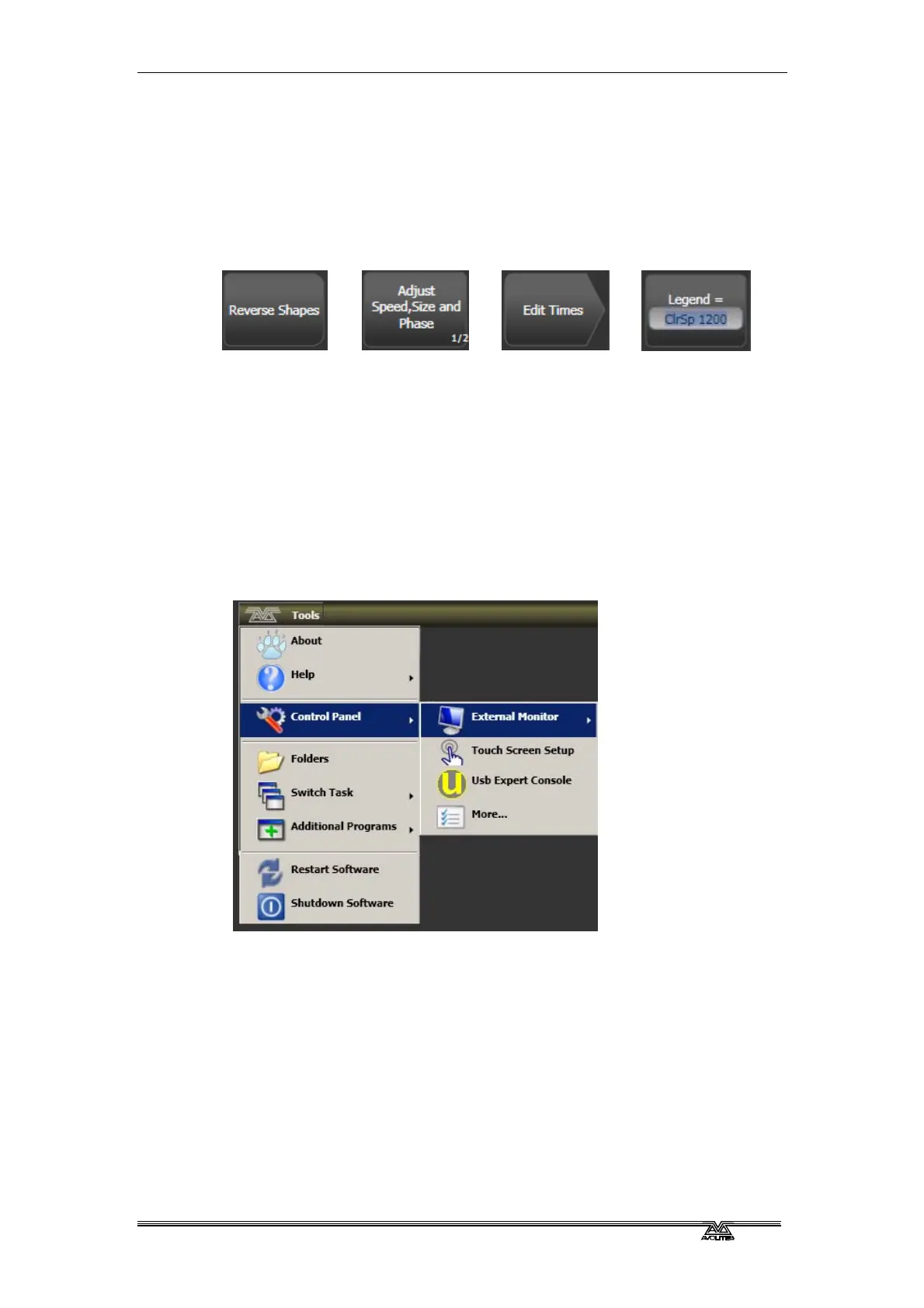
The appearance of the softkeys varies to indicate the type of actions
available:
Action button:
console will carry
out the action
shown
Option button:
cycles through a
range of options
New menu
button: jumps to
a new menu
Text entry
button: press
and enter text
using the touch
keyboard
2.3.3 The toolbar
Across the very top of the screen is the toolbar.
If you click/touch on 'Tools', you will get a menu giving you access to
some configuration functions (these options may change slightly
depending on the console).
About gives you information about the software version.
Help shows you the online manual.
Control Panel opens a sub-menu allowing changes to monitor
settings and to the USB expert console which links the front panel
controls to the system. The 'More…' option opens Windows Control
Panel allowing you to change the operating system configuration.



 To Next Page