2. Setting up and using the console - Page 31
TitanUniversal_Man_v10_QU.doc 15 March 2016
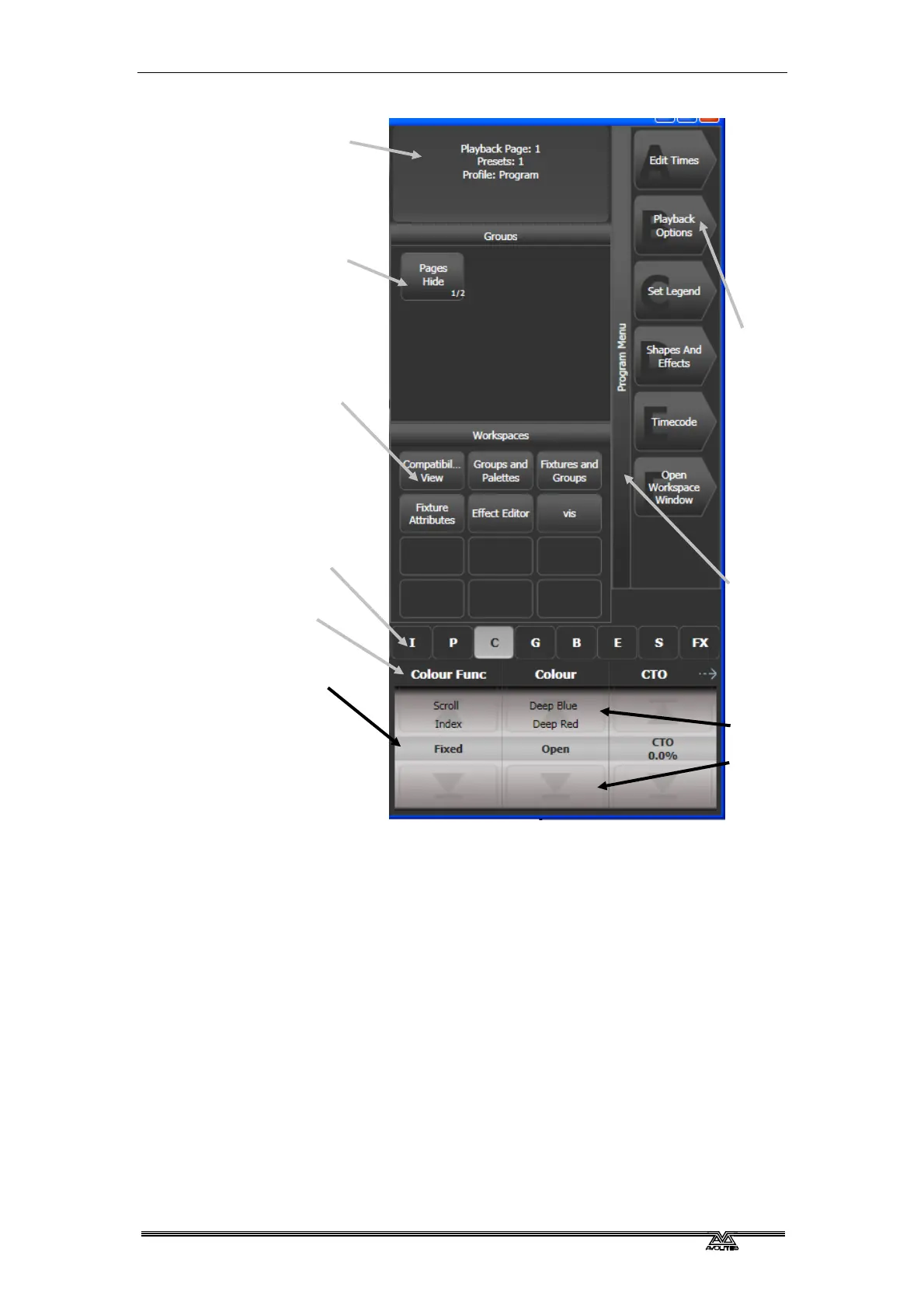
Down the right hand side of the screen, the functions of the A-G
menu softkeys are listed. If there are more functions than will fit on
one screen, [Previous] and [Next] buttons are provided to page
through the functions. You can either press the real button next to
the screen or touch the key on screen.
The vertical bar to the left of the softkeys shows you which menu you
are currently in. You can 'latch' the menu (so that you don’t have to
keep reselecting it) by pressing the Menu Latch button. The menu bar
turns red when latched.
The area to the left of this shows instructions to the user and
information from the console.
At the bottom of the screen, the current function of the wheels is
shown on a simulated roller. If fixture attributes are being set, this
shows the possible settings which are available on the fixtures. Above
the roller image a legend shows which attributes are being controlled
by each wheel and the centre of the roller shows the current
attribute. Touch the upper or lower segment of the roller to set the
attribute to maximum/minimum.
Attribute
groups
Menu softkeys
(showing softkey
letter)
Current
menu name
System
prompt
Wheel
attributes
Current
selection
Touch to
change up
or down
Workspace
selection
buttons
Context
buttons



 To Next Page