Page 116 – 6. Shapes and Pixel Mapper effects
TitanUniversal_Man_v10_QU.doc 15 March 2016
You can use shapes in a cue list and section 9.1.3 on page 185
describes how the shapes will behave as you go from cue to cue.
You can also adjust parameters of the shape at playback time using
the Select Shape menu, which is on the [Edit] menu of the Shape
Generator menu.
6.2 Key frame shapes
Key frame shapes allow you to create your own shape sequences.
You store a series of attribute settings as key frames and the shape
fades between them.
6.2.1 Creating a key frame shape
A key frame shape is created a bit like a chase, but the shape is more
flexible because you have lots of control over the way the attribute
changes between key frames, and you can change the way it spreads
across multiple fixtures. It’s also (unlike chases) easy to save in cue
lists.
You can create the key frames either in Channel Mode by manually
setting up a state and pressing [Add Frame], or in Quick Build mode
by selecting palettes or cues which will be automatically saved as a
frame as you select them. Use the [Record Mode] softkey to select
the mode.
In this example we’ll create a colour shape, but you can create key
frame shapes for any attribute or mixture of attributes. If you create
key frames using palettes, the key frames will update if the palette is
changed.
1> At the main menu press [Shapes and Effects] then [Key Frame
Shapes].
2> Press [Create] to start a new shape.
3> Select fixtures and set the colours for the first key frame.
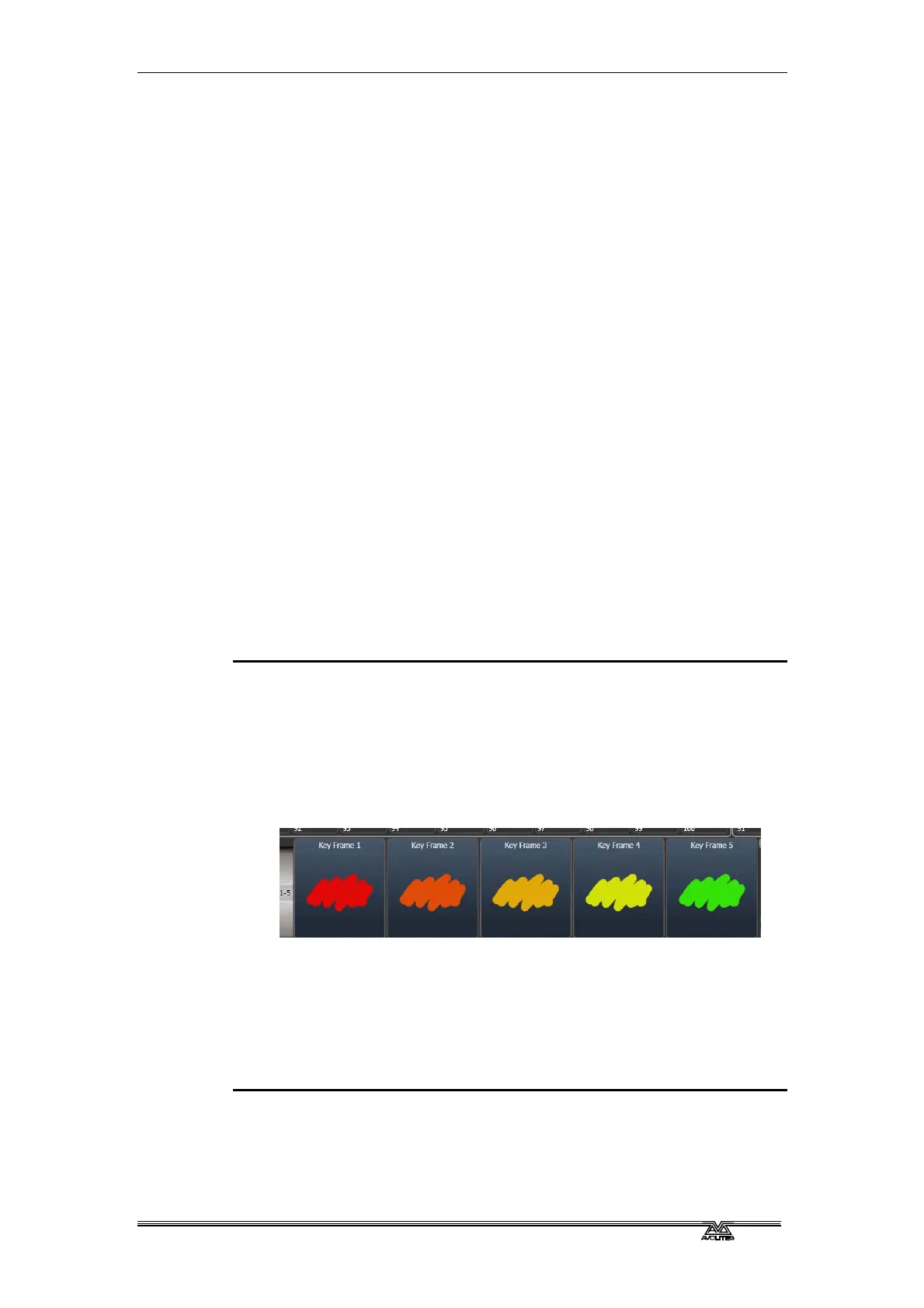
4> Press [Add Frame]. An automatic legend for the first key frame
will show above the first playback fader. (Press [Playbacks
Display Visible/Hidden] to return the playback faders to normal,
if you want to select one in Quick Build mode).
5> Continue to set colours and press [Add Frame] until you have
created all the steps you want.
6> Press [Finish Recording Frames] when you’ve finished.
7> Use the Effect Editor window to change the Spread, Overlap
(see below)
8> Save the shape to a cue if you want to use it in a show (see
section 7 on page 149).
• You can also use the Unfold button to switch the playbacks
between normal mode and key frame display mode.
• Setting the [Frame Number] softkey to an existing frame
number allows you to [Replace] or [Delete] a frame. Clicking



 To Next Page