2. Setting up and using the console - Page 35
TitanUniversal_Man_v10_QU.doc 15 March 2016
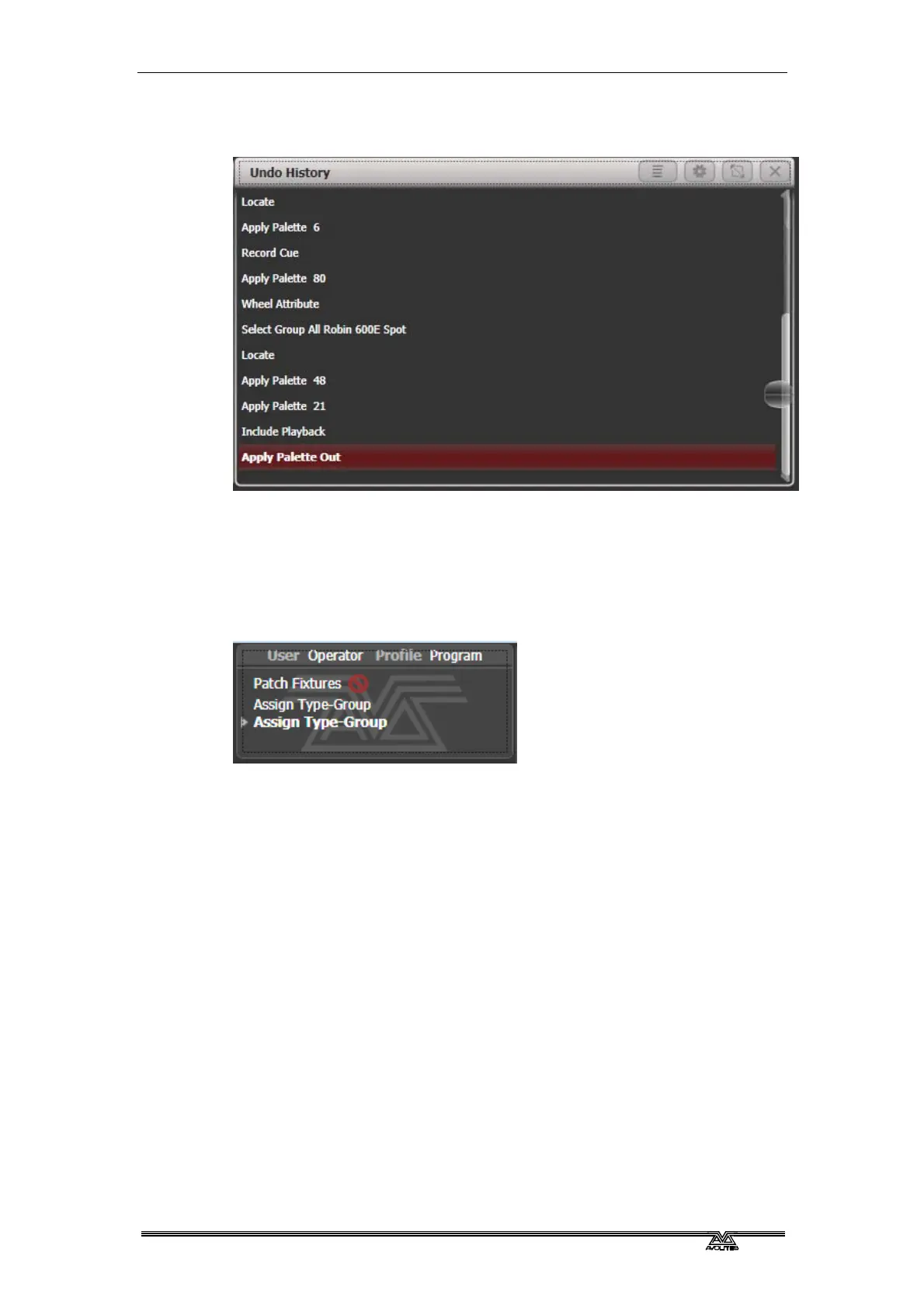
The current action is shown in red in the Undo window and in bold in
the prompt.
You can touch this window to undo all actions up to the one you
touch. Once actions have been undone they are shown greyed out,
and can be redone by touching them.
You can also use the Undo and Redo buttons to step through the list.
Some actions cannot be undone which is indicated with the “not
allowed” symbol as shown below.
If you are in multi-user mode, the Undo History can show a column
for each user with undo points for that user – open the Context menu
and select [Show All Users and Consoles]. The default setting is
[Show Only Current User].
2.3.8 Key macro buttons
Lighting programming can sometimes require a repeated sequence of
button presses. You can record sequences of keypresses and play
them back with a single keypress – this is called a macro. The macro
can reproduce the timing of your button presses (Real Time mode) or
just repeat the sequence of buttons with no timing (Full Speed
mode).
Real Time mode is useful when you are using a macro to reproduce a
lighting effect, for example a sequence of flash buttons. Full Speed
mode is more useful for admin tasks such as changing console mode.
Macros can be stored in the 20 dedicated buttons to the right of the
wheels, and there is also a Macro button window which can be shown
in the workspace. The macro buttons correspond to the first 20
macros in the window.



 To Next Page