4. Controlling dimmers and fixtures - Page 83
TitanUniversal_Man_v10_QU.doc 15 March 2016
of the numeric keypad and may be labelled Channel on older
consoles.)
You can also use Select If with the @ and Through buttons on the
numeric keypad to select fixtures set to a particular intensity.
@X: fixtures set to intensity X
@ Through X: fixtures with intensity 0 – X
@ X Through: fixtures with intensity X – Full
@ X Through Y: fixtures with intensity between X and Y
@@: fixtures with intensity above 0.
Intensity levels may be input as 0-9 or 00-99 depending on the User
Setting [Channel Levels Set In] (see section 13.1.3 on page 233).
4.1.12 Attribute groups – IPCGBES-FX
To make life a bit simpler, the console groups together attributes
which have similar effects, using the letters IPCGBES-FX.
I-Intensity (dimmer, strobe shutter)
P-Position (pan, tilt)
C-Colour (colour wheel, CMY mixing)
G-Gobo (gobo wheels, gobo rotate, gobo position)
B-Beam (iris, focus, zoom, beam shaper)
E-Effects (prism)
S-Special (motor speeds)
FX-Shapes, Pixel Mapper
These groups are used to select which attributes you want to work
with in many of the functions on the console, particularly when you
are “masking off” certain attributes from being saved.
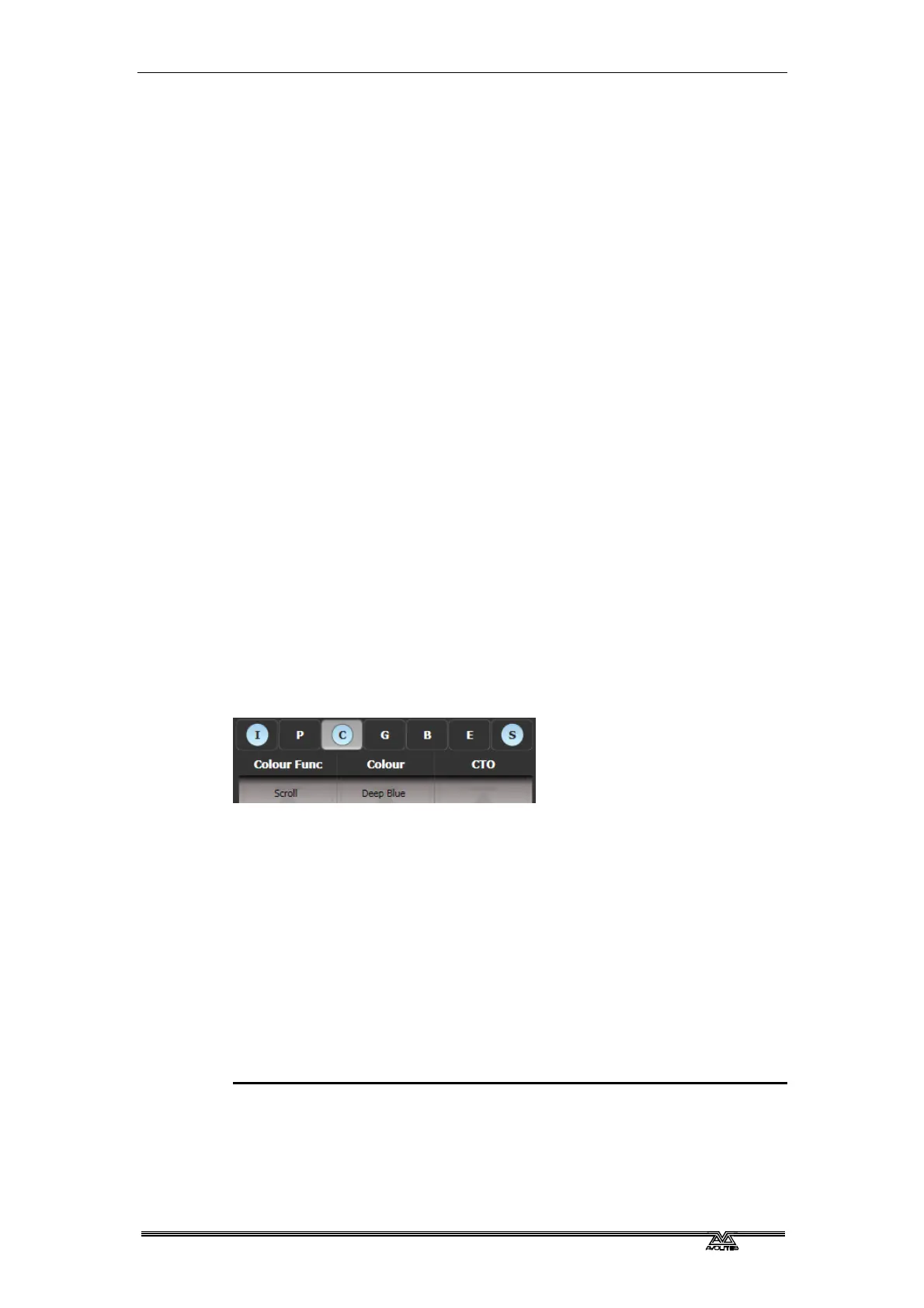
Above the attributes roller on the screen, the console shows you
which attribute group you are currently changing (the grey box). The
Attribute Group is also highlighted in blue if the programmer contains
any of those attributes. For example in the image above we are
currently changing Colour attributes, but Intensity and Special
attributes have also been modified.
4.1.13 Stepping through selected fixtures one at a time
If you have selected a range of fixtures, or a group, the console has
functions to step through the selected fixtures one at a time. This can
make it easier to program a range of fixtures because you don’t have
to select each one manually.
This mode uses the Prev/Next/All/Hilight buttons.
1> Select a range of fixtures or a group.
2> The Prev and Next buttons will select the fixtures in the range
one at a time (in the order you selected them).



 To Next Page