Page 208 – 10. Capture visualiser
TitanUniversal_Man_v10_QU.doc 15 March 2016
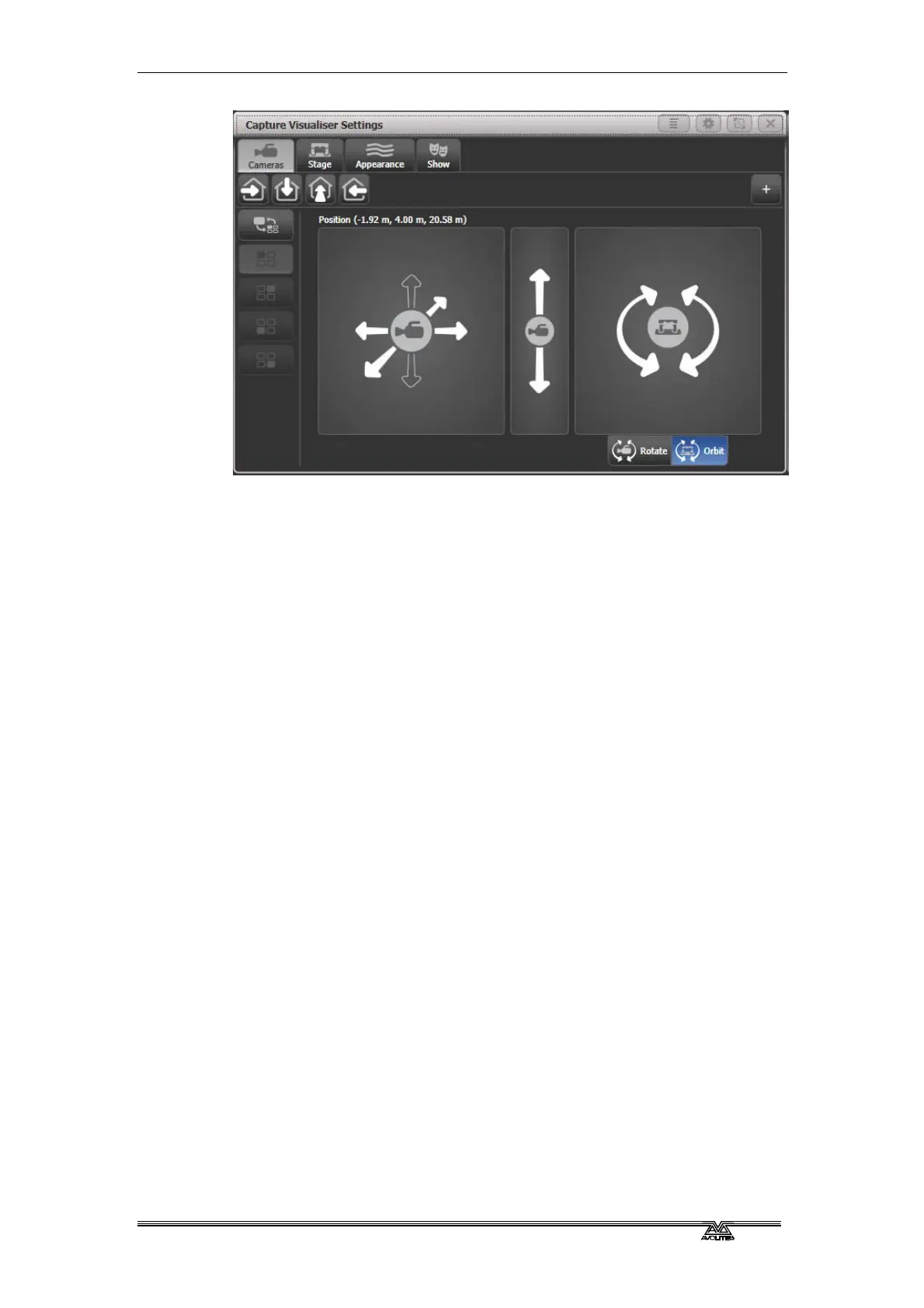
The left hand pad moves the camera left and right, and towards and
away from the stage.
The middle pad moves the camera up and down.
The right hand pad can be set to rotate or orbit mode
• Rotate: turns the camera to face left, right, up, down
• Orbit:orbits the camera around the stage in a circular path
keeping it pointed at the same object.
Press the [Move Camera] context button to link camera movement to
the wheels. This also opens the Set Coordinates menu with softkeys
allowing you to enter numeric camera positions.
Press the [Rotate Camera] or [Orbit Camera] context buttons to link
camera rotation or orbit to the wheels and allow numeric entry on the
softkeys.
10.1.4 Capture Appearance options
The Appearance tab of the Settings window allows you to set the
following parameters:
• Ambient lighting (background light level)
• Atmosphere (haze/smoke density)
• Atmosphere contrast (mix between haze and moving smoke
effects – 0%=all haze, 100%=all smoke)
• Atmosphere speed (rate of change of moving smoke effect)
• Exposure adjustment (camera brightness control)
• Bloom amount (visible halo around lights)
• Rendering settings detail (this affects the refresh rate of the
simulator. If you have a lot of beams visible you may need to
change this to Low to improve the refresh rate).


 To Next Page