11. Running the show - Page 217
TitanUniversal_Man_v10_QU.doc 15 March 2016
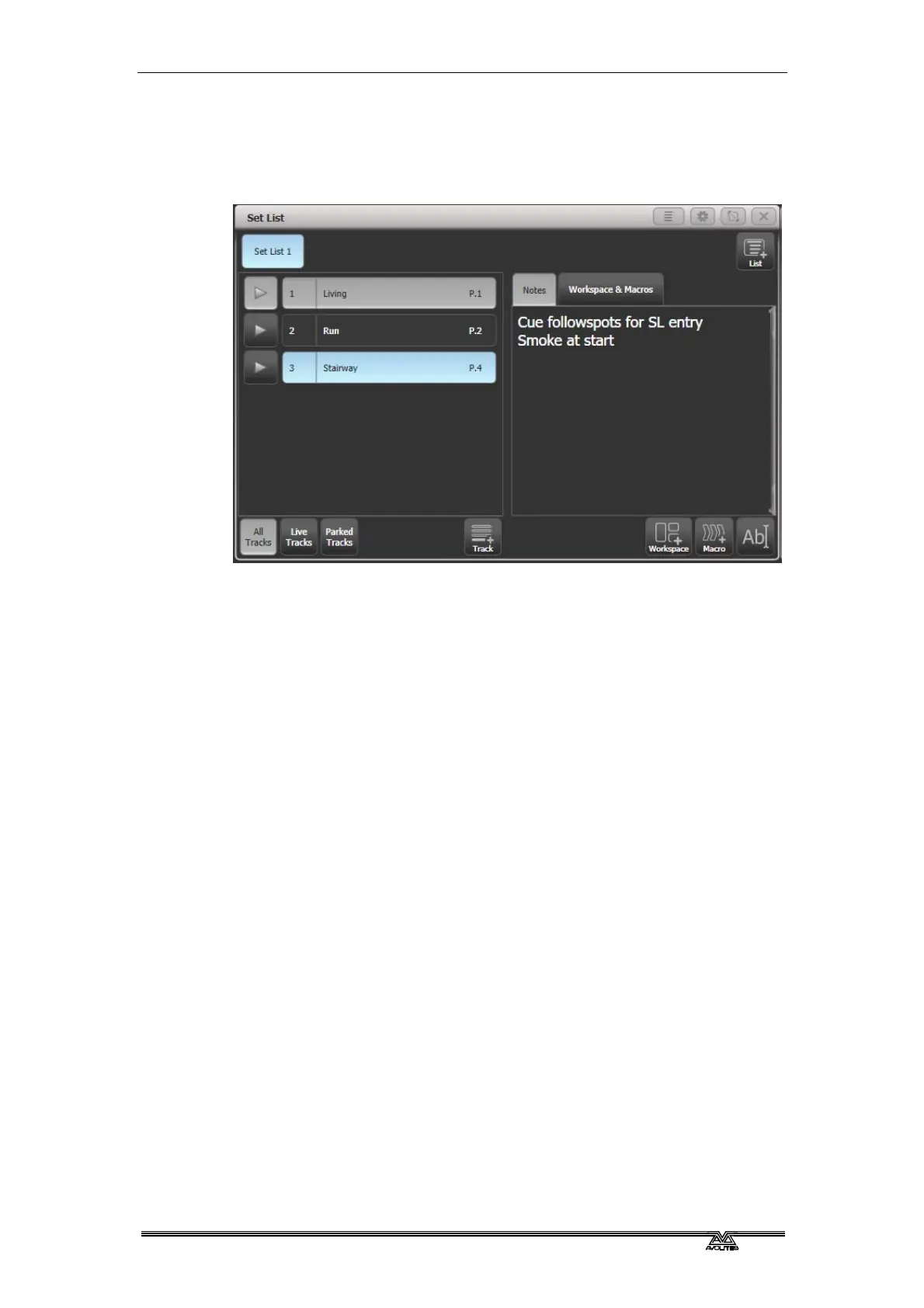
To open the Set List window, click [Open Workspace Window] then
[Set List].
The Set List feature works best if you arrange your playbacks to have
a page of playbacks for each song in the show.
A set list is made up of tracks. When a track is added it automatically
links to the current page. Pressing the play button next to the track
will automatically select the correct playback page (except on Pearl
Expert, because the rollers cannot be moved automatically).
11.4.1 Creating a Set List
To create a Set List, click the plus button in the top right corner of
the window. You can choose Empty, Pages, and Build. Pages will
automatically create a set list using the legends of your existing
playback pages, one page per track. Build allows you to select the
pages in the order you want them. Or you can manually add a track
using the plus button below the track list.
11.4.2 Configuring tracks
Enter notes by selecting a track and clicking the text entry button,
bottom right, or the Edit Note context menu button.
• You can temporarily remove a track from the set list using the
Park Track context menu button.
• If you prefer to operate by using the Page+/Page- buttons, you
can change the function of these buttons to step through the
tracks in the set list window, using the Page Mode context
menu button. When Page Mode is set to Set List, the
Page+/Page- buttons are reassigned to step through tracks in
the Set List, and the playback pages will automatically change
as programmed in the Set List. Set Page Mode to Normal to
restore normal operation. (Not available on Pearl Expert).
• You can copy, move and delete tracks using the appropriate
function buttons on the console.
• You can change the legend of the Set List or of individual tracks
using the [Set Legend] option.


 To Next Page