10. Capture visualiser - Page 209
TitanUniversal_Man_v10_QU.doc 15 March 2016
10.2 Visualising using Capture
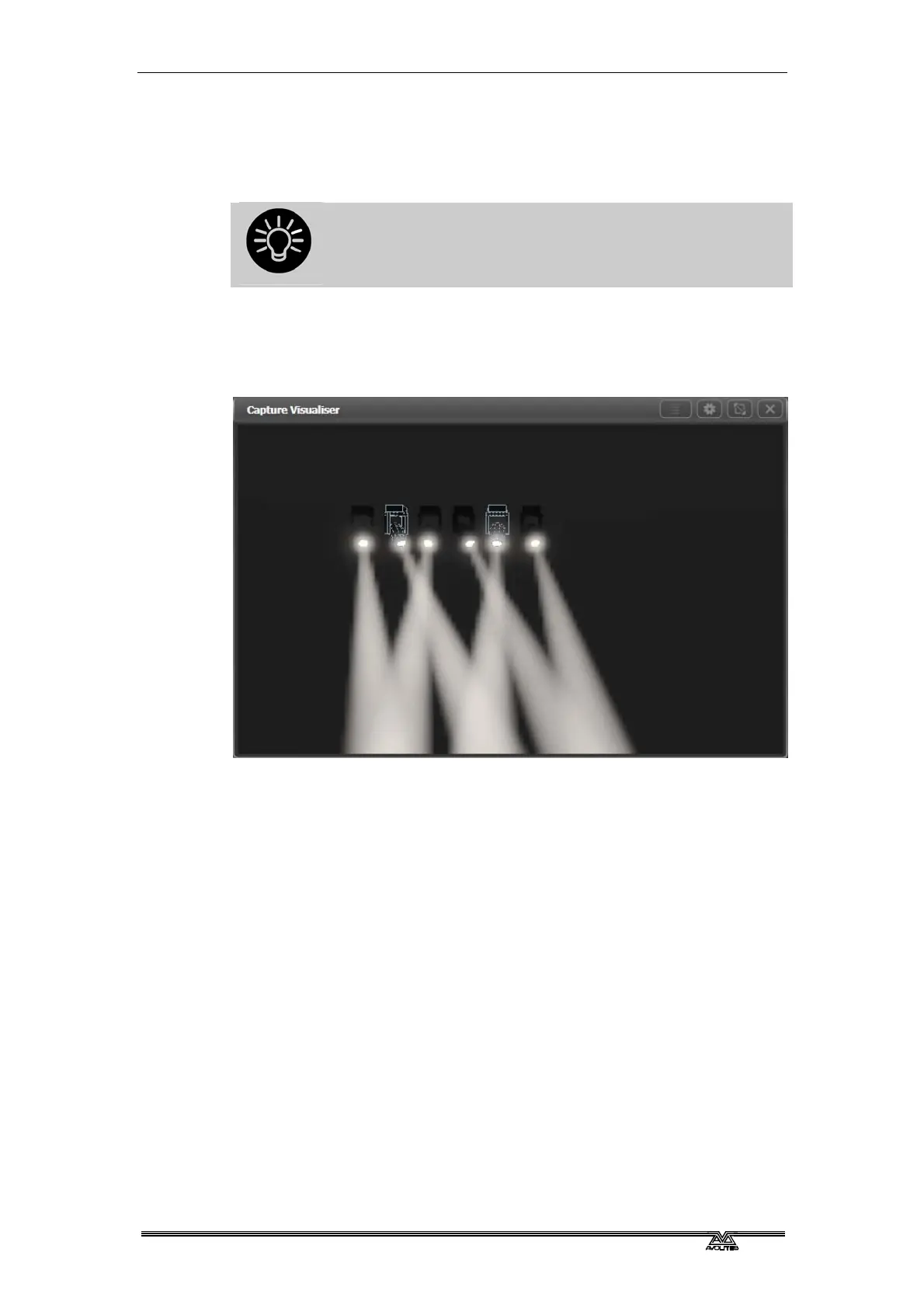
Mostly you don’t have to do anything special with Capture once you
have it set up. Just operate the console as normal and Capture will
show you what would be happening on the stage.
If you use the visualiser a lot, it’s very handy to have an
external monitor to show it on. Otherwise you
constantly have to switch between the workspace
windows and the visualiser window.
10.2.1 Fixture selection
If you select fixtures on the console, the fixtures will highlight in
Capture so you can see where they are in real life.
10.2.2 Camera views
Capture lets you can see how the lighting will look from any seat in
the house. Even if you’re in the venue with the full rig in front of you
this means you can see the look without having to run all over the
venue.
Set up multiple cameras as described in the previous section and you
can either click between them or show the 4 standard camera views
as a quad split.
10.3 Capture Show files
The Capture stage is automatically saved within the Titan showfile.
The Capture stage can also be exported and imported separately from
the Titan show. This allows standard stages or rigs to be transferred
between Titan shows.
Select the Show tab in the Capture Settings window to export and
import shows.
10.3.1 Exporting shows
Exported Capture shows can be loaded into other Titan shows or into
the full version of Capture for producing documentation.


 To Next Page