2. Setting up and using the console - Page 41
TitanUniversal_Man_v10_QU.doc 15 March 2016
2.5.1 Installing Titan Simulator
You will need a Windows user account with Administrator privileges to
install or run Titan Simulator.
From v7, Windows XP and Vista are no longer supported
by Titan software. Your PC must be running Windows 7,
Windows 8 or Windows 10.
Capture visualiser requires a capable graphics card. If
you have problems, ensure you have installed the latest
drivers from the graphics card manufacturer.
Simply download and run the installer from the Avolites Download
website. The first time you run Simulator you will need to license the
software with the Avolites website. For this you will need an account
set up on the Download site, which you should go and create now if
you don’t already have one.
To license the software, start Titan Simulator and choose Internet
Activation (the software will ask you for your Avolites Download user
name and password and automatically retrieve your license), or
Manual Activation (you have to copy and paste the Computer Key into
the form on the Titan Simulator webpage).
Once licensed Titan Simulator will run in 'Offline' mode which is
shown towards the top right of the screen. In Offline mode the
software will function as normal including Visualiser and Art-Net
outputs. However periodically random DMX values will be sent down
all DMX outputs, please wait for this to stop before continuing
programming.
2.5.2 Running Titan Simulator
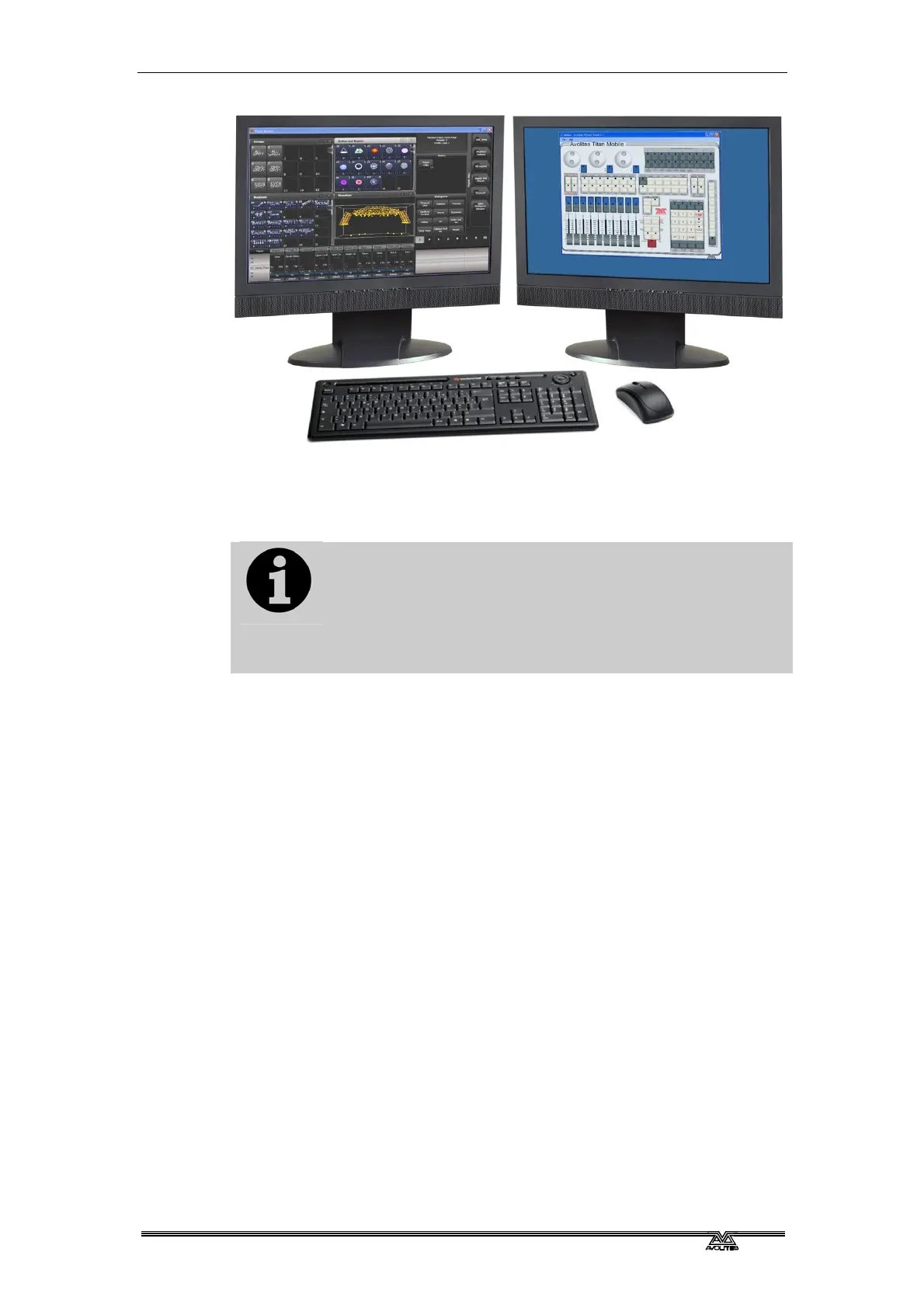
When you start the simulator you need to select which console you
are simulating. The simulator will then open a Virtual Panel, which
replicates the controls of your chosen console, and monitor windows
for each of the monitor outputs.



 To Next Page