9. Cue Lists - Page 191
TitanUniversal_Man_v10_QU.doc 15 March 2016
9.3 Editing cue lists
9.3.1 Playback View window
The easiest way to edit a cue list is using the Playback View window
(press Window Open then the select button for the cue list to open
it
). This shows a grid with each cue and allows you to change most
features of the cue. Click on the item you want to change in the grid,
and the softkeys will offer you the different options.
To change multiple cues at once, draw a box across the items you
want to change.
The Intensity View window is useful for seeing the state of all
fixtures, see section 4.2.2 on page 90.
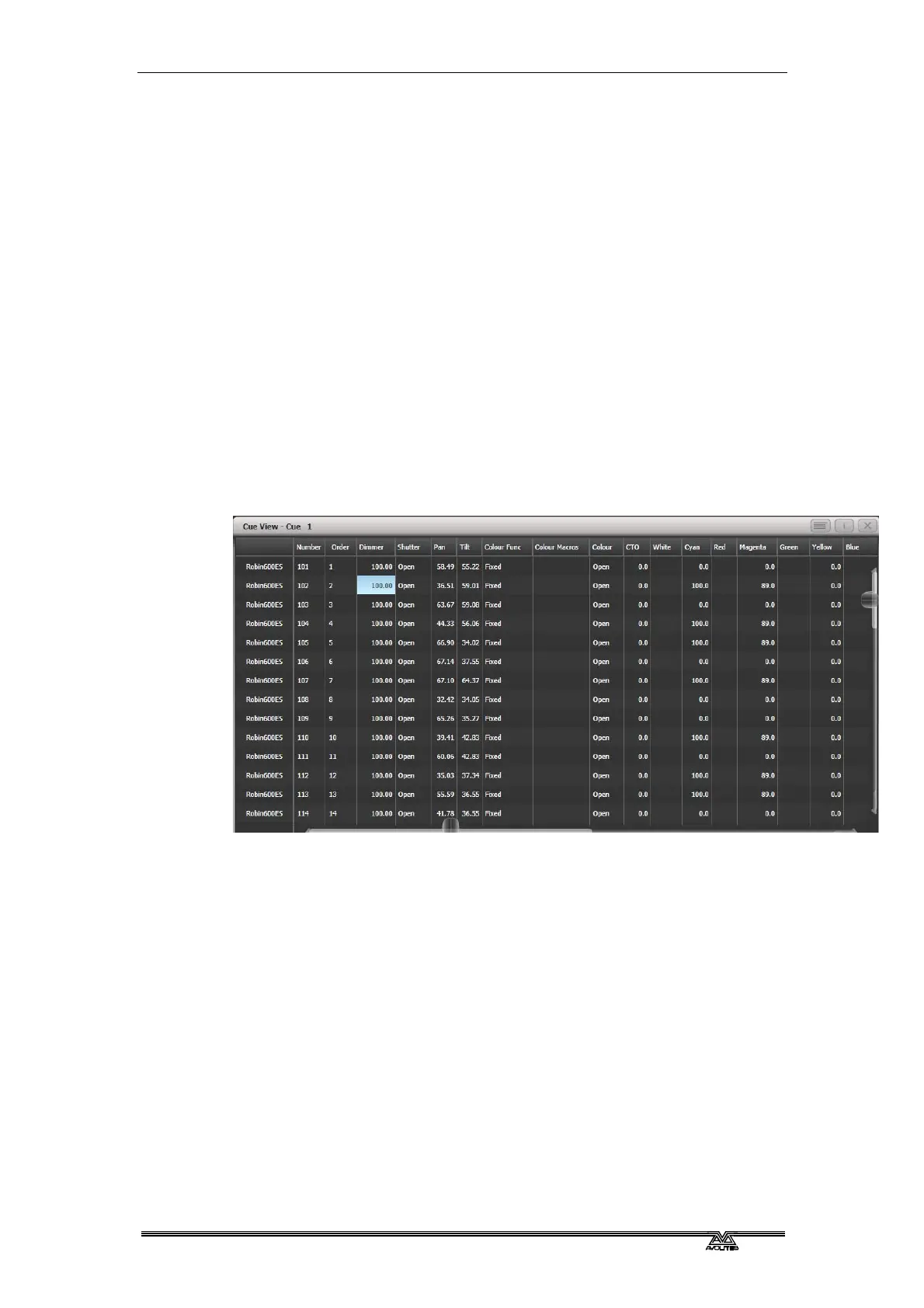
9.3.2 Editing values in Cue View window
You can edit the value of every fixture in each cue using the Cue View
window. Press the View Cue button at the right hand end of the
Playback View window.
You can then click on the values you want to change and edit them
using the softkeys.
• The context menu buttons allow you to view levels, shapes,
effects and times for each attribute of each fixture in each cue.
• If levels are set from a palette, the View Palettes button either
shows you the palette used, or the underlying value.
• If the View Tracking Values button is selected, tracking values
(values which have tracked through from another cue rather
than being stored directly in this cue) are shown in light grey.
9.3.3 Moving and copying cues
You can copy or move cues within a cue list or to other cue lists.
Either click and drag the cue in the Playback View window (press
Window Open then the select button for the cue list), or use Unfold
(next secti
on), or you can use a command-line style series of
keypresses.



 To Next Page