Page 60 – 3. Patching
TitanUniversal_Man_v10_QU.doc 15 March 2016
• You can set the same legend for multiple fixtures by selecting a
group of fixtures after pressing [Set Legend].
• You can automatically allocate User Numbers for multiple
fixtures by selecting a group of fixtures, then using softkey A on
the Set Legend menu. The first fixture will have the User
Number you entered, and the other selected fixtures will be
given a number increasing by 1 for each fixture.
• You can set a legend for the current page of fixtures using the
[Set Legend] function from the main Program menu. The
legend is shown on the touch button for the page and on the
HUD.
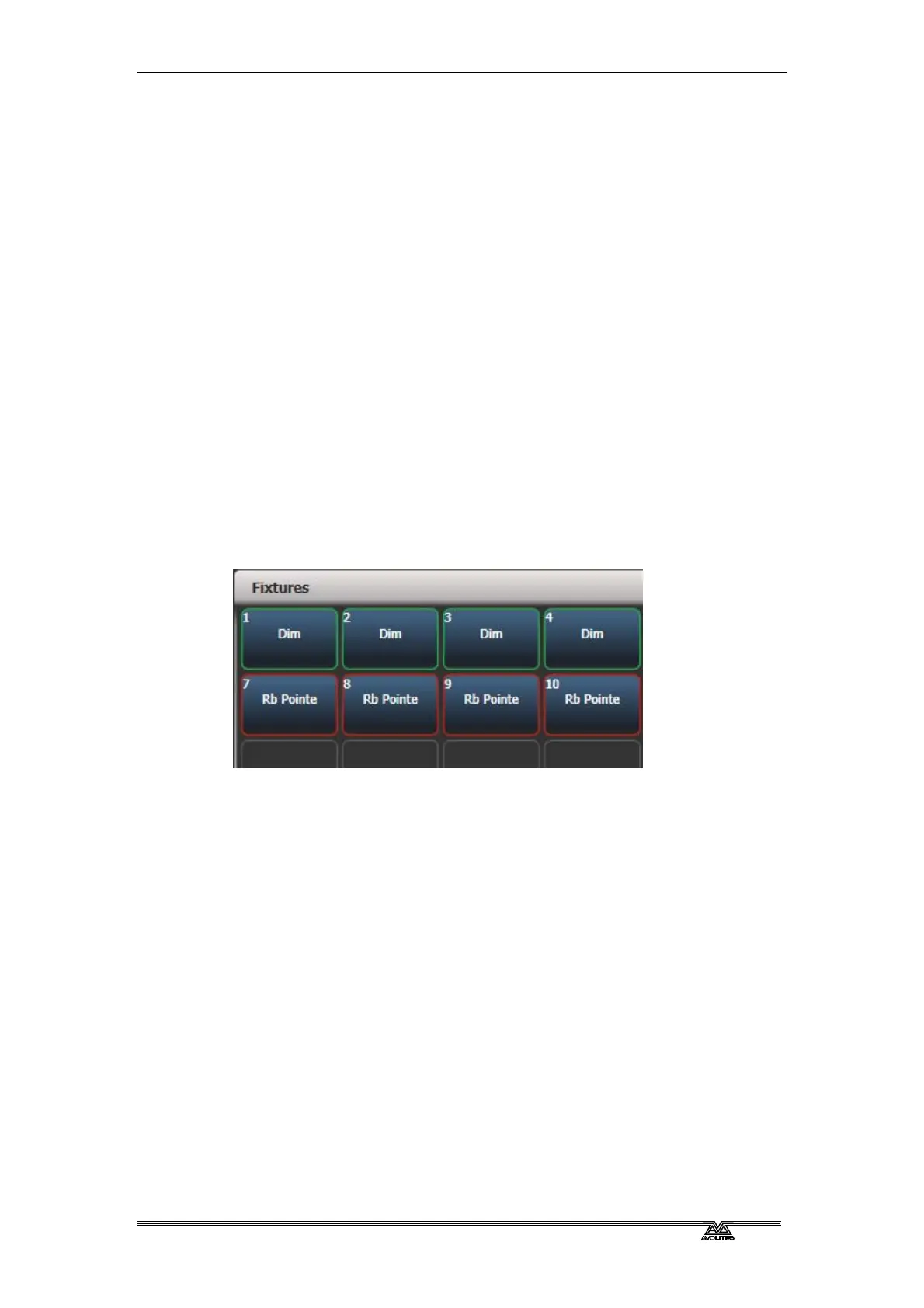
3.2.6 Fixture button halo
You can configure fixture buttons to have a “halo” colour which helps
you to find them quickly. Halo colours can be set manually for each
fixture (the default setting), or automatically by fixture type using the
fixture colours used in the patch window..
To set a manual halo colour, click [Set Legend], click the fixture
button (or select multiple buttons) then select the [Halo] option. A
colour picker will open to let you set the colour, or pressing [System
Colours] will give you colour options on the softkeys. A [Remove
Halo] softkey lets you remove the colour.
To enable automatic halo colours, hold Avo and select [User
Settings], then [Handles], then set Fixture Halos to [Auto]. Fixture
buttons will then be coloured to match the automatic fixture colours
used in the Patch window.
Halo colours are also shown in the Intensity View and Show Library
workspace. In list views such as DMX, Channel Grid, Cue View and
Palette view the halo colours are shown as a bar to the left of the list
– this uses the user halo colour if one is set, otherwise the automatic
colour is used. The User Setting does not affect this display.



 To Next Page