4. Controlling dimmers and fixtures - Page 71
TitanUniversal_Man_v10_QU.doc 15 March 2016
4. Controlling dimmers and fixtures
When you are programming a show, and sometimes when you are
running a show, you need to manually control the fixtures and
dimmers to set the intensity, position, colour, etc. To do this you first
select the fixtures you want to change using the select buttons, then
you set the attributes of those fixtures using the Wheels and Attribute
buttons.
You can also set fade/timing information for each attribute of each
fixture which is treated as an additional attribute of the fixture.
4.1 Using the select buttons and wheels
4.1.1 Selecting fixtures and dimmers for control
To select the fixtures or dimmer channels that you want to control,
you use the Fixture Select buttons to select the fixtures into the
Editor. You can select fixtures or dimmers individually, or several at
once. You can also use Groups to select multiple fixtures, see section
4.3.1 on page 92.
If the fi
xture is patched on a fader handle, press the blue button to
select the fixture.
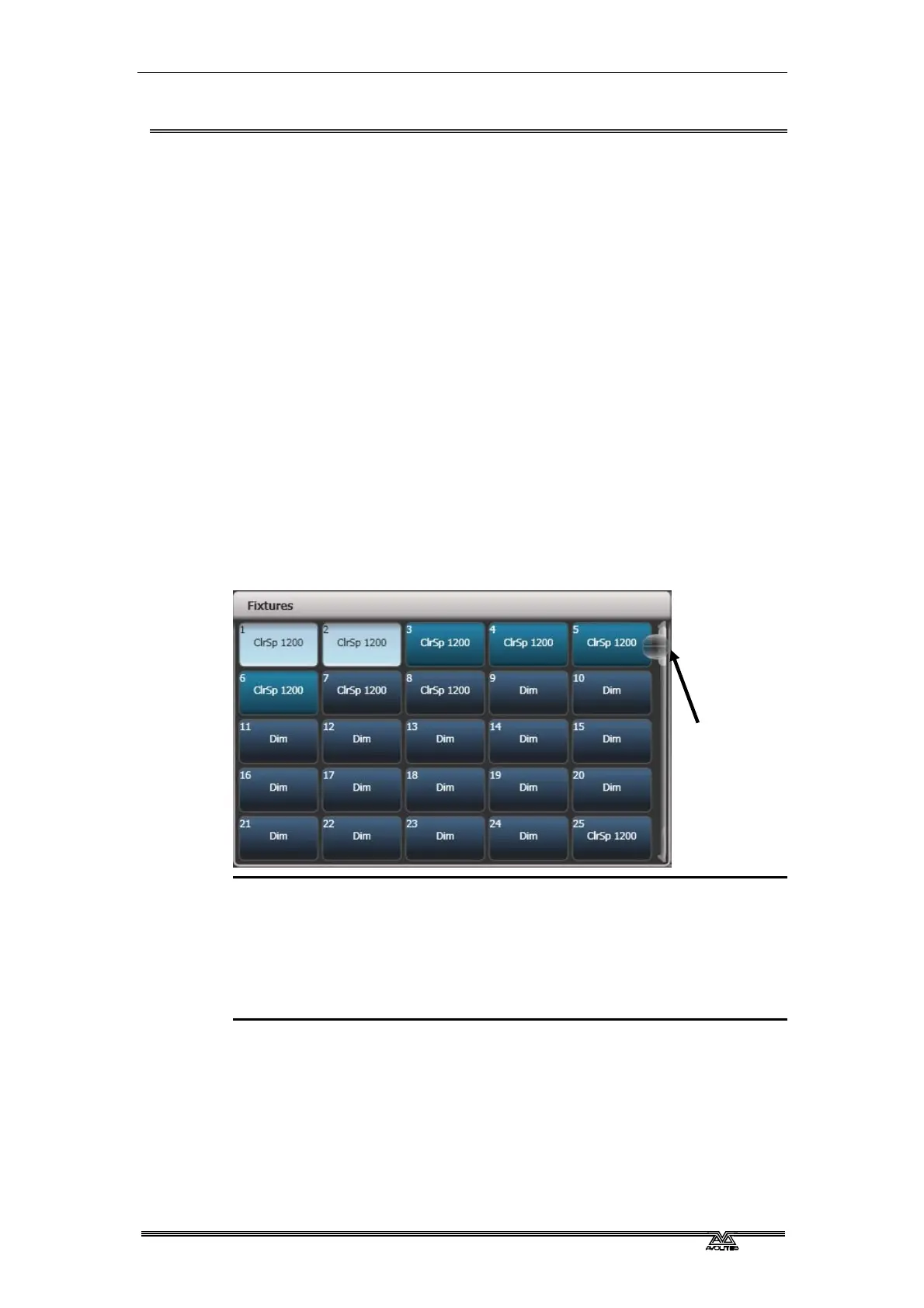
1> Press the Select buttons for the fixtures you want. Touch
buttons will light up pale blue when selected, physical buttons
will light brightly.
2> To select a range of fixtures, slide your finger across the touch
buttons to draw a selection box. For fixtures patched on faders,
hold down the Select button for the first fixture then press the
Select button for the last fixture.
Here are some other useful things to know:
• Press Locate (at the bottom right of the console) to light up the
selected fixtures in open white and move them to a central
position. See the next section for more Locate options.
• You can deselect a fixture by pressing the select button again.
• In the system display area of the touch screen, the console will
show you which fixtures are currently selected.
Scroll slider



 To Next Page