Page 80 – 4. Controlling dimmers and fixtures
TitanUniversal_Man_v10_QU.doc 15 March 2016
4.1.7 Setting attributes from the softkeys
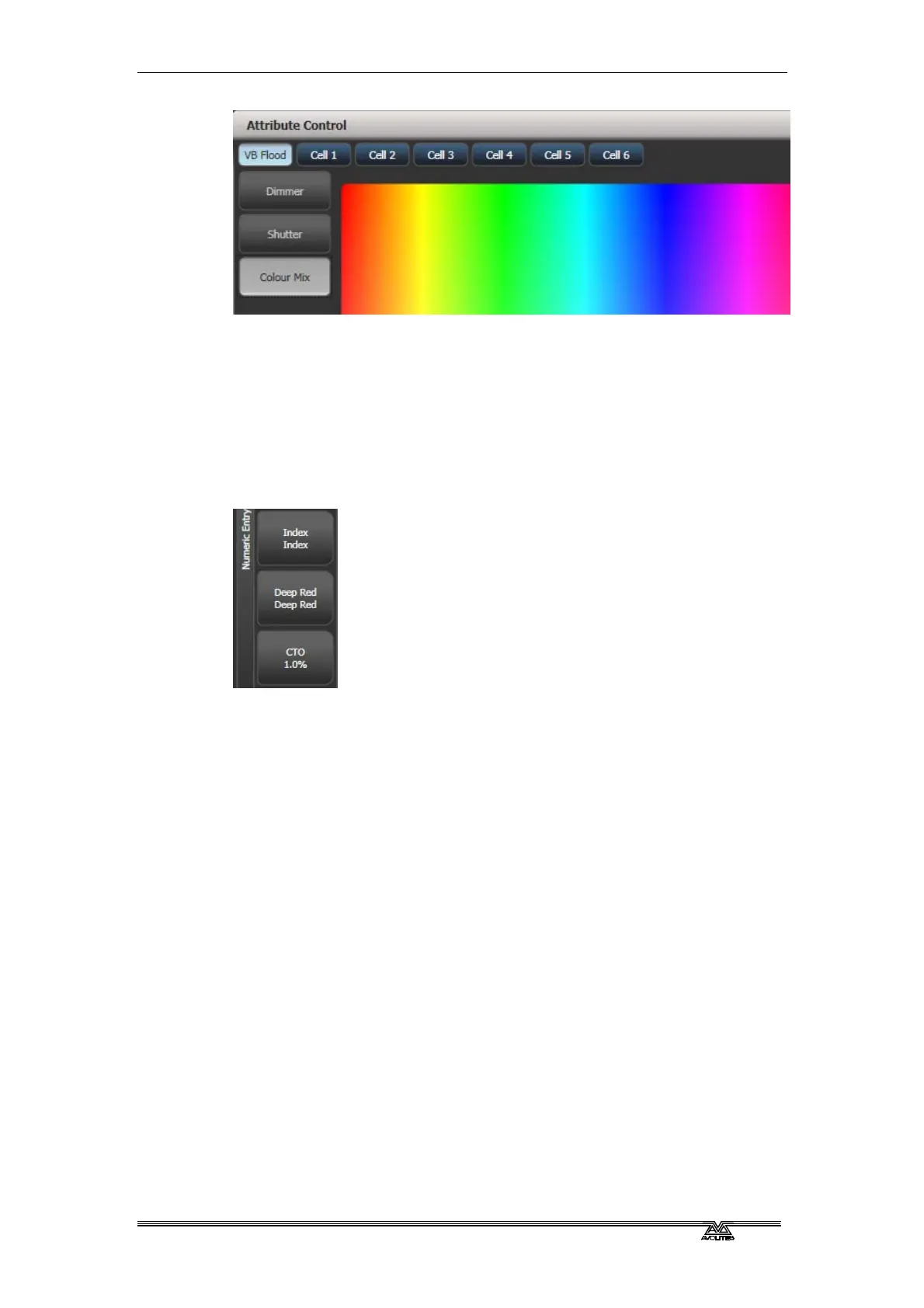
You can directly enter a numeric value for the attributes which are
live on the wheels. You must be at the main Program menu to do this
(keep pressing Exit until the vertical menu bar shows “Program
Menu”).
Type a number on the numeric keypad then press one of the softkeys
to set the value to the fixture. The Softkey legend will show what
effect your value is going to have (such as [Gobo 5], or [Deep Blue]).
For attributes displayed in percent, such as Dimmer, or Colour Mix,
you enter a value from 0-100 to set the percentage output. For
attributes where the output is divided up into ranges, such as colour
wheels, you enter the index of the range you want. For example to
select the 3rd colour (as displayed in the list above the wheel) you
would enter 3.
4.1.8 Adjusting attributes with the @ buttons
Pressing the @ button next to a wheel opens the Adjust Attribute
Value menu for that attribute.
You can also open this menu by touching the centre of the wheel view
for the attribute, or by clicking on the attribute in the Channel Grid
window.
The menu gives you the following functions:
• Select Function: gives you shortcuts on the softkeys to the
possible settings for the attribute (for dimmers, a range of
values is provided).
• Touch/Clear: places the attribute in the programmer or
removes the attribute from the programmer
• Locate: locates the attribute (does not place in programmer)
• Release: releases the attribute



 To Next Page