Page 28 – 2. Setting up and using the console
TitanUniversal_Man_v10_QU.doc 15 March 2016
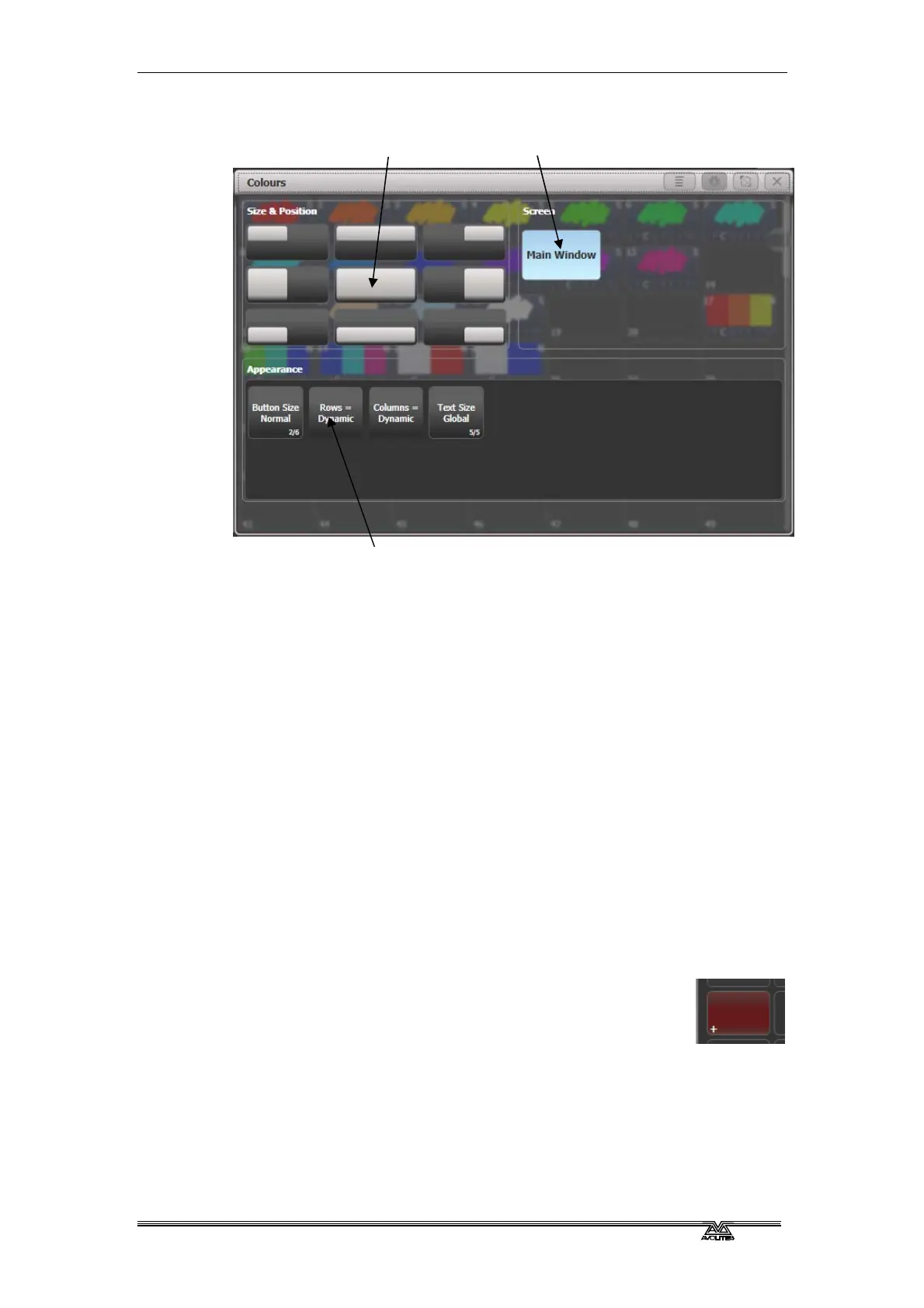
As well as the standard window sizes, you can set custom window
sizes and positions using the Window Layout button. See section
13.2.2 on page 234 for details.
Saving workspace layout
You can save di
fferent workspace layouts to the Workspaces touch
buttons (to the left of the menu) by pressing Window Open then
[Record Workspace], then touching one of the Workspaces buttons.
Thi
s allows you to reconfigure the workspace at the touch of a button.
Workspaces are saved with the show.
Setting up and recording workspaces is described in more detail in
section 13.1 on page 233.
Quick record
Some windows – Groups, Workspaces, Playbacks, and
all t
he Palette windows - have a Quick Record function.
Set up what you want to record, then touch or click an
empty button once. The button will light up red with a +
sign. At this point you can enter a legend. Touch or click again to
store the item.
The Quick Record function can be disabled using Key Profiles (see
section 13.4.1 on page 242).
Standard window
positions
screen selection
Appearance options


 To Next Page
 Loading...

