2. Setting up and using the console - Page 29
TitanUniversal_Man_v10_QU.doc 15 March 2016
Legends and picture legends
All touch buttons can have legends set to remind you what they do.
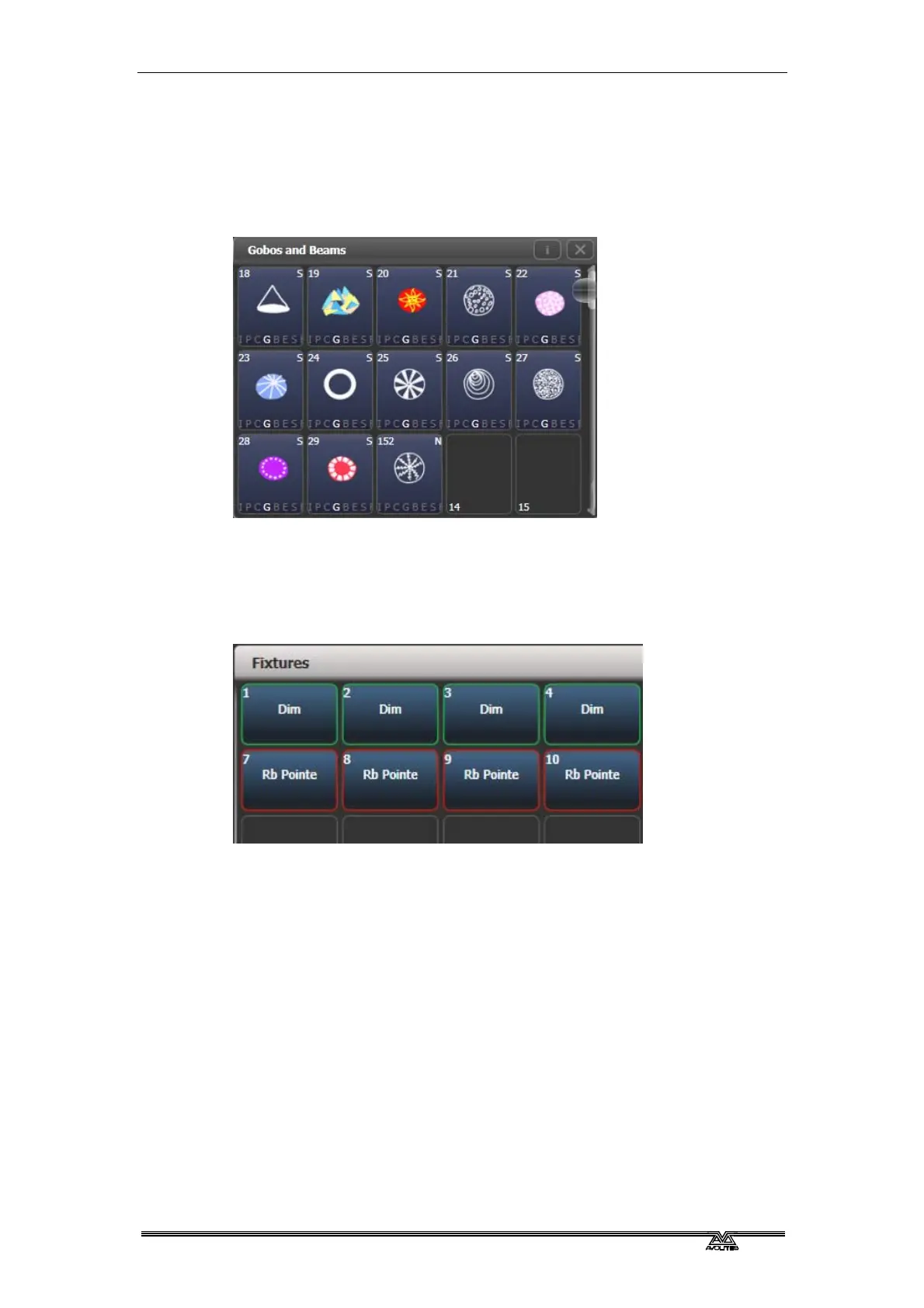
In addition, you can draw picture legends on the buttons. To do this,
select [Set Legend] then press [Picture]. A drawing space will open
on the touch screen for you to draw the legend. There is also a library
of pictures to choose from including popular gobo designs.
Button Halo
You can set a custom coloured halo for fixture, group or palette
buttons. This can be really useful for identifying different types of
button at a glance. Select the [Halo] option on the Set Legends
menu.
If you set a halo on fixture buttons, the halo colour is also used in
other windows; fixture buttons can also have an automatic halo to
help identify different types of fixture. There is more information on
fixture halos in section 3.2.6 on page 60.
Button Layout
Buttons normal
ly resize automatically to suit the screen size and
resolution, however sometimes moving shows between different
consoles can make the number of rows and columns change, causing
buttons to move around. If you have set a particular layout you want
to keep (for example positioning fixtures to match the layout on
stage), open the Window Appearance menu using the Cog button and
set Button Size to [Button Size Set Rows & Columns]. You can then
set a fixed layout using the [Rows] and [Columns] buttons.


 To Next Page
 Loading...

