Page 76 – 4. Controlling dimmers and fixtures
TitanUniversal_Man_v10_QU.doc 15 March 2016
You can also touch the roller image on the screen to change
the attributes up or down by one. For continuously variable
controls like a dimmer, touching the roller will set the attribute
to full or zero.
3> Repeat from 1 to change other attributes of the selected
fixtures.
Some other things to know about attributes:
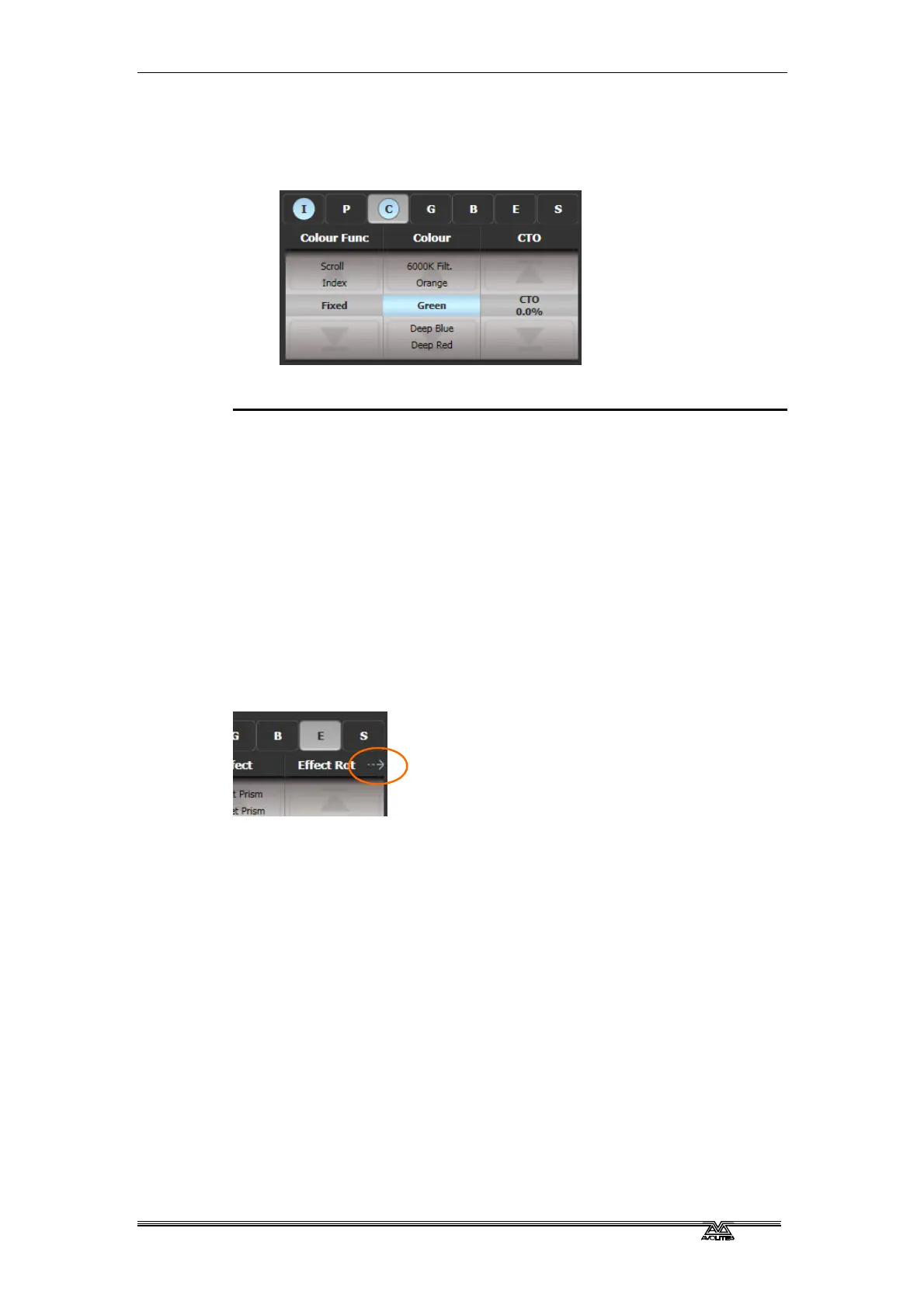
• If an attribute is in the programmer, it is highlighted (as shown
with the “Green” setting in the screen picture above). This
provides a quick way to see which attributes are in the
programmer.
• You can also select the attribute to be changed from the
softkeys by pressing the “Attribute Options” button.
• If the display above the wheels does not show the attribute
when you press the button, that attribute is not available on the
selected fixtures.
• If the wheel display shows a small arrow next to the legends,
this means that there are further attributes to control. Press the
Attribute button again to toggle through the attributes.
• The wheels operate in an “acceleration” mode. If you spin the
wheel fast, the fixture changes in larger steps. If you move the
wheel slowly, the fixture moves in its smallest increment.
• Holding down the Avo button while turning a wheel puts the
wheel into “Fast” mode. When in this mode, a single rotation of
the wheel changes the attribute you are controlling over its full
range. For example, if while moving the Pan wheel you hold
down Avo the fixture will make a complete pan movement
between end stops in one rotation of the wheel.
• Some LED colour mixing fixtures have a Virtual Dimmer
function (using the Intensity wheel) which offers intensity
control by mastering the RGB levels when the fixture itself does
not provide an intensity channel.



 To Next Page