6. Shapes and Pixel Mapper effects - Page 131
TitanUniversal_Man_v10_QU.doc 15 March 2016
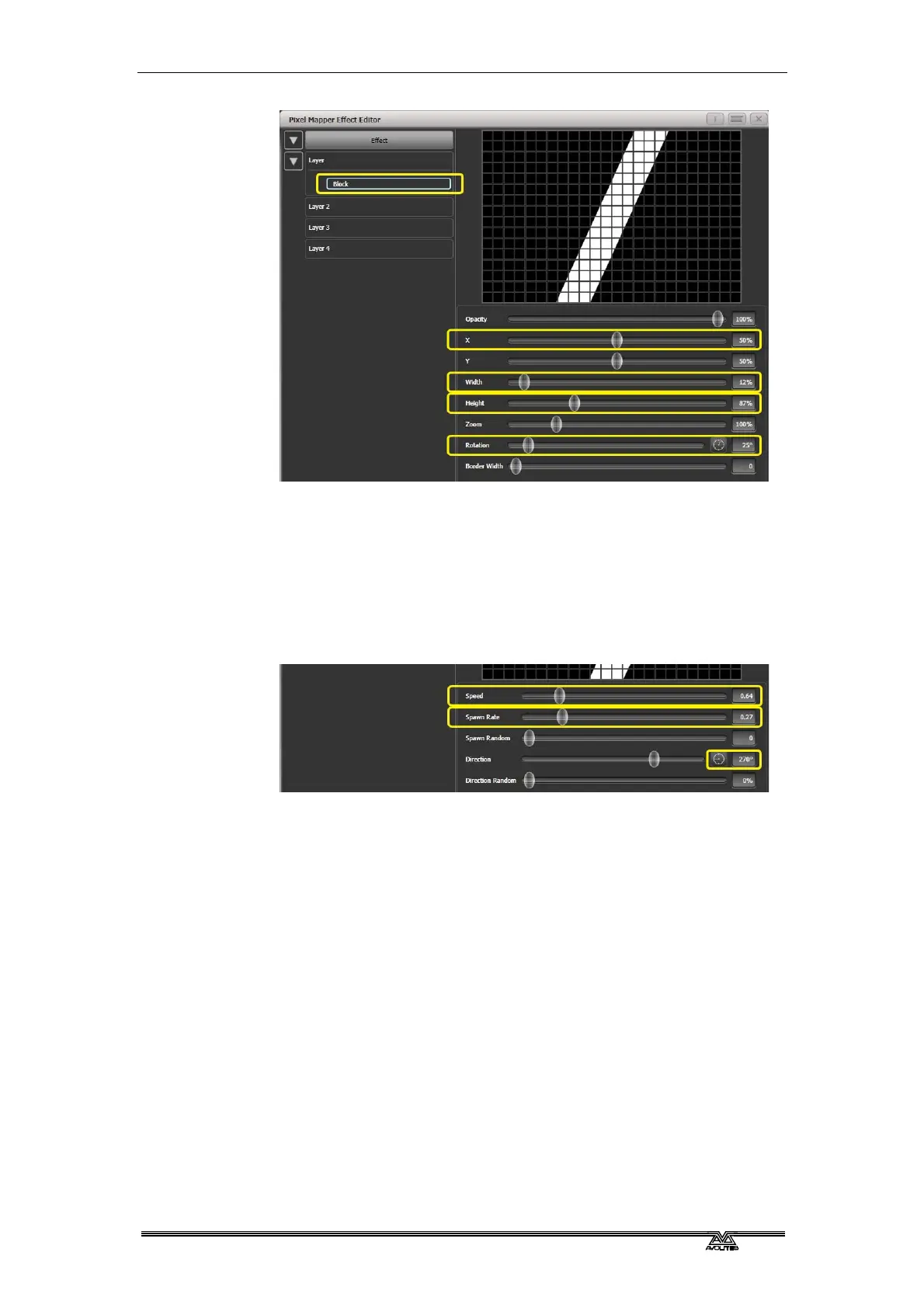
4> Click [+] again and choose Linear Movement animation
(represented as a block moving left to right).
On the right side of the 'Direction' slider there is a compass
button. Click on this four times until the direction reads 270
degrees. (By default the animation is set to 90 degrees or left
to right. Because we placed the block on the far right of the
screen we want it to move the other way. The compass gives
shortcuts to the more common directions in 45 degree
increments.)
Reduce 'Spawn Rate' until only one stripe is on screen the same
time. For this type of effect the value will usually need to be
quite low - approximately 0.2.
You might want to reduce 'Speed' slightly at this point. (Note
that a higher speed was initially useful for getting the correct
spawn rate above.)
5> Click on [Layer 2], select [+] and select the Swirl element
(represented by a 'fan' shape with four arms).
Increase 'Zoom' until it is as large as will fit in the screen.
Set 'Bend' to 0% for nice straight fan blade edges.
Set 'Points' to 3 (minimum) for a three bladed fan.
Set 'Thickness' to 50% for evenly sized segments.
Increase 'Border Width' to a low value so that we just have an
outline.



 To Next Page