Page 188 – 9. Cue Lists
TitanUniversal_Man_v10_QU.doc 15 March 2016
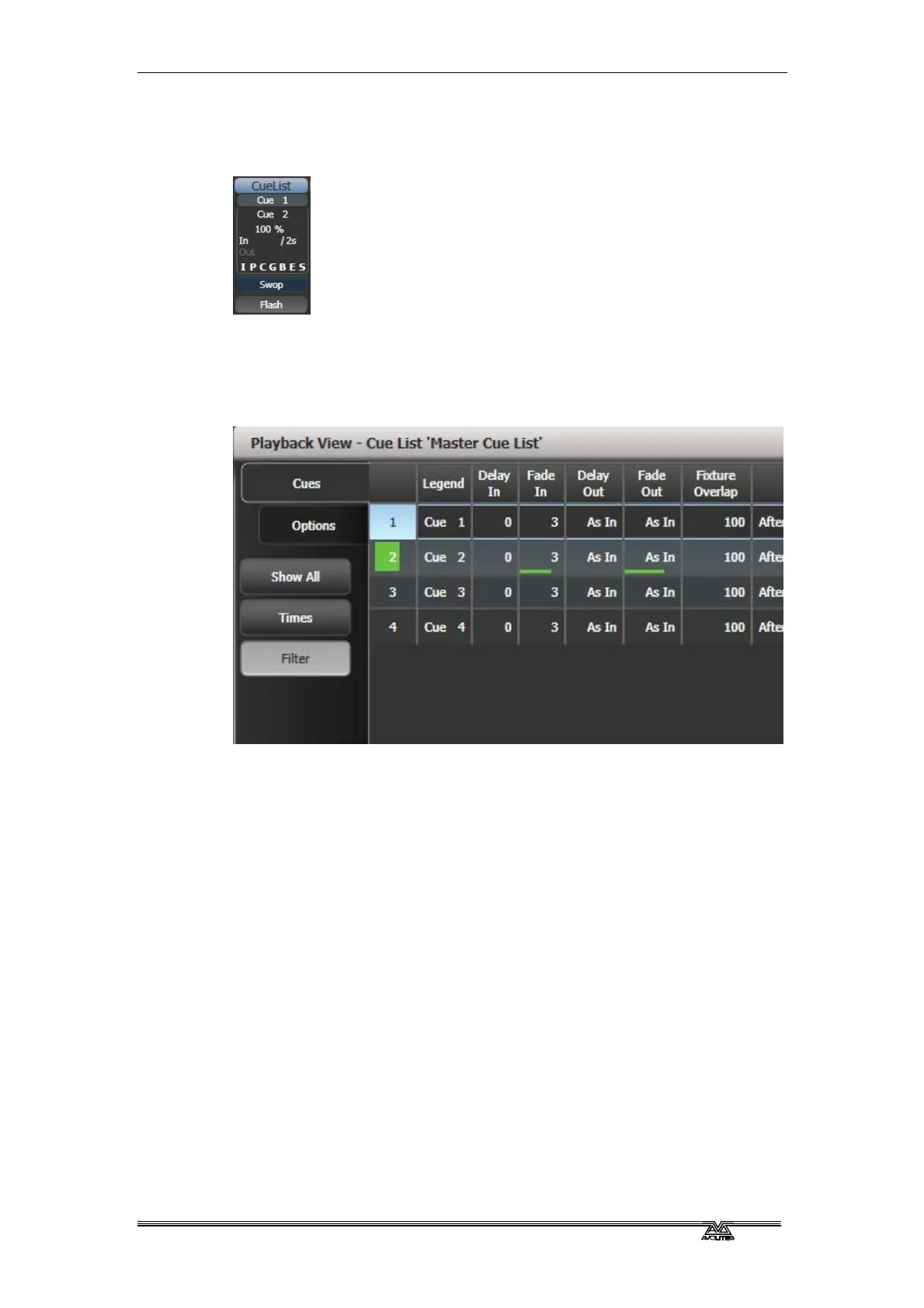
Also the display relating to the playback fader shows information
about the cue list, including the current and next cue, fade progress
of the current cue, and fade in/out times.
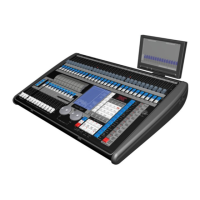
You can also open the Playback View window to show more details of
the cue list by clicking the Cue List legend area or press Window
Open then the swop button of the playback. This shows all the
ti
mings, links and tracking status and is very useful when running a
theatre show on a cuelist.
When times are in progress on a cue, green progress bars are shown
in the Playback View window.
The Playback View will autoscroll to keep the active cue onscreen.
You can change the way the autoscroll works using the view options
(click the options/cog icon at the top of the window).
• The HTP levels of cues in the cue list are mastered by the fader
level.
• You can pause a fade by pressing the Stop button above the Go
button. Press Go again to resume the fade.
• You can skip to any cue in the cue list by selecting a “next” cue
using Wheel A, or using the left/right arrow keys. When you
press Go, the cue list will run that cue next.
• You can snap back to the previous cue by pressing the Snap
Back button (not on all consoles)
• On consoles with a Snap button (Arena and Tiger Touch 2), the
Prev Step/Next Step buttons will go to the previous/next cue
using the programmed times. If you turn on the Snap button,
the Prev/Next buttons will snap immediately to the cue. There
is also a User Setting [Chase Snap] which enables this mode on
consoles which don’t have the button.


 To Next Page