2. Setting up and using the console - Page 45
TitanUniversal_Man_v10_QU.doc 15 March 2016
1> Press the Disk button.
2> Press [Import Show] (The plus button at the top right of the
Show Library window also opens this menu).
3> The Show Browser window opens. Select the show you want to
import from and press [Load Show].
4> The Show Library window will now open. Your current show and
the imported show will appear as buttons at the top of the show
browser. You can import items from more than one show at
once by repeating steps 1-3.
5> Click on the Mapper tab, and select your imported show.
6> Select a fixture in your imported show, then click the arrow
beside the fixture it maps to in the current show. To remove a
mapping, click the [Clear Fixture Mapping] context button.
You can select multiple target fixtures by dragging a box over
the fixtures, or click on the source fixture again and map to
another target.
7> When you have mapped all fixtures you want to import data
from, click on the Show Library tab.
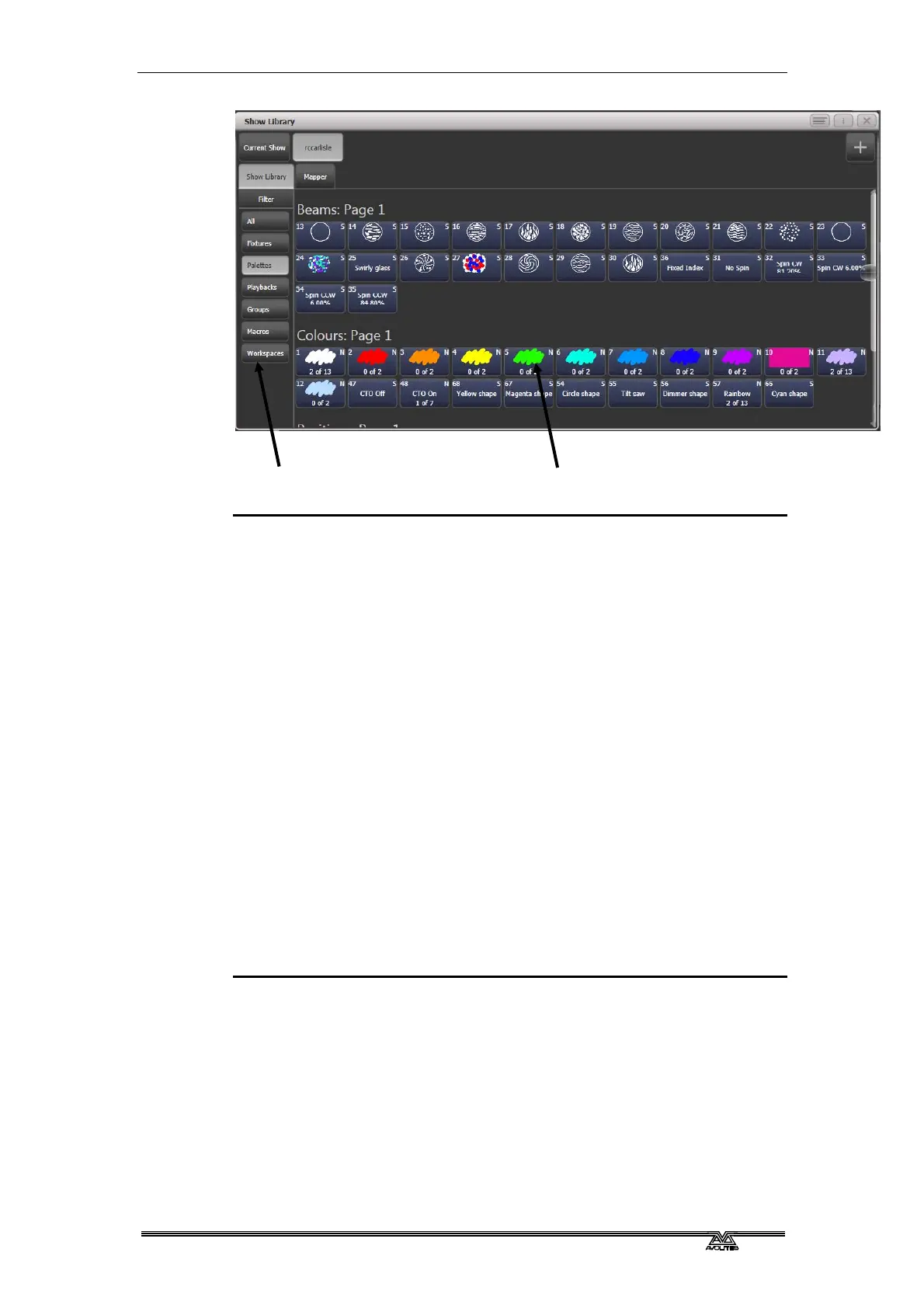
8> Select the items you want to import (single or multiple). Use
the buttons on the left to select Palettes, Groups etc.
9> Select handle(s) where you want to store the imported items.
10> When you have imported all the items you want, press Exit.
• You can filter fixture types to make the mapping easier using
the buttons on the left and right sides of the show browser.
• You can directly import shows without using the Disk menu by
clicking the Plus button at the top right of the Show Browser.
• There is more information about the Show Library window in
section 13.3 on page 240.
Filter display of
items in show
The items which
can be imported



 To Next Page