Page 64 – 3. Patching
TitanUniversal_Man_v10_QU.doc 15 March 2016
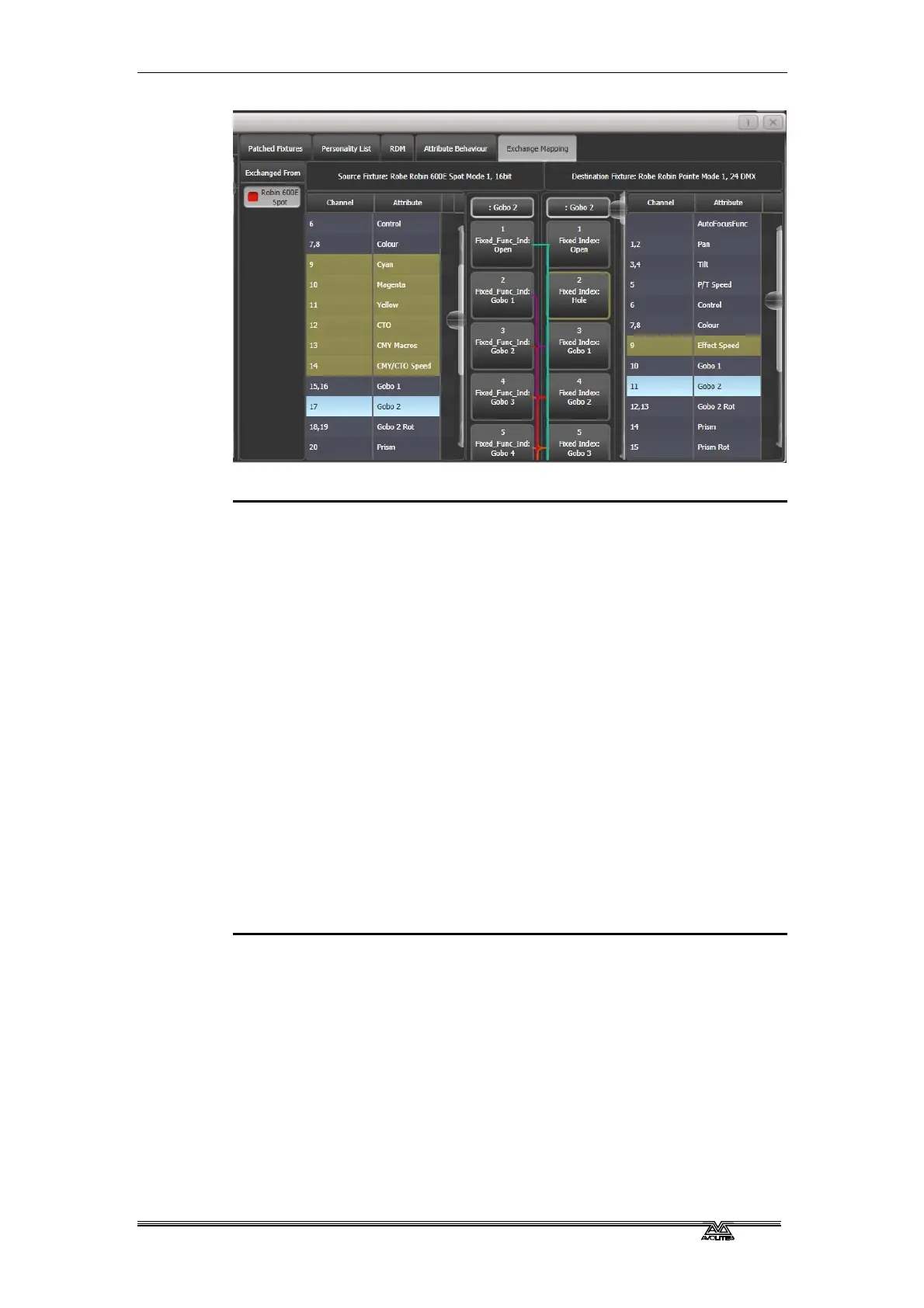
To set up mapping:
1> Press Window Open then Patch to show the Patch View screen.
2> Select the Exchange Mapping tab.
3> In the leftmost column, click the fixture type of the new fixture
which you have changed to.
4> The view shows the old fixture on the left and the new fixture
on the right with attributes listed for both fixture types. You can
sort the list either alphabetically or in DMX channel order using
the [Sort] context menu option.
5> Select an attribute to show the mapping. The mapped attribute
on both fixtures will highlight in light blue. Brown controls are
not mapped. The centre of the view shows the individual
functions of the selected attribute, and coloured lines show how
these map between the fixtures.
6> To map a function, click on a source function then a destination
function. Any previous mapping will be removed. You can map
multiple source functions to a single destination function.
7> To unmap a function, double click the source function. If there
are multiple sources mapped, double click the destination
function.
8> To move a mapping, click the existing destination, then click
the new destination.
• Where a fixture has been exchanged from more than one
source fixture you can switch between them by selecting the
relevant source fixture under the 'exchanged from' column.
• When you change the mapping, the 'Unsaved Changes' options
will pop up at the bottom of the screen. Here you can store the
new mappings by pressing Apply, forget the changes by
pressing Cancel or restore all mappings to Avolites factory
default by pressing Reset. All these actions have to be
confirmed by pressing the [Confirm] softkey.



 To Next Page