Page 86 – 4. Controlling dimmers and fixtures
TitanUniversal_Man_v10_QU.doc 15 March 2016
3> Select the attribute you want to Fan using the attribute bank
buttons.
4> Set the amount of fan using the attribute wheels.
5> Turn off Fan by pressing the Fan button again when you have
finished.
If you have selected fixtures from multiple groups, you can choose
whether the fan effect works with or ignores the groups. For example
if you have 12 fixtures across the stage in 3 groups of 4, you may
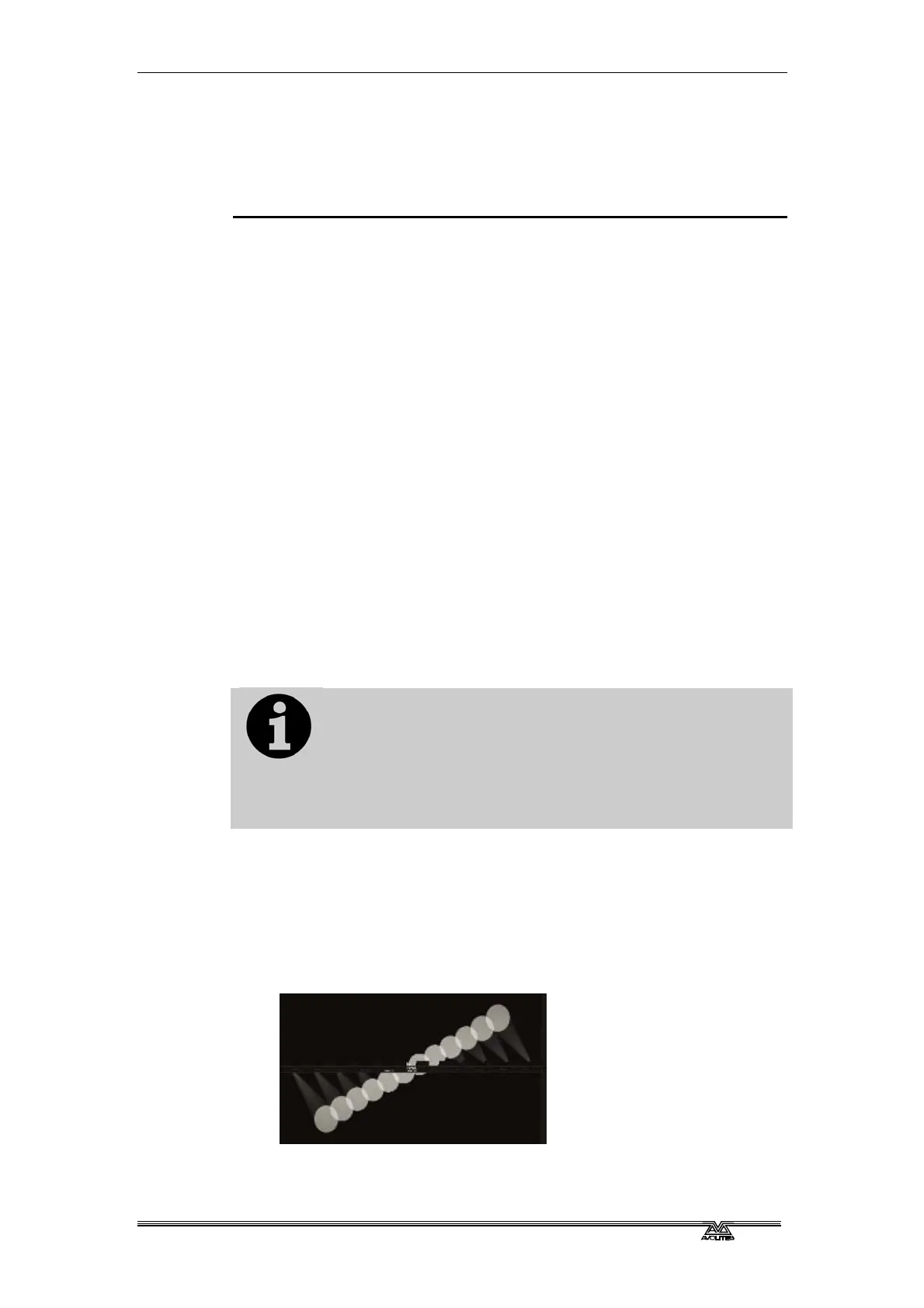
want a fan of light beams spread evenly across the stage, or you may
want 3 groups of separately fanned light beams.
By holding down the Fan button you can select:
• [Ignore Groups] All fixtures are fanned as one large group
• [Fan Group as Fixture] All fixtures in a group take on the same
value.
• [Fan Within Group] Fan runs across individual fixtures in each
group.
Holding down the Fan button also allows you to select the Curve used
for the fan. The different curves allow you to obtain different fan
effects.
Fan mode needs to be used on at least 4 fixtures to give good effects.
If you have an odd number of fixtures, the central fixture will not
change in fan mode.
Press the Fan button again to leave Fan mode. Any effects you have
set will remain in the programmer.
It’s all too easy to accidentally leave Fan mode turned
on and be very confused about why the wheels aren’t
working properly, so turn it off as soon as you have
completed the effect. To avoid this there is a User
Setting ‘Press and hold Fan’. If enabled, you have to
hold down the Fan button to enable Fan mode. See
section 13.1.3 on page 233.
Fan Curves
You can select different curves to use when in Fan mode. H
old down
the Fan button and select [Curve], the options are:
• Line: Traditional fan, the first and last selected fixture are
affected equally in opposite directions, the midpoint remains
unchanged. This is most useful for pan.
• Pull Middle - The first and last selected fixture remain at the
current value, the midpoint is affected most. This is useful for



 To Next Page