Page 94 – 4. Controlling dimmers and fixtures
TitanUniversal_Man_v10_QU.doc 15 March 2016
3> Press [Fixture Order].
The fixtures in the group will be shown numbered in the fixtures
window.
To change the order, select [Auto Increment] to On, then select the
fixtures in the order you want. If you press a fixture twice, it will
show an X indicating that it is not part of the sequence.
To change fixture layout:
1> Press [Edit Times]
2> Select the group you want to edit.
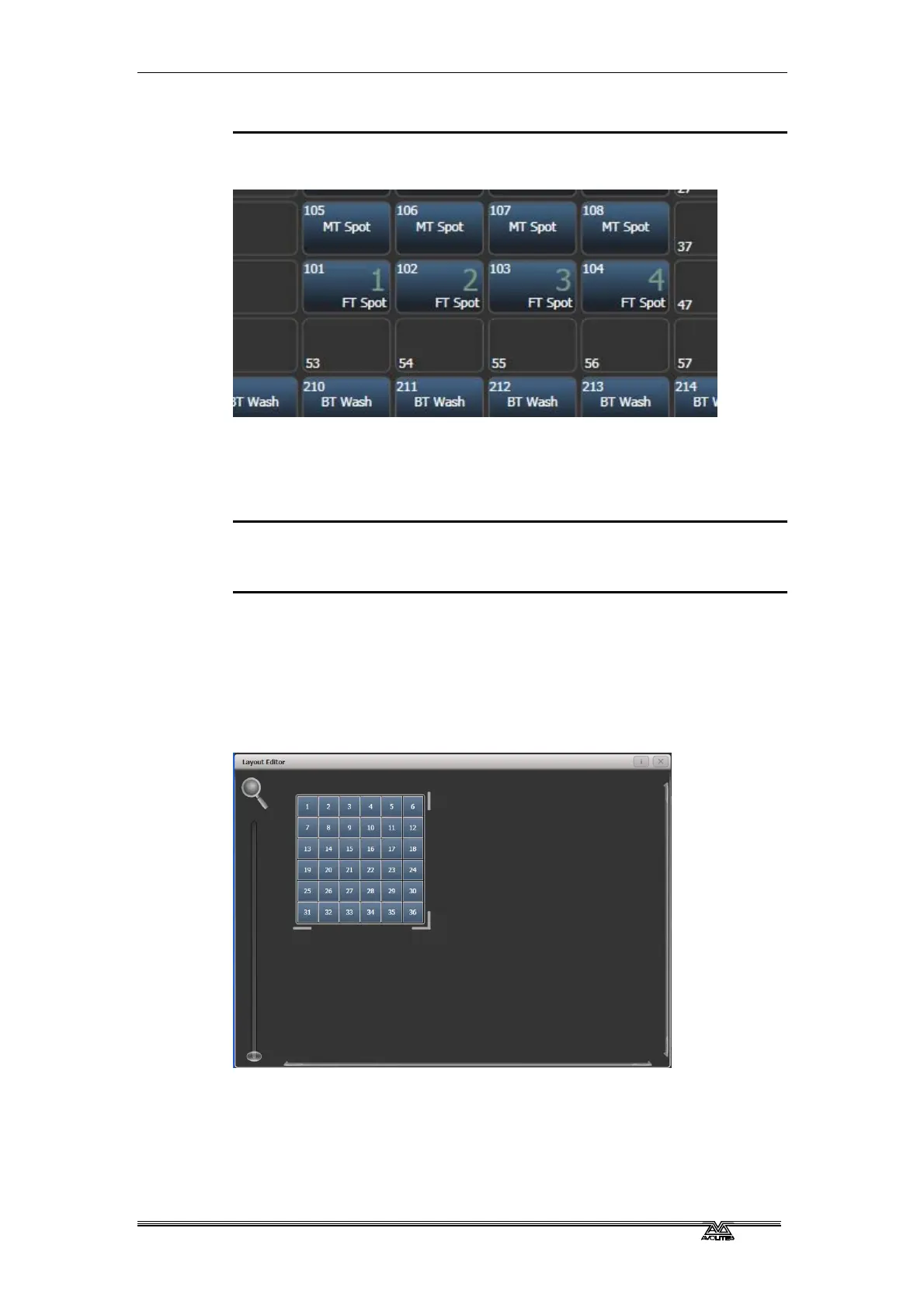
3> Press [Edit Layout]. The Layout Editor window will open.
Initially fixtures will be all in a row. You can reposition the fixtures
anywhere on the screen by dragging them. Or press a fixture to
select then use the wheels to move it around the grid. You can resize
the grid by dragging the bottom or right sides.
The [Arrange Fixtures] context command will automatically place the
fixtures in a rectangular block, you specify the number of rows
(Height) and columns (Width).
• The X-coordinate of the fixture layout is the same as the Fixture
Order. Changing one will cause the other to change.
• It is possible to accidentally overlay one fixture on another,
making the bottom fixture hidden. To access overlaid fixtures,
drag off the fixture which is hiding it, or select the hidden
fixture and use the wheels to move it somewhere visible.


 To Next Page
 Loading...

