FOR RESTRICTED USE only Fargo Electronics, Inc.
DTC550 Direct to Card Printer/Encoder User Guide (Rev. 2.8)
4-29
Printing Process Errors
Resolving the Ribbon Alignment Error Message
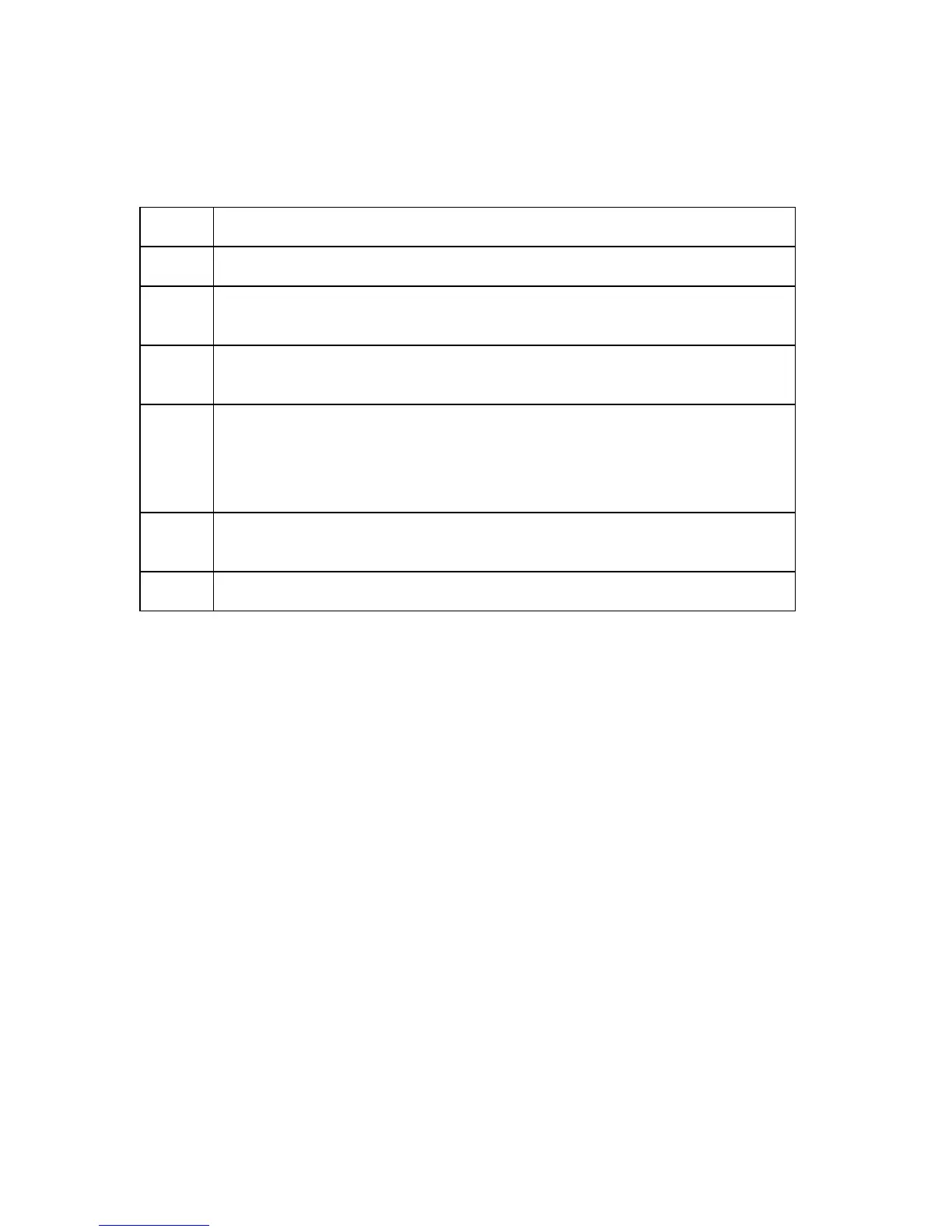
Step Procedure
1 If the Ribbon is out, install a new Ribbon and press RESUME.
2 If the Ribbon is broken, repair the Ribbon by taping the supply end back
onto the take-up core and pressing RESUME.
3 Check that the Ribbon is loaded properly and completely seated on the
Ribbon Hubs.
4 Ensure that the LCD supplies info matches the actual Ribbon installed.
(Note: It could be an invalid or a wrong Ribbon ID tag.)
Select Menu -> System Info -> Report Supplies -> Print Ribbon Info ->
Setup Printer -> Sensor Calibration -> Cal Ribbon Sensor.
5 Verify that Ribbon jogs ahead, then rewinds and finally reports SENSOR
CALIBRATED.
6 If successful, then retry the Ribbon operation by pressing RESUME.



 To Next Page