FOR RESTRICTED USE only Fargo Electronics, Inc.
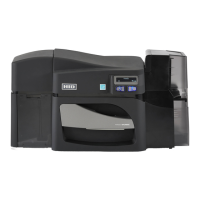
DTC550 Direct to Card Printer/Encoder User Guide (Rev. 2.8)
7-55
Changing the DTC550 LCD Network Settings
The DTC550 printer/encoder will display new menu entries when (a) the Ethernet option
is installed and (b) the Printer has established communications to a host device. You can
use these procedures to change network settings by using the new LCD menus.
Accessing the Network Setup Menu
Step Procedure
1 Apply power to the Printer.
2 Ensure that the Printer is connected to your network.
3 Wait up to one (1) minute to allow the Printer to configure the IP address.
4 Select MENU on the LCD.
5 Select Setup Printer on the LCD.
6 Select down arrow on the LCD to highlight the Network Settings menu
entry.
7 Select Network Settings on the LCD.
Changing the DHCP Setting
Step Procedure
1 See the Accessing the Network Setup Menu procedure to access the
Network Settings menu (MENU -> Setup Printer -> Network Settings).
2 Select down arrow on the LCD to view the DHCP menu entry.
• DHCP Enabled indicates that the automatic IP assignment is selected.
• DHCP Disabled indicates that the static IP assignment is selected.
3 Press the Select button to switch the DHCP setting.
4 If you change the setting, you will be prompted to reboot the Printer.



 To Next Page