20. ALERTS
20-7
The background color of an unacknowledged alarm is red and flashing and unac-
knowledged warning is yellow-orange and flashing. An acknowledged alert is dis-
played steadily, in red for alarm and yellow-orange for warning. A caution is displayed
steadily in yellow.
The [Filter] checkboxes at the top of the window let you select what alerts to view.
Check or uncheck the boxes to show or hide the corresponding alerts.
To find details about an alert, click the applicable alert icon, the alert details appear in
the [Detail] box at the top of the window. The box shows the reason for the alert, how
to handle the alert, etc.
An individual alarm or warning can be acknowledged by clicking it.
The [Silence] button silences the buzzer.
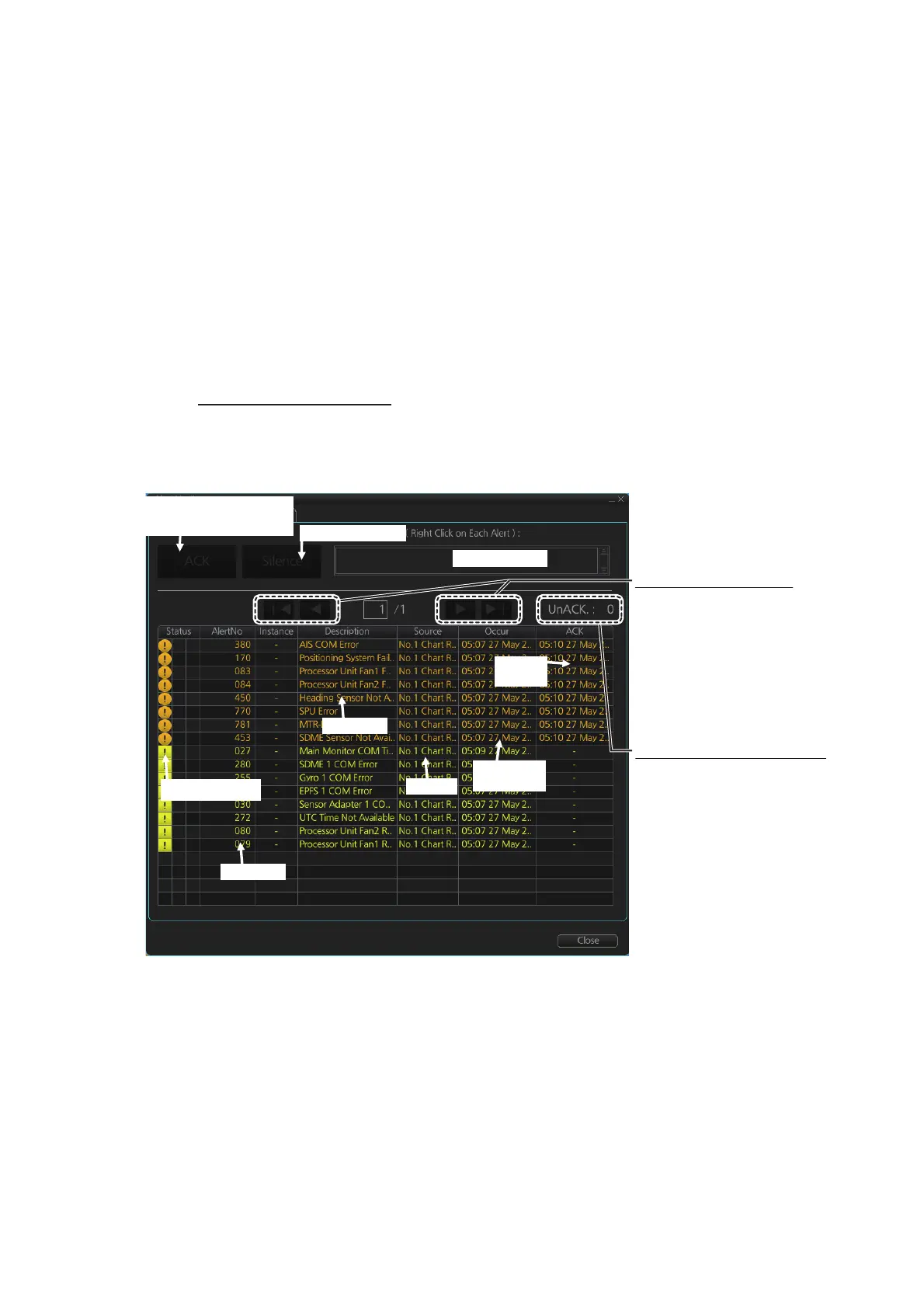
Alert list in chart mode
To show the alert list in radar mode, right-click the [Alert List/Alert Log] button in the
Alert box, click [Alert List].
The background color of an unacknowledged alarm is red and flashing and unac-
knowledged warning is yellow-orange and flashing. An acknowledged alert is dis-
played steadily, in red for alarm and yellow-orange for warning. A caution is displayed
steadily in yellow.
The Status section has three columns. Icons appear in the columns as follows:
• Left column: Emergency, Alarm, Warning and Caution icons (numbers 1 to 11 in the
table at "Alert state icons" on page 20-4).
• Middle column: Emergency, Alarm and Warning icons (numbers 13 and 14 in the
table at "Alert state icons" on page 20-4).
Alert text
Alert details
Time
ACKed
Time
generated
Number of un-ACKed alerts
When all alerts are
acknowledged, this
indication appears as
“UnACK: 0”.
Alert no.
Source
Silence buzzer
ACK the uppermost
unacknowledged alert
Alert info icon
Page selection buttons
Click to select page.
Available only when
multiple pages exist.
► : Show next page
►| : Jump to last page
◄ : Show previous page
|◄ : Jump to first page



 To Next Page