82 D90
PLUS
LINE DISTANCE PROTECTION SYSTEM – INSTRUCTION MANUAL
SETTINGS TEMPLATES CHAPTER 5: ENERVISTA SOFTWARE
The settings template mode allows the user to define which settings are visible in the
software. Settings templates can be applied to both settings files (settings file templates)
and online devices (online settings templates). The functionality is identical for both
purposes.
Settings file conversion from previous firmware versions is supported.
Enable the settings template in offline mode
The settings file template feature is disabled by default. It can be enabled in offline or
online mode.
The following procedure outlines how to enable in offline mode the settings template for
UR
Plus
-series settings files.
1. Select a settings file from the offline window of the EnerVista UR
Plus
Setup main
screen.
2. Right-click the selected settings file and select the Settings File Template > Create
Template option.
The settings file template is now enabled and the file menus displayed in light blue. A
message displays. The settings file is now in template editing mode.
Enable the settings template in online mode
Alternatively, the settings template can be applied to online settings, as follows.
1. Select an installed device in the online window of the EnerVista UR
Plus
Setup window.
2. Right-click the selected device and select the Template Mode > Create Template
option.
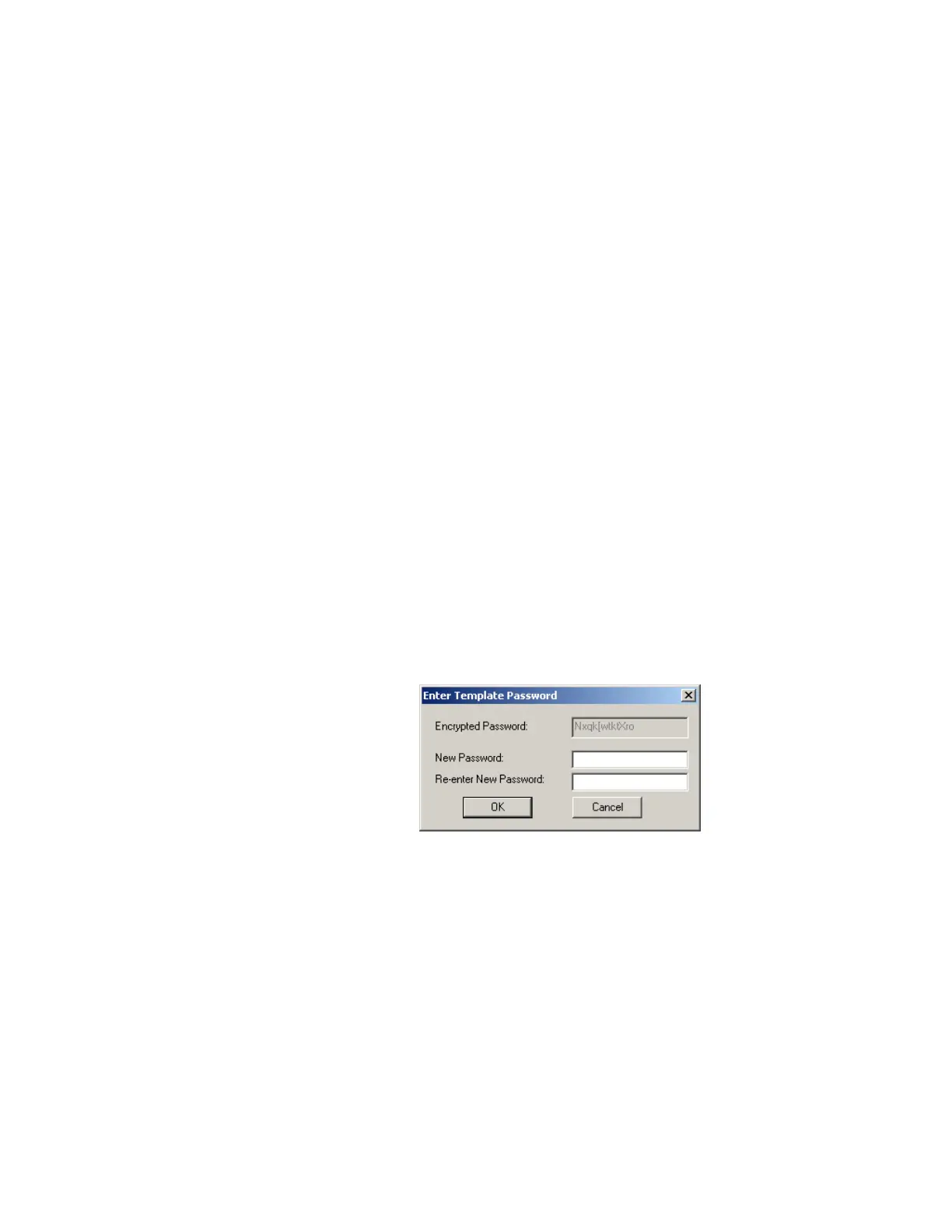
The software prompts for a template password. This password is required to use the
template feature and must be at least four characters in length.
Figure 61: Entering a settings file password
3. Enter and re-enter the new password, then click OK to continue.
The online settings template is now enabled. The device is now in template editing mode.
Edit the settings template
The settings template editing feature allows the user to specify which settings are
available for viewing and modification in EnerVista UR
Plus
Setup. By default, all settings
except the FlexLogic equation editor settings are locked.
1. Select an installed device or a settings file from the menu on the left side of the
EnerVista UR
Plus
Setup window.
2. Right-click and select the Template Mode > Edit Template option (online mode) or the
Settings File Template > Edit Template option (offline mode) to place the device in
template editing mode.


 To Next Page