CHAPTER 5: ENERVISTA SOFTWARE SETTINGS TEMPLATES
D90
PLUS
LINE DISTANCE PROTECTION SYSTEM – INSTRUCTION MANUAL 83
3. If prompted, enter the template password then click OK.
4. Open the relevant settings windows that contain settings to be specified as viewable.
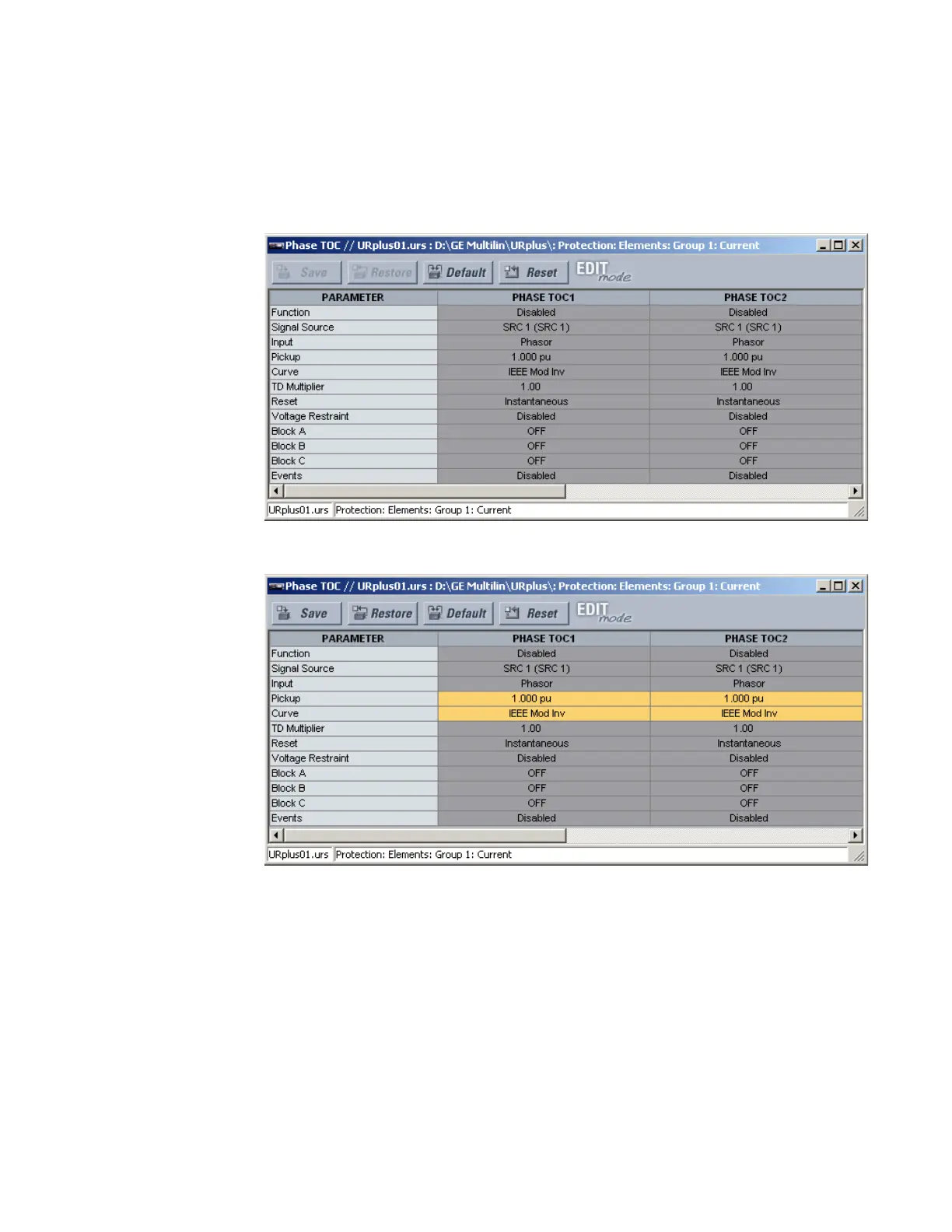
By default, all settings are specified as locked and displayed against a grey
background. The icon on the upper right of the settings window also indicates that the
EnerVista software is in EDIT mode. The following example shows the phase time
overcurrent settings window in edit mode.
5. Specify settings to make viewable by clicking them.
A setting available to view is displayed against a yellow background.
6. Click the Save button to save changes to the settings template.
7. Continue through any other settings window to specify all viewable settings.
Add password protection to a template
It is highly recommended that templates be saved with password protection to maximize
security.
The following procedure outlines how to add password protection to a settings file
template.
1. Select a settings file from the offline window on the left of the EnerVista UR
Plus
Setup window.
2. Select the Settings File Template > Password Protect Template option.


 To Next Page