CHAPTER 3: INSTALLATION INSTALL SOFTWARE
D90
PLUS
LINE DISTANCE PROTECTION SYSTEM – INSTRUCTION MANUAL 63
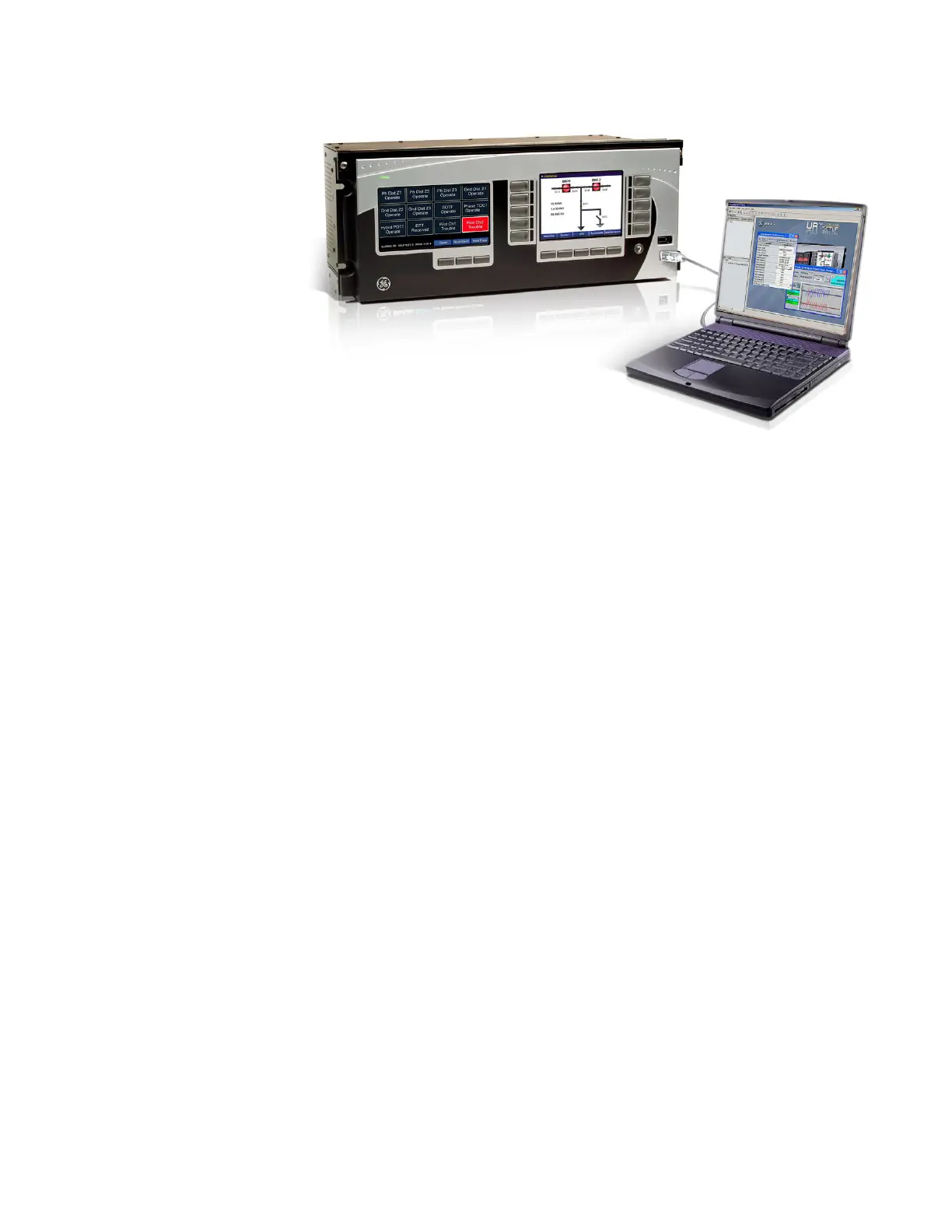
Figure 42: Computer and device connected with USB cable
4. The first time that the computer is connected, a hardware configuration wizard opens.
Complete the wizard. For the driver location, browse to the EnerVista UR
Plus
Setup software location and locate the USB Driver folder that contains the
SerialUSB.inf driver file. The path is typically C:/Program Files/GE Power
Management//USB Driver, or for Windows 7 64-bit C:/Program Files/GE Power
Management//USB Driver 64-bit.
If an error message displays and the wizard does not complete, the Multilin Relay USB
Serial Emulation driver software is being blocked. The following fix uses Windows XP
Service Pack 3 as an example. Access the Control Panel application in Windows, then
click System, click the Hardware tab, then click the Driver Signing button. Change the
setting to Warn or Ignore. Then restart the hardware wizard in the Control Panel by
clicking Administrative Tools, then Computer Management, then Device Manager,
and search for the GE Protective Relay entry. Reinstall the driver.
5. Launch the EnerVista software, and click the Quick Connect icon to open the Quick
Connect window.
6. The EnerVista software creates a site named “Quick Connect” with a corresponding
device also named “Quick Connect” and displays them on the upper-left corner of the
screen. Expand the sections to view data directly from the D90
Plus
device.
Each time the EnerVista UR
Plus
Setup software is initialized, click the Quick Connect button
to establish direct communications to the D90
Plus
. This ensures that configuration of the
EnerVista UR
Plus
Setup software matches the D90
Plus
model number.
Configure the D90
Plus
for software access
You connect remotely to the D90
Plus
through the rear Ethernet port with a computer
running the EnerVista UR
Plus
Setup software. The D90
Plus
also can be accessed locally with
a computer through the front panel USB port or the rear Ethernet port using the Quick
Connect feature. The following options are outlined:
•Configure the D90
Plus
for remote access via the rear Ethernet port
•Configure the D90
Plus
for local access with a computer through the front USB port
Configure Ethernet communication
You connect the cable, define a site, then add the D90
Plus
as a device at that site.
1. Connect the Ethernet network cable to the Ethernet port on the back of the device


 To Next Page