General Operating Instructions
User Manual corpuls
3
38 ENG - Version 2.1 – P/N 04130.2
If necessary under particular lighting conditions, the screen can be displayed in
inverted video. If the Monitor key is held down for more than 3 seconds, the
screen display is inverted (see also chapter 7.1.1 General System Settings,
p. 137). Furthermore, it is possible to invert the screen via the system settings: .
1. Select in the main menu the menu item "System" ► "Settings".
The configuration dialogue opens.
2. In the configuration group "Display" select the configuration field "Colours"
► "Inverted".
3. Press the softkey [OK].
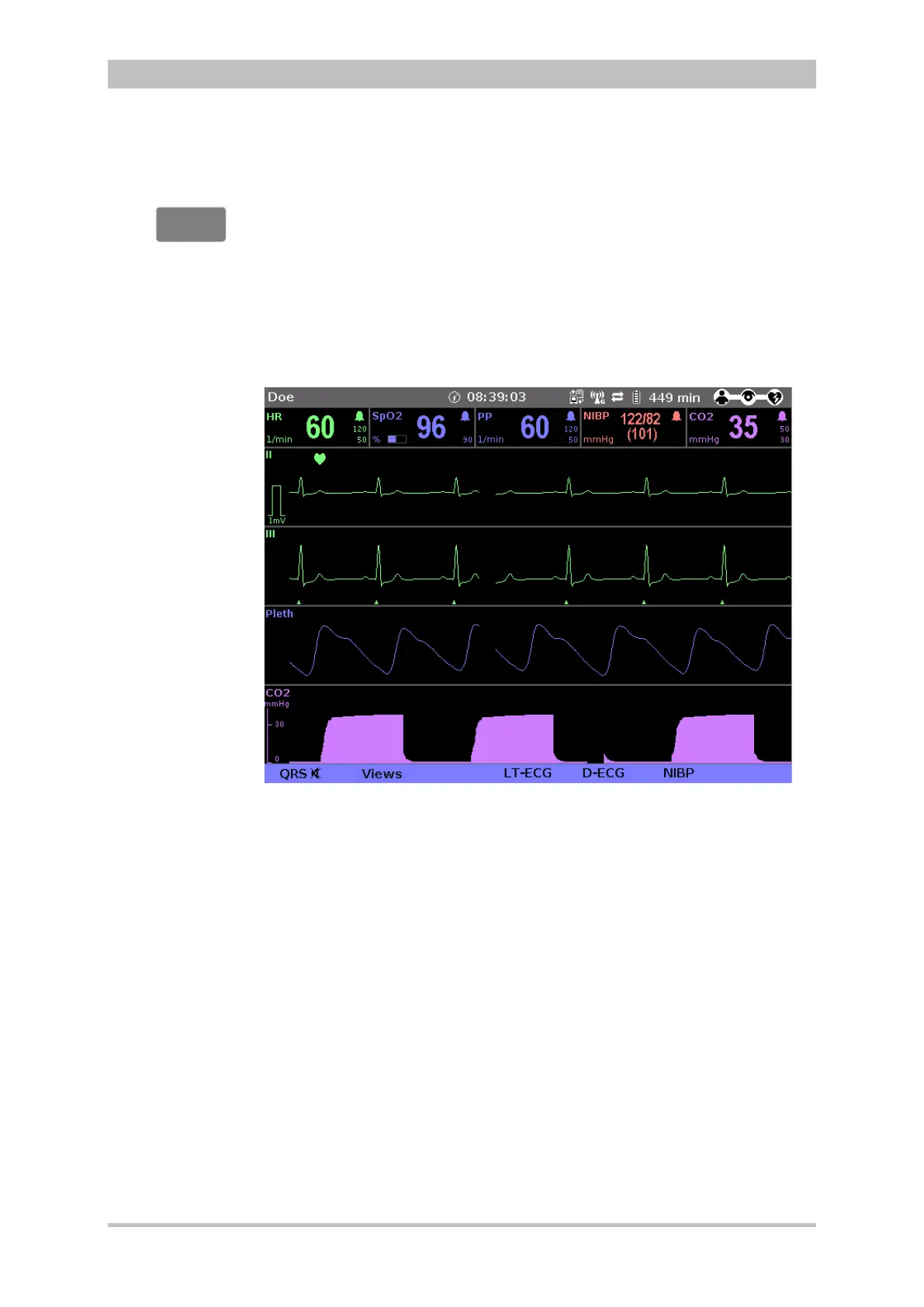
Fig. 4-4 Inverted video display of the screen (colours may differ)
The corpuls
3
is optionally available as a night vision goggle (NVG/NVIS)-
compatible variant (see chapter 9.8 Approved Accessories, Spare Parts and
Consumables, page 224) This variant emits less light than normally so that in-
flight or military purpose operation of the corpuls
3
when using night vision
goggles is possible.
For this, the display of the screen of night vision goggle (NVG/NVIS)-compatible
devices can be inverted specifically for use with night vision goggles via the
system settings (see chapter 7.1.1 General System Settings, page 137): :
1. Select in the main menu the menu item "System" ► "Settings".
The configuration dialogue opens.
2. In the configuration group "Display" select the configuration field "Colours"
► "Night".
3. Press the softkey [OK].
4. If this configuration should be available automatically with the next system
start, it has to be saved (see chapter 7.4.2 General System Settings
(Person responsible for the device), page 160).
Screen inverted
video display
Screen
Night vision
goggle
(NVG/NVIS)


 To Next Page