ECC800 Data Center Controller
User Manual (for ECC800-Pro)
Copyright © Huawei Technologies Co., Ltd.
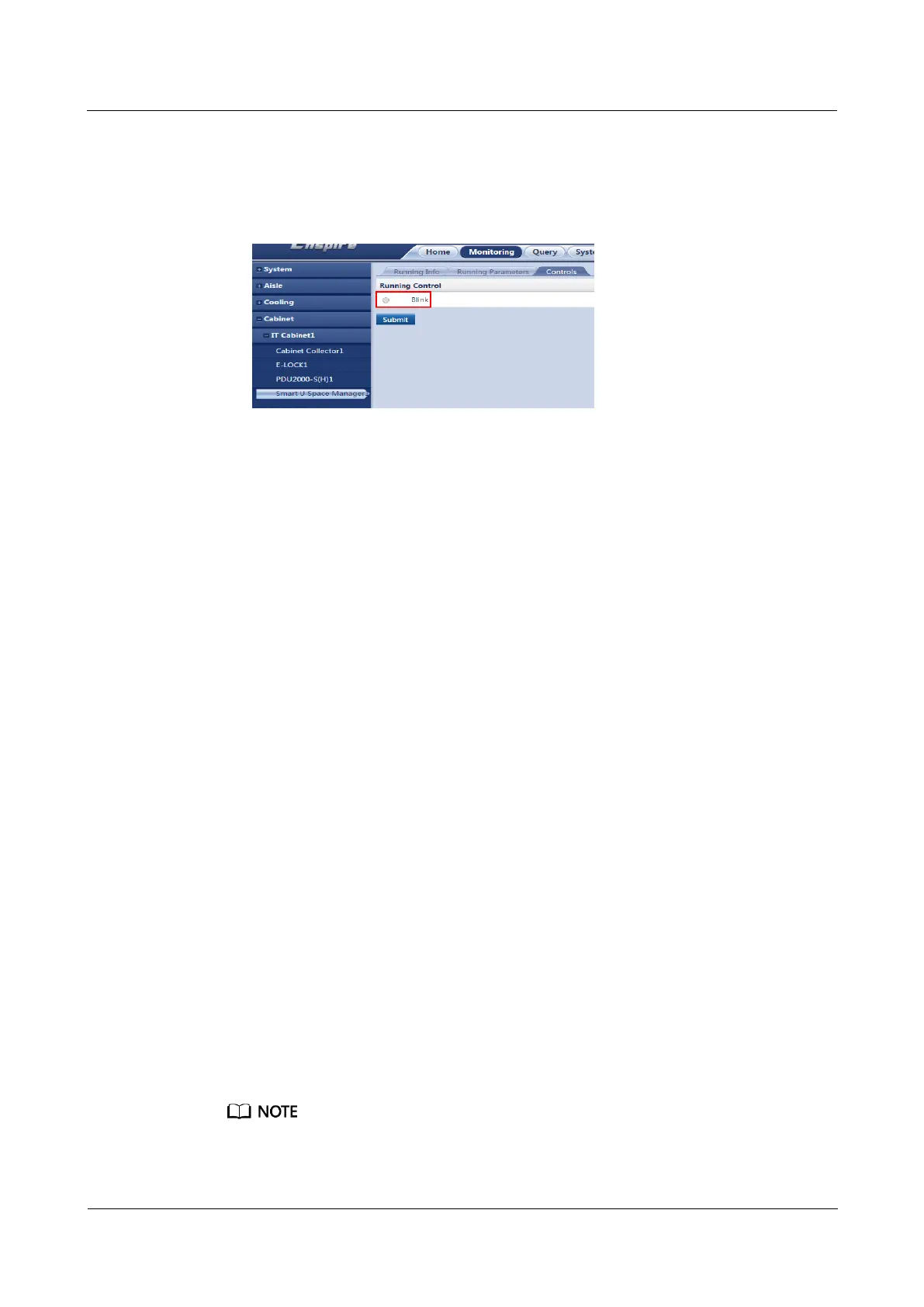
2. Select Running Control and click Blink. In the actual environment, you will see that the
smart U space manager blinks to ensure that the device location in the view is consistent
with that in the smart module.
Figure 6-48 Viewing the position of the smart U space manager
----End
6.10.1.2 Querying the U Space Use Information
Prerequisites
The ECC800-Pro is connected to the NMS that supports asset management.
The actual assets of the smart module have been allocated.
Procedure
Step 1 Log in to the ECC800-Pro WebUI as an administrator.
Step 2 Choose Home > Plan View to access the Plan View page, where you can create or modify
the views of the smart module. Drag the icon of a registered device or device in the cabinet
list to the planned position to generate the plan view.
Step 3 Choose Monitoring > Cabinet > IT Cabinet n > Smart U Space Manager1, check U space
quantity, U Space Information and so on.
----End
6.10.2 Commissioning the Smart U Space Manager (Connected to
a UIM20A Expansion Module)
6.10.2.1 Determining the Position of the Smart U Space Manager
If a smart U space manager is installed, perform the following steps to configure it.
Prerequisites
Connect the smart U space manager to the COM port on the UIM20A expansion module.
In a standard scenario, connect a smart U space manager to the COM6/AIDI_6 port on the UIM20A
expansion module.



 To Next Page