ECC800 Data Center Controller
User Manual (for ECC800-Pro)
Copyright © Huawei Technologies Co., Ltd.
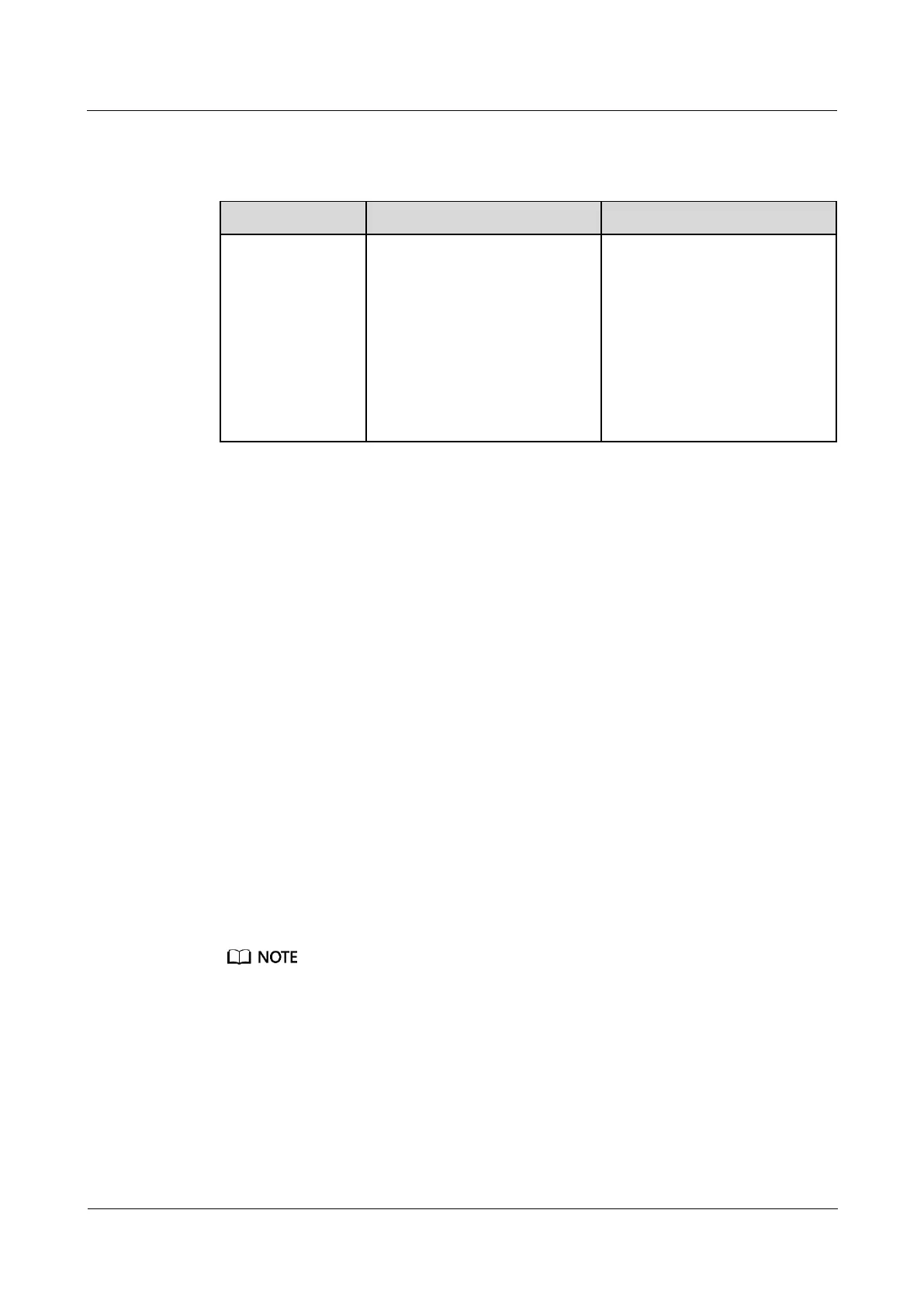
Step 6 Check functions of water sensors.
Table 8-26 Function check
Immerse the water
detection cable in
water.
Choose Monitoring >
System > Water Sensor >
Running Info. Check that
Leakage status is Alarm and
Distance from the leakage
point is greater than or equal
to 0 m.
Choose Home > Active
Alarms. Check that a water
sensor alarm is generated.
Wipe dry the water detection
cable. The alarm disappears
automatically.
----End
8.1.6.27 How to Set and Add the Electrode Water Sensor?
If a water sensor is installed, perform the following steps to configure it.
Prerequisites
One end of the network cable has been stripped, core wires 7 and 8 have been connected to
the cable delivered with the electrode water sensor, and the other end of the network cable has
been connected to the AI/DI port on the rack environment unit.
Context
To use the AI/DI sensor, enable the corresponding AI/DI port and name the sensor. The
specific alarm then can be reported.
If the sensor is prefabricated, only check its settings.
The actual value prevails. Only the method of the parameter settings is described.
Procedure
Step 1 Set water sensor parameters.
In this example, the water sensor is connected to the AI/DI_5 port on the ECC800-Pro.
1. Log in to the ECC800-Pro WebUI as an administrator.
2. Choose System Settings > Signal Name Modify. The Batch Signal Configuration
page is displayed.
3. Set Device type to ECC800, set Device name to ECC800, and click OK.
4. On the query result tab page, set the new signal name of AI/DI_5 to Leak and click
Submit.
5. Choose Monitoring > System > ECC800 > Running Parameters > AI/DI_5 Port
Settings.



 To Next Page