ECC800 Data Center Controller
User Manual (for ECC800-Pro)
Copyright © Huawei Technologies Co., Ltd.
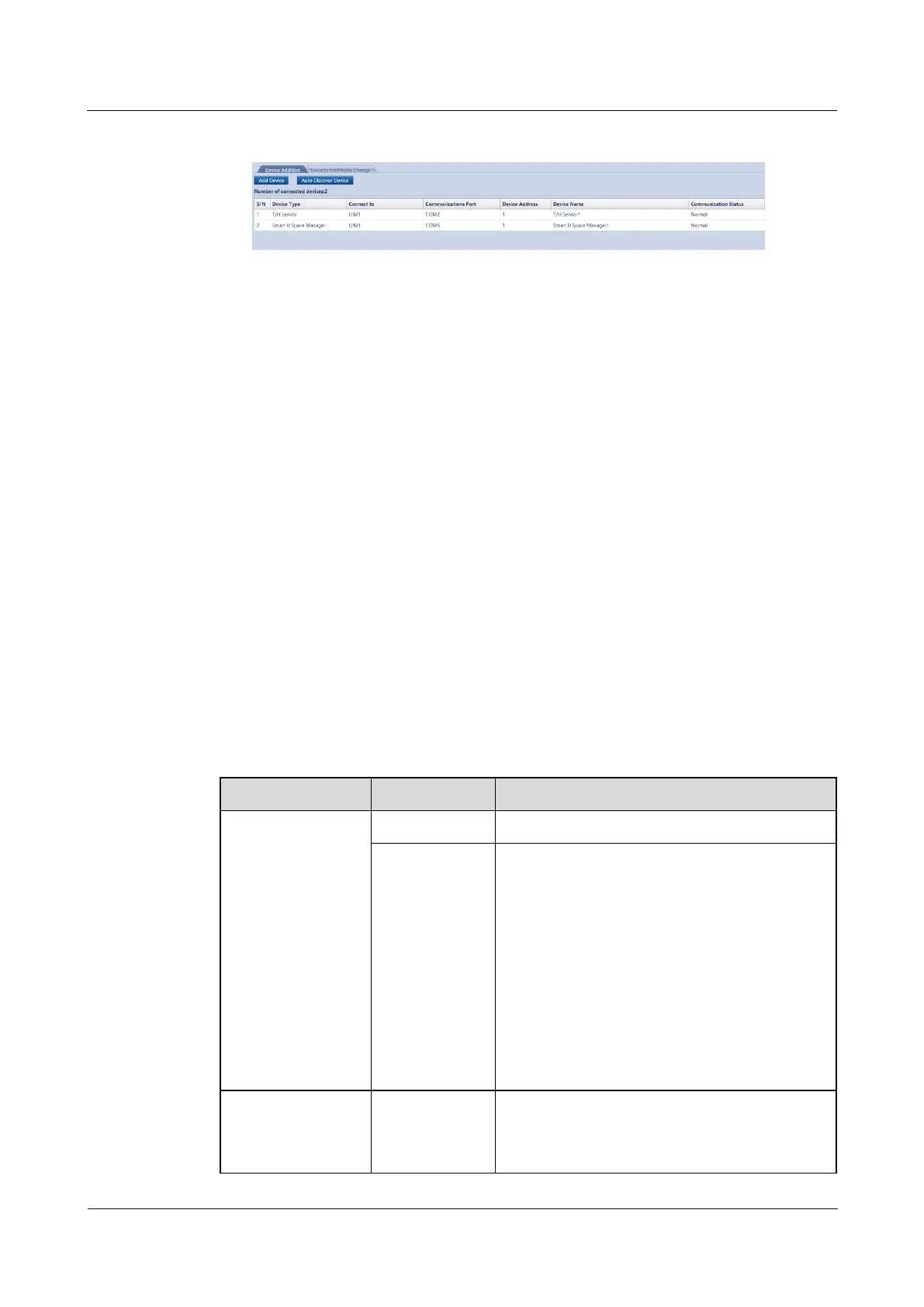
Figure 8-35 Device connection
----End
8.1.31 How Do I Add a Dry Contact Device Connected to the
ECC800-Pro Through a UIM?
Prerequisites
This section uses the device (such as a door status sensor) connecting to the AI/DI_3 port on
the UIM20A expansion module as an example.
Context
Each UIM20A expansion module supports a maximum of eight dry contact devices. In the
scenario with multiple UIMs in the same smart module, a maximum of 48 dry contact devices
can be connected.
Procedure
Step 1 Log in to the ECC800-Pro WebUI as an administrator.
Step 2 Add the device.
Table 8-45 Parameter description for adding a device
Monitoring >
System > UIM
Group > UIM1 >
AI/DI_3 Port
Settings
NOTE
The setting example
indicates that the
device connects to
the AI/DI_3 port on
the ECC800-Pro. If
the device connects
to another port, enter
the number of the
connected port.
Select Enable and click Submit
Select the type of the device to be accessed from
the drop-down list box.
Monitoring >
System > UIM
Group> UIM1 >
Running
II power
supply
enable(COM3/
AIDI_3/COM4
The default value is Enable.



 To Next Page