ECC800 Data Center Controller
User Manual (for ECC800-Pro)
Copyright © Huawei Technologies Co., Ltd.
In a scenario where one UIM20A expansion module maps to four cabinets, connect smart U space
managers to the COM1/AIDI_1, COM3/AIDI_3, COM5/AIDI_5, and COM7/AIDI_7 ports on the
UIM20A expansion module. If the number of IT cabinets is not an integer multiple of 4, according to
the cable connection rules, leave the unconnected COM ports on the UIM20A expansion module
idle.
The smart U space manager has been connected to the ECC800-Pro through automatic
discovery.
Procedure
Step 1 Log in to the ECC800-Pro WebUI as an administrator.
Step 2 View the position of the smart U space manager.
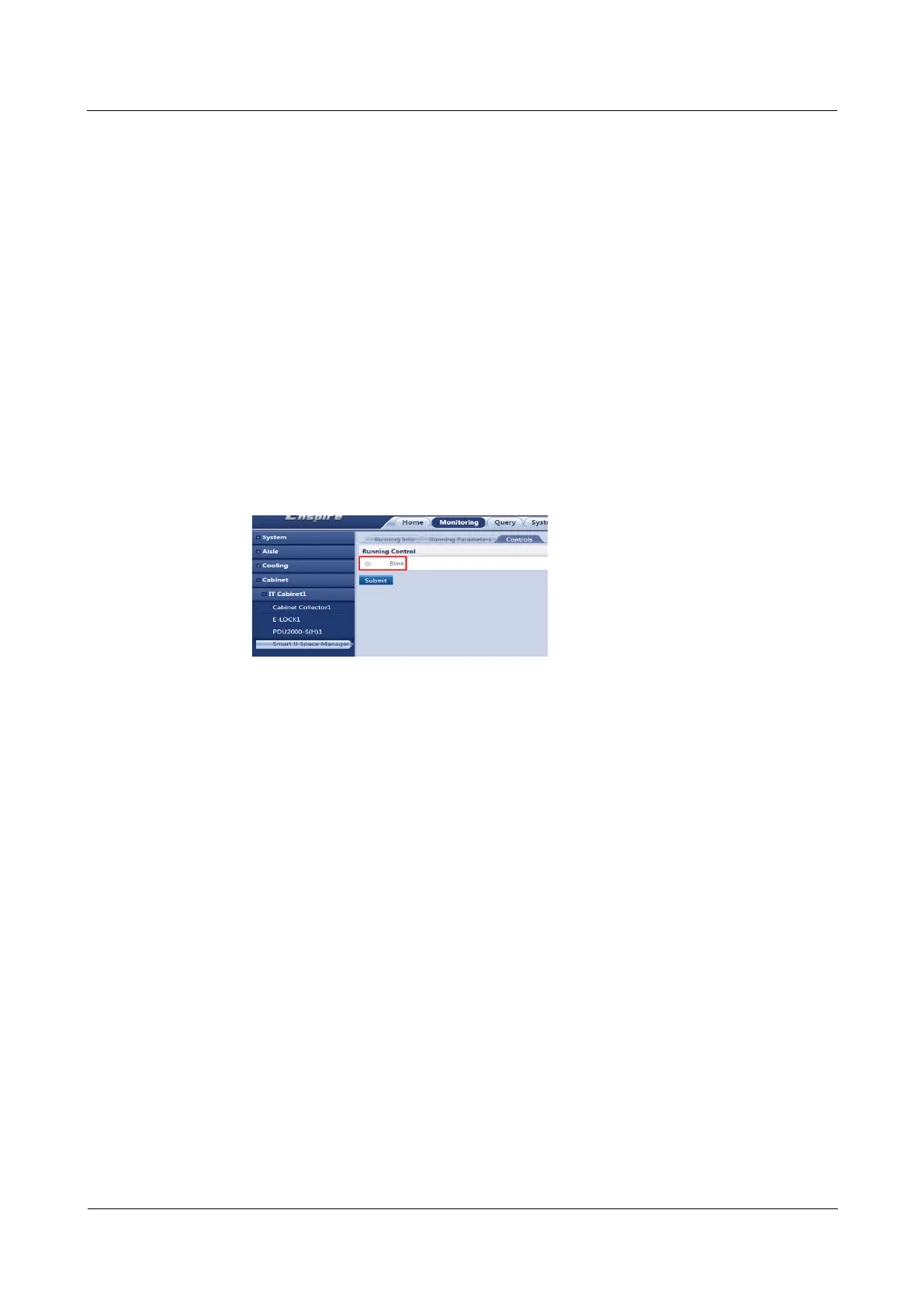
1. Choose Monitoring > Cabinet > IT Cabinet n > Smart U Space Manager.
2. Select Running Control and click Blink. In the actual environment, you will see that the
smart U space manager blinks to ensure that the device location in the view is consistent
with that in the smart module.
Figure 6-49 Viewing the position of the smart U space manager
----End
6.10.2.2 Querying the U Space Use Information
Prerequisites
The ECC800-Pro is connected to the NMS that supports asset management.
The actual assets of the smart module have been allocated.
Procedure
Step 1 Log in to the ECC800-Pro WebUI as an administrator.
Step 2 Choose Home> Plan View to access the Plan View page, where you can create or modify the
views of the smart module. Drag the icon of a registered device or device in the cabinet list to
the planned position to generate the plan view.
Step 3 Choose Monitoring > Cabinet > IT Cabinet > Smart U Space Manager, check U space
quantity, U Space Information and so on.
----End



 To Next Page