ECC800 Data Center Controller
User Manual (for ECC800-Pro)
Copyright © Huawei Technologies Co., Ltd.
8.1.3 How to Check the System Type and Set the Smart Module
Name
Context
System type: FusionModule500, FusionModule800, FusionModule1000A,
FusionModule1000B, FusionModule2000, FusionModule5000 and General can be
selected based on the actual project configuration.
Site ID: Alarms of devices under monitoring in the site are sent to the specified mobile
phone numbers of maintenance engineers by SMS. After Smart module name is
changed, the new site ID will be displayed in the short message content (for example,
XXX device communication interruption) so that maintenance engineers will know the
site where the fault has occurred.
Procedure
Step 1 Choose System Settings > System Parameters > Site Configuration, and check whether
System Type is consistent with the type of the smart module.
(Optional) If the system type is inconsistent with the type of the smart module, perform the
following operations. The system type FusionModule2000 is used as an example.
By default, the system type displayed on the web page is the system type selected last time. Change
the system type as required.
If the system type is changed, the monitoring software will restart and you can log in to the WebUI
again after 3 minutes.
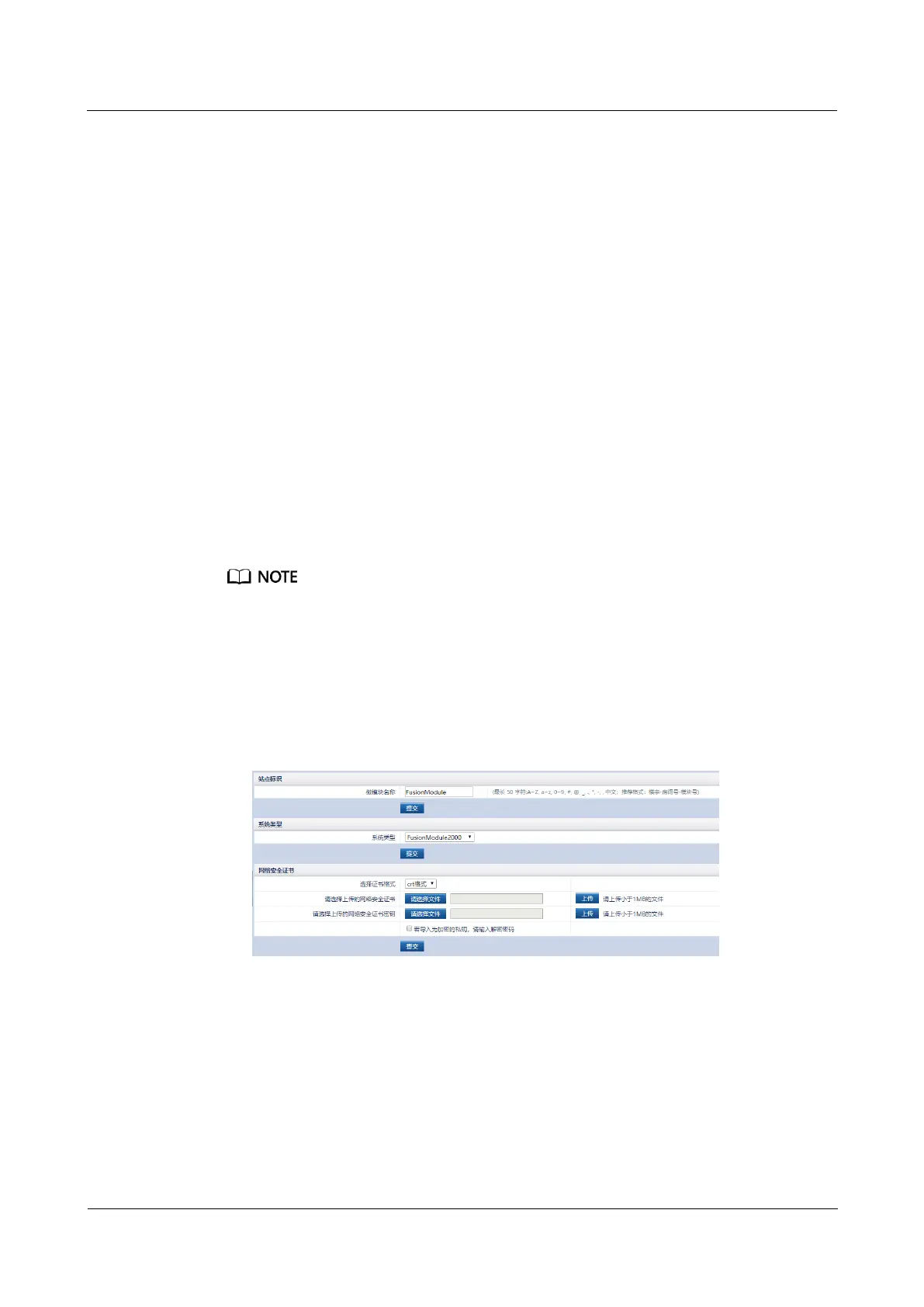
1. Select FusionModule2000 from the System type drop-down list box.
2. Click Submit in the System Type area.
Figure 8-1 Setting the system type
3. Go to the Re-authentication page, enter the login user name and password, and click
Submit.
Step 2 Choose System Settings > System Parameters > Site Configuration, modify Smart
module name, and click Submit in the Site ID area.
----End



 To Next Page