ECC800 Data Center Controller
User Manual (for ECC800-Pro)
Copyright © Huawei Technologies Co., Ltd.
When iCooling is disabled, smart cooling products enter the intelligent teamwork control mode
(teamwork control of smart cooling products).
Step 4 Choose Monitoring > Cooling > Running Parameters to access the Temperature and
Humidity Parameters page. Check whether Temperature and humidity control type is
Cold-aisle.
----End
6.12.2 Viewing Cooling Capacity Usage Information
Prerequisites
Smart cooling products have been connected to the ECC800-Pro.
Procedure
Step 1 Connect the PAD to the WiFi network of the corresponding ECC800-Pro in the room.
Step 2 Choose Home > Temp.. The view displays the temperature distribution map of each cabinet.
Step 3 Choose Home > Resource Consump > Cooling, view the real-time cooling capacity and
maximum cooling capacity of the smart module as well as the real-time cooling capacity of
each cabinet, and check whether the cooling capacity exceeds the alarm threshold.
----End
6.12.3 Viewing the Cooling Links Diagram
Context
When smart cooling products (NetCol5000-A025, NetCol5000-A042, and NetCol5000-A050)
are connected to the ECC800-Pro, you can view the cooling link diagram.
Procedure
Step 1 Log in to the ECC800-Pro WebUI as an administrator.
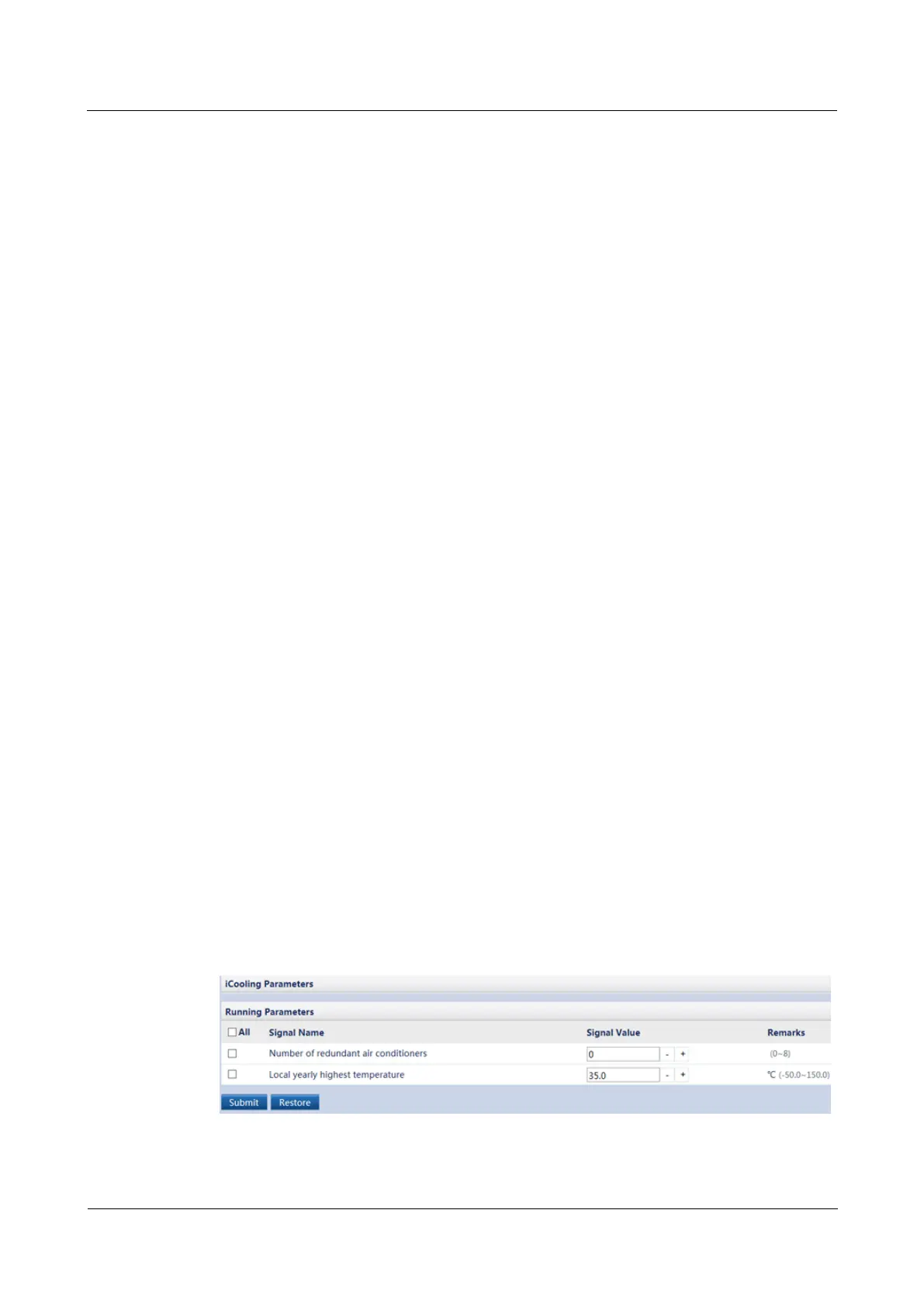
Step 2 Choose Monitoring > Cooling > Running Parameters to access the Running Parameters
page. Set Number of redundant smart cooling products and Local yearly highest
temperature as required and tap Submit.
Figure 6-54 Setting running parameters



 To Next Page