ECC800 Data Center Controller
User Manual (for ECC800-Pro)
Copyright © Huawei Technologies Co., Ltd.
Step 3 Use the pad to connect to the WiFi network of the ECC800-Pro in the room.
Step 4 Log in to the ECC800-Pro app as the administrator.
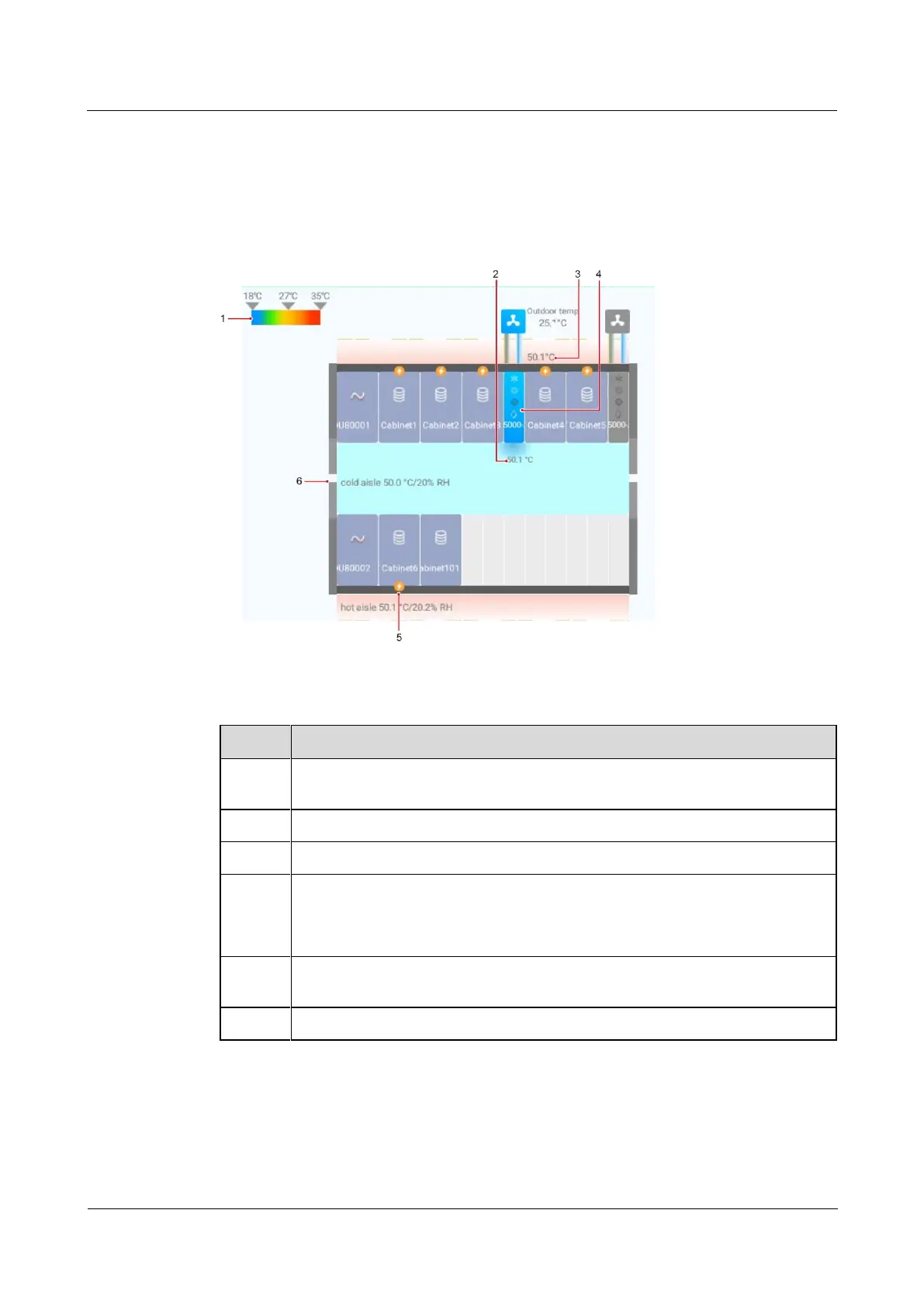
Step 5 View the cooling distribution information.
Figure 6-55 Cooling links diagram
Table 6-41 Specifications of the cooling links diagram
Color band (Determine whether the temperature of the cooling system is normal
based on the color band.)
Air outlet temperature of the smart cooling product
Air inlet temperature of the smart cooling product
Smart cooling product status
Blue: The smart cooling product is running.
Gray: The smart cooling product is not running.
Alarm status (The alarm icon is displayed based on the alarm severity of the
smart cooling product. You can tap the smart cooling product to view the alarm.)
Temperature and humidity inside the aisle
Step 6 Tap the corresponding smart cooling product to check the operating status and working mode
of each component in the smart cooling product.



 To Next Page