ECC800 Data Center Controller
User Manual (for ECC800-Pro)
Copyright © Huawei Technologies Co., Ltd.
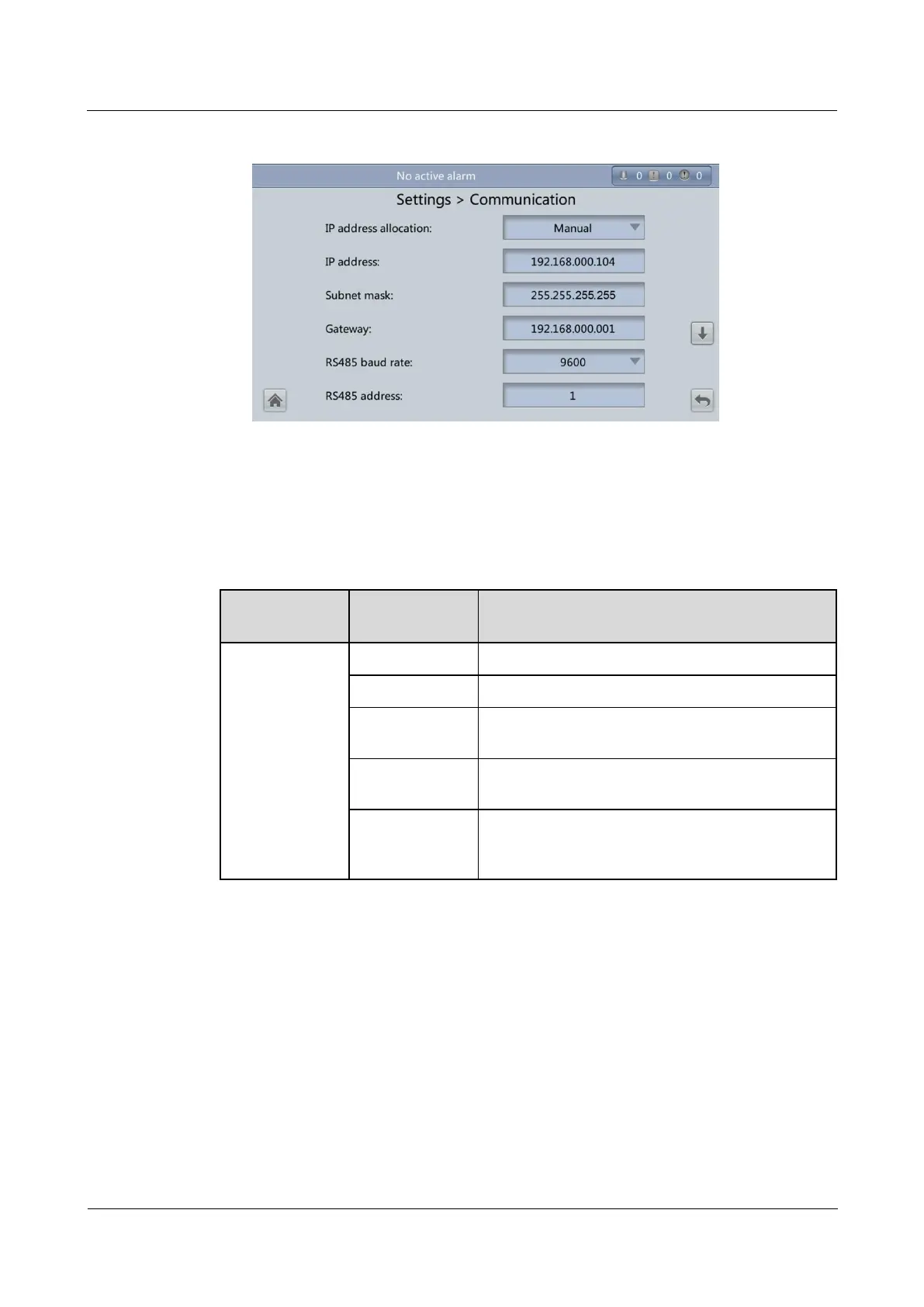
Figure 8-9 UPS5000-E communication settings
Step 2 Add a UPS5000-E.
1. Log in to the ECC800-Pro WebUI as an administrator.
2. Add a UPS5000-E.
Table 8-4 Adding a UPS5000-E
Choose System
Settings >
Device
Management
and click Add
Device. The
parameters for
adding devices
are displayed.
Select UPS from the drop-down list box.
Select UPS5000 from the drop-down list box.
Select ETH Converter n from the drop-down list
box.
Select COM1/COM2 from the drop-down list box.
In this example, Device Address is set to 1. During
actual configuration, set the device address for the
UPS5000-E based on the actual situation.
3. Click Test Connect to check whether the UPS5000-E connects to the ECC800-Pro
properly.
− If the UPS5000-E connects to the ECC800-Pro properly, click Confirm. The
connected devices are displayed in the Number of connected devices list.
− If the UPS5000-E does not connect to the ECC800-Pro properly, check whether the
cable between the UPS5000-E and the ECC800-Pro is connected properly, whether
the UPS5000-E and ECC800-Pro are running properly, and whether the input
parameters are consistent with the UPS5000-E parameters.
4. Choose Monitoring > System > ETH Converter Group > ETH Converter n >
Running Parameters and set Device name to ETH Converter n_Device name.
----End



 To Next Page