ECC800 Data Center Controller
User Manual (for ECC800-Pro)
Copyright © Huawei Technologies Co., Ltd.
1. After the PMAC615 is started, press on the displayed screen and the configuration
screen is displayed. Press until the ID prompt is displayed, indicating the
communications address setting screen.
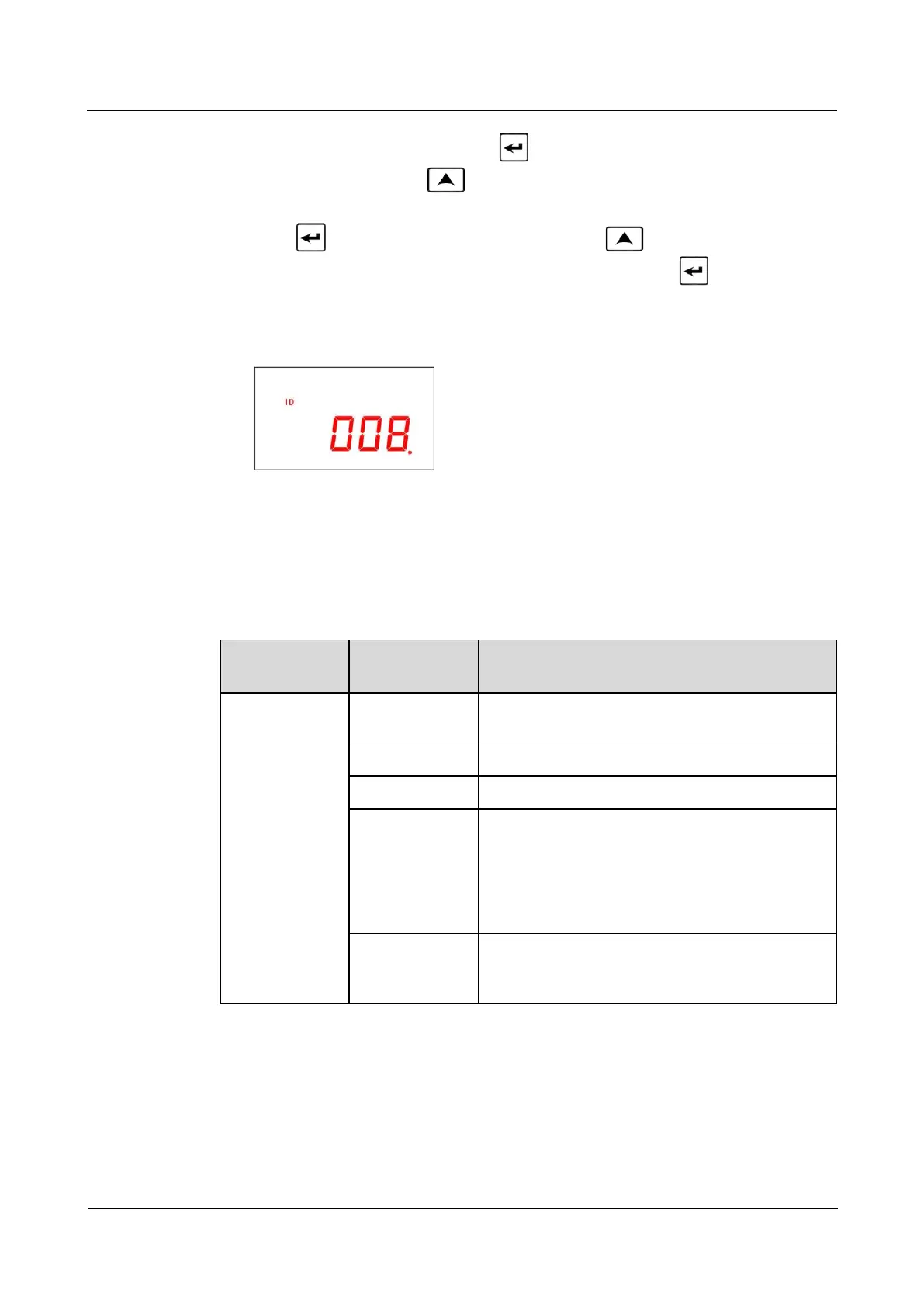
2. Press and a blinking cursor is displayed. Press to modify the
communications address based on site requirements. Then press to confirm the
address setting.
Figure 8-16 PMAC615 communications address
Step 2 Add a PMAC615.
1. Log in to the ECC800-Pro WebUI as an administrator.
2. Add a PMAC615.
Table 8-11 Adding a PMAC615
Choose System
Settings >
Device
Management
and click Add
Device. The
parameters for
adding devices
are displayed.
Select Electricity Meter from the drop-down list
box.
Select PMAC615 from the drop-down list box.
Select ECC800 from the drop-down list box.
Select COM3 from the drop-down list box.
NOTE
The setting example indicates that the PMAC615 is
connected to the COM3 port on the ECC800-Pro. If the
PMAC615 is connected to another port, enter the number
of the connected port.
In this example, Device Address is set to 8. During
actual configuration, set the device address for the
PMAC615 based on the actual situation.
3. Click Test Connect to check whether the PMAC615 connects to the ECC800-Pro
properly.
− If the PMAC615 connects to the ECC800-Pro properly, click Confirm. The
connected devices are displayed in the Number of connected devices list.
− If the PMAC615 does not connect to the ECC800-Pro properly, check whether the
cable between the PMAC615 and the ECC800-Pro is connected properly, whether



 To Next Page