User Guide v 2.3 — September 2015 Altanium Operator Interface
General Layout 15
Chapter 4 Altanium Operator Interface
This chapter provides a brief overview of the functionality of the Altanium system and
provides information about the following:
• Altanium operator interface
• Altanium buttons
• Altanium status
• Language selection
4.1 General Layout
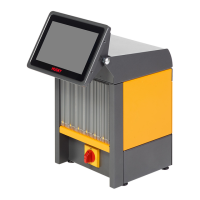
The operator interface consists of a touch-sensitive display screen.
4.1.1 Altanium Operator Interface
The Altanium operator interface is a high-resolution color LCD display covered by a
transparent touch screen. This display offers the advantages of high definition and a wide
viewing angle, even in poor lighting conditions.
Use the touch screen to change settings on the Altanium operator interface. This display is
referred to as the Altanium for the remainder of this guide.
4.1.2 Home Screen
The Home screen provides a single area to navigate to all other screens in the system. The
Home screen can be accessed from any other screen in the system by touching the Home
button in the system header. The system screen selections on the Home screen are organized
into five groups: Temperature Control Views, Temperature Control Shortcuts, Common
screens, Temperature Control screens, and System Configuration screens.
CAUTION!
Mechanical hazard – risk of equipment damage. Use a finger to operate the touch
screen. Do not use a screwdriver, pen, or any other tool to touch the screen as this may
damage the touch screen.



 To Next Page