Printing to a File 33
User Guide v 2.3 — September 2015 Altanium Operator Interface
3. Touch the Close button.
4.4 Printing to a File
To open the Print dialog box, touch the Print button on any Altanium screen. For more
information, refer to Section 4.1.3.4. Files will be saved in System\Reports folders.
To print a single file, do the following:
1. Touch the Print button.
2. Select the desired report type.
3. Select the desired file format.
4. Touch the Accept button to save the selected content to a System\Reports folder.
5. Copy the content saved to a USB drive or Network as desired.
Continuous Printing allows the user to set up print reports at specified intervals. Users can
select the type of report to be generated (Reports Type) and File Format. Users can also
specify print interval and duration time. Files will be generated after each interval timer
expires. At the specified duration time, or when the user clicks the “Stop” button, continuous
printing will be terminated. The generated files contain the same information as with single
file printing.
To print to a file using the Continuous Printing feature, do the following:
1. Expand the Continuous Printing button.
2. Select the desired report type.
3. Select the desired file format.
4. Select the desired print interval.
5. Select the desired print duration.
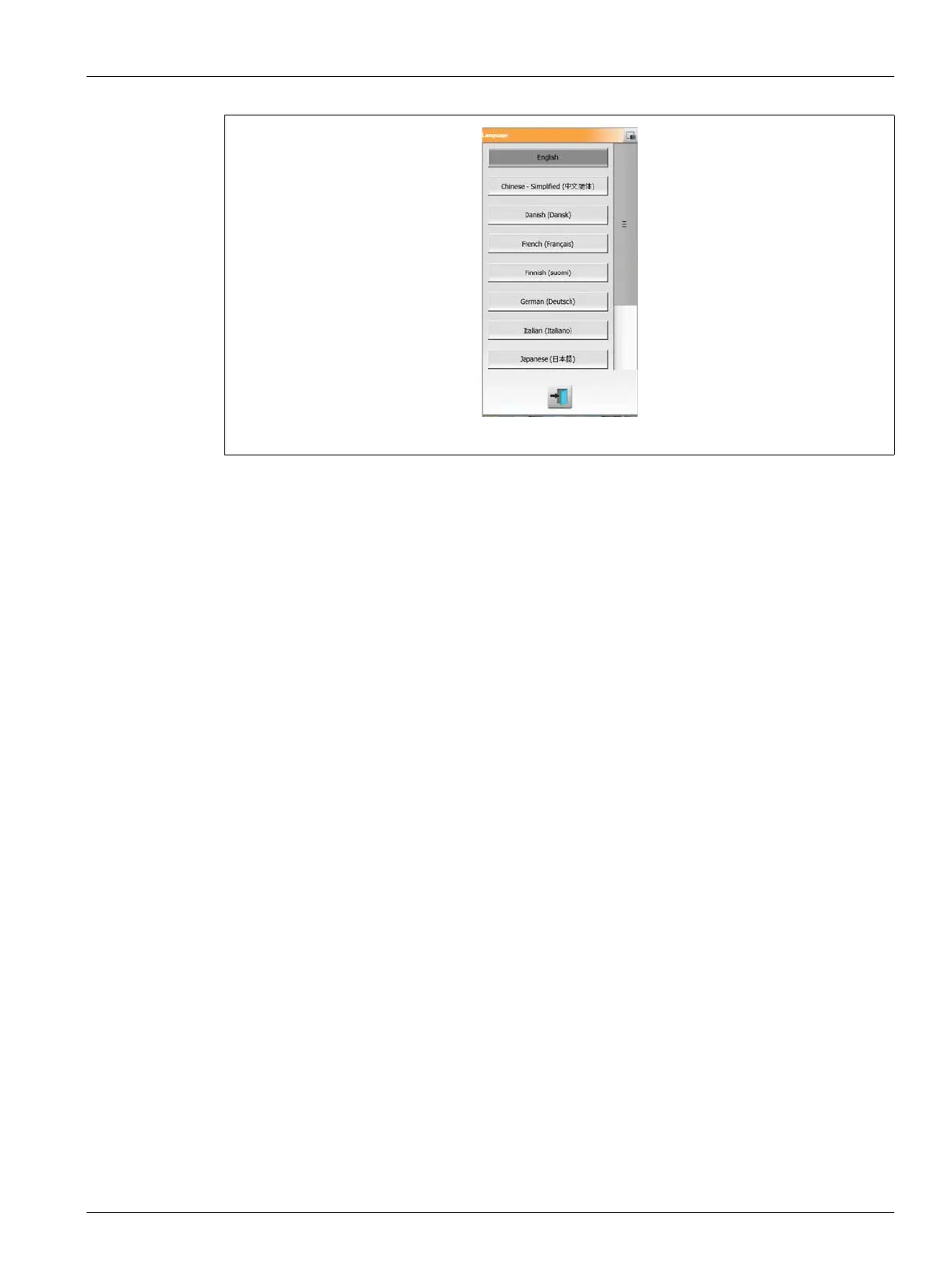
Figure 4-6 Language Selection Dialog Box



 To Next Page