v 2.3 — September 2015 Altanium Delta3
184 Replacing an Altanium Delta3 Display Module
4. Carefully place the card on an earthed/grounded surface.
5. Remove and replace the faulty fuse with one of identical type and rating. Husky
recommends SIBA 71-25-40 Series or equivalent fuses. Make sure the fuse is fully seated.
Poor seating will cause a hot spot, which can cause problems for the system.
NOTE:20 and 30 Amp cards will only have two fuses.
6. Slide the new card into to the slot and push the card slowly and firmly back into place.
An incorrectly oriented card will not seat properly.
7. Tighten the upper and lower slotted screws on the heat sink.
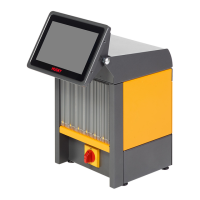
15.4 Replacing an Altanium Delta3 Display Module
In some cases, Altanium will not work if the display is defective. If the display input power is
correctly connected and all three phase indicators are lit; the display is probably faulty.
15.4.1 Disconnecting the Display Module
To disconnect the display module:
1. Facing the rear of the system, disconnect the Power and Input Comm cables from the
mainframe.
CAUTION!
Static electricity hazard – risk of damage to the equipment. A static charge could
damage a PCB. Do not place any PCB on carpets, rugs, or other material that is likely to
create a static charge.
WARNING!
Static electricity hazard - risk of damage to the equipment. Turn off all power to the
system and disconnect it completely from the main input power.
Use a ground strap when handling the Altanium components.
WARNING!
Electrical and mechanical hazard - risk of death, serious injury and/or damage to the
equipment. Turn off all power to the system and disconnect it completely from the
main input power. Use a ground strap when handling any of the Altanium
components.



 To Next Page