v 2.3 — September 2015 Altanium Delta3
178 Card Layout Screen
15.2 Card Layout Screen
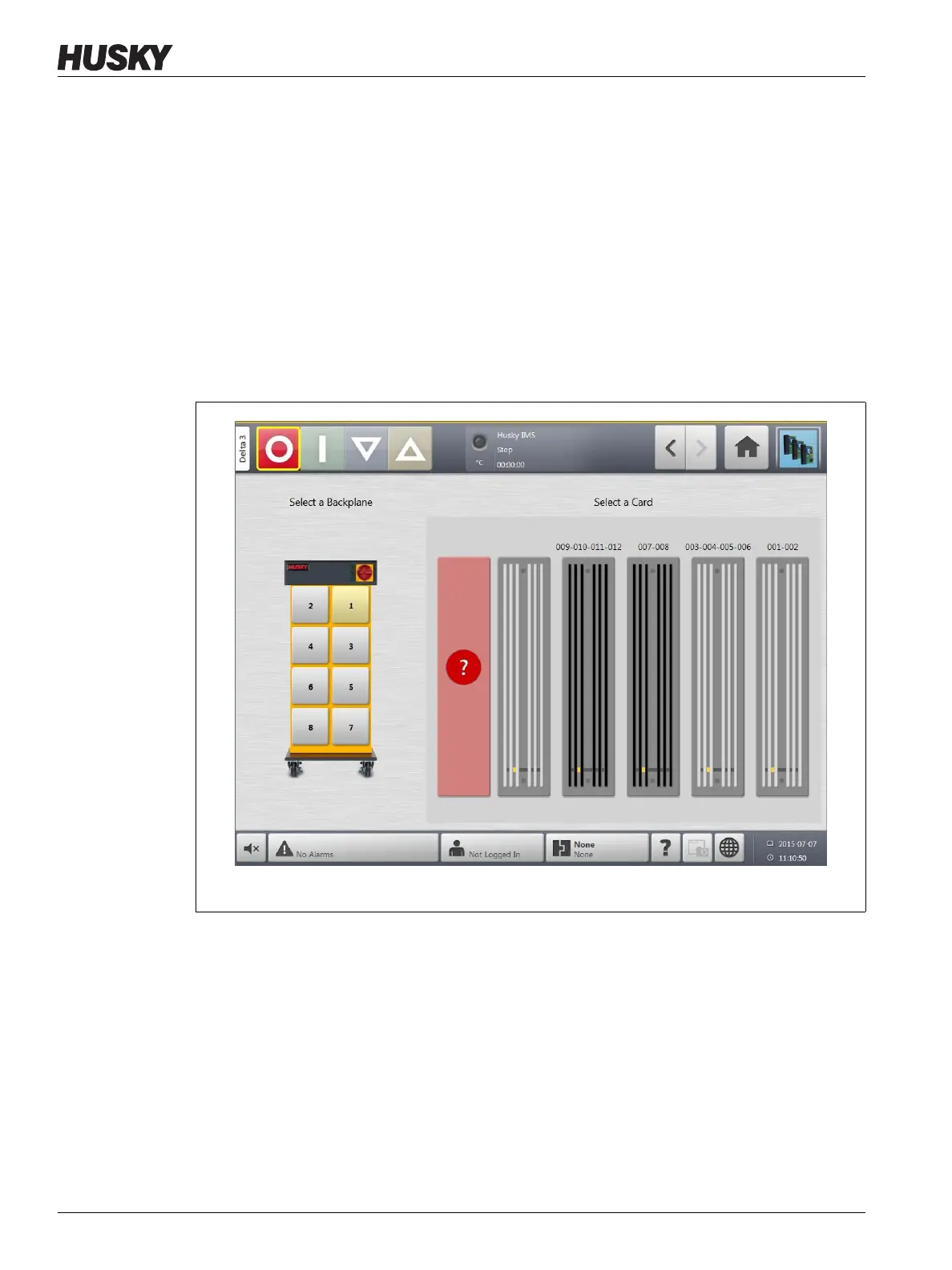
The Card Layout screen identifies the cards contained within the mainframe, and which
zones each card belongs to. The Card Layout screen can be accessed form the Home screen
or the Event History screen.
The backplane layout is on the left side of the screen and the card layout is on the right. The
zone numbers can be seen on the top of each card. The zone numbers change depending on
the zone density of the card. If a card is red with no zone numbers, then the card is not
installed or an error of some kind has happened with the card. The card type is dictated by
the color of the card on screen. XL and HL cards are black, X and H cards are Silver, XE cards
are Green. A red card without a question mark but with zone numbers assigned means there
is either a communication problem or a card is not installed in the slot.
15.2.1 Troubleshooting Using the Card Layout Screen
The Card Layout screen can be accessed from the Event History screen to identify which
card or component on a card is associated with an alarm error. For example, to identify a
blown fuse:
1. On the Event History screen, touch the Filter button. A dialog box will open.
Figure 15-2 Card Layout Screen from Home Screen



 To Next Page