Page | 143
Configuring Snapshots
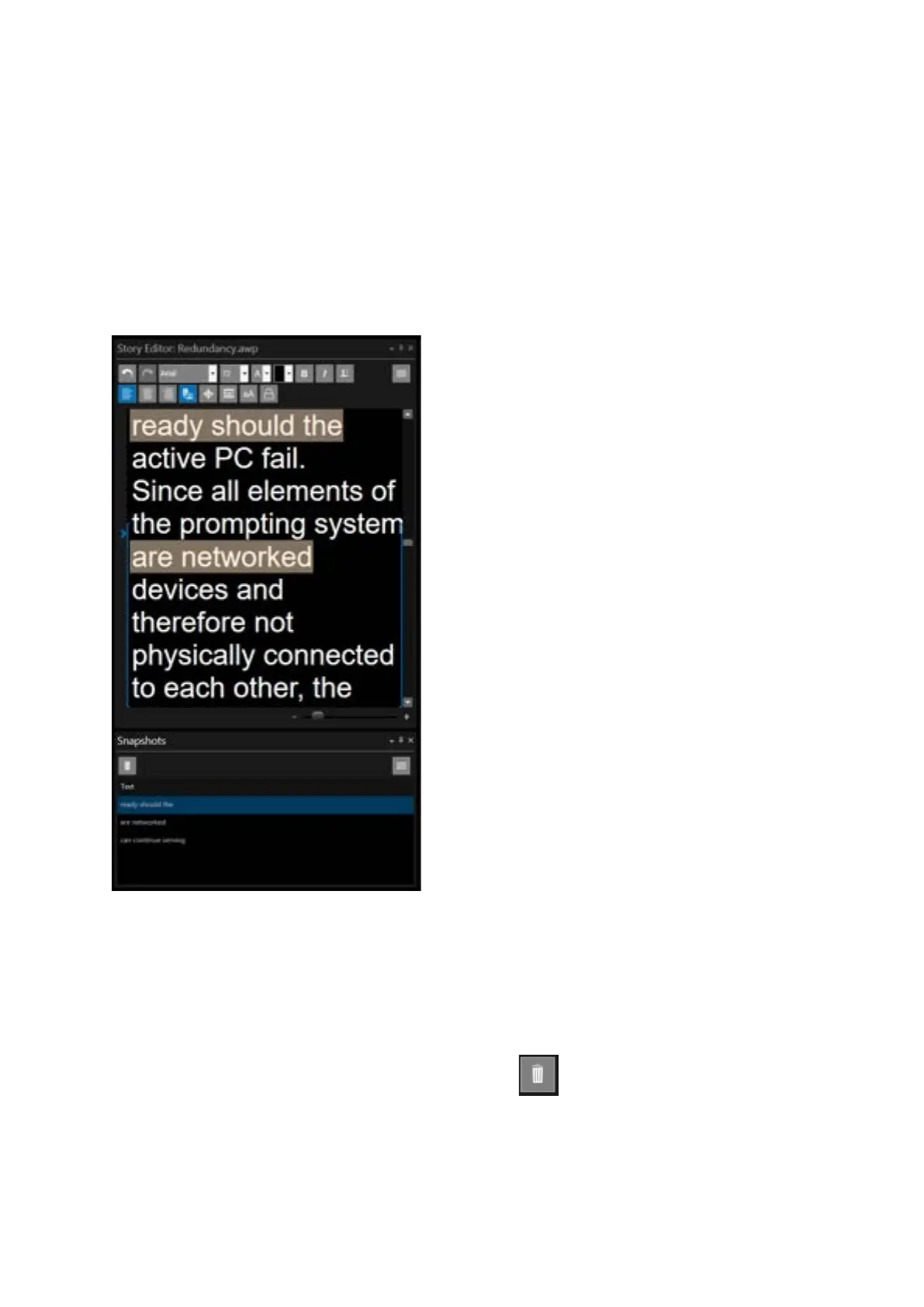
To insert a Snapshot, in the text in the Story Editor window, place the cursor at the position you
want to add as a Bookmark.
Click F6
This will mark the line you clicked on as Snapshot.
The text in the Story Editor will be highlighted in Grey and the text will appear in the Snapshot pane
Selecting Snapshots
To jump to the Snapshot position in the Story Editor double click anywhere in the Snapshot
To switch prompting on from that Snapshot, in the Snapshots pane, select the Snapshot and click F9
To delete a Snapshot select it and then click F6 or click the icon in the Snapshot toolbar



 To Next Page