Page | 60
Run Orders
How to Create A Simple Run Order
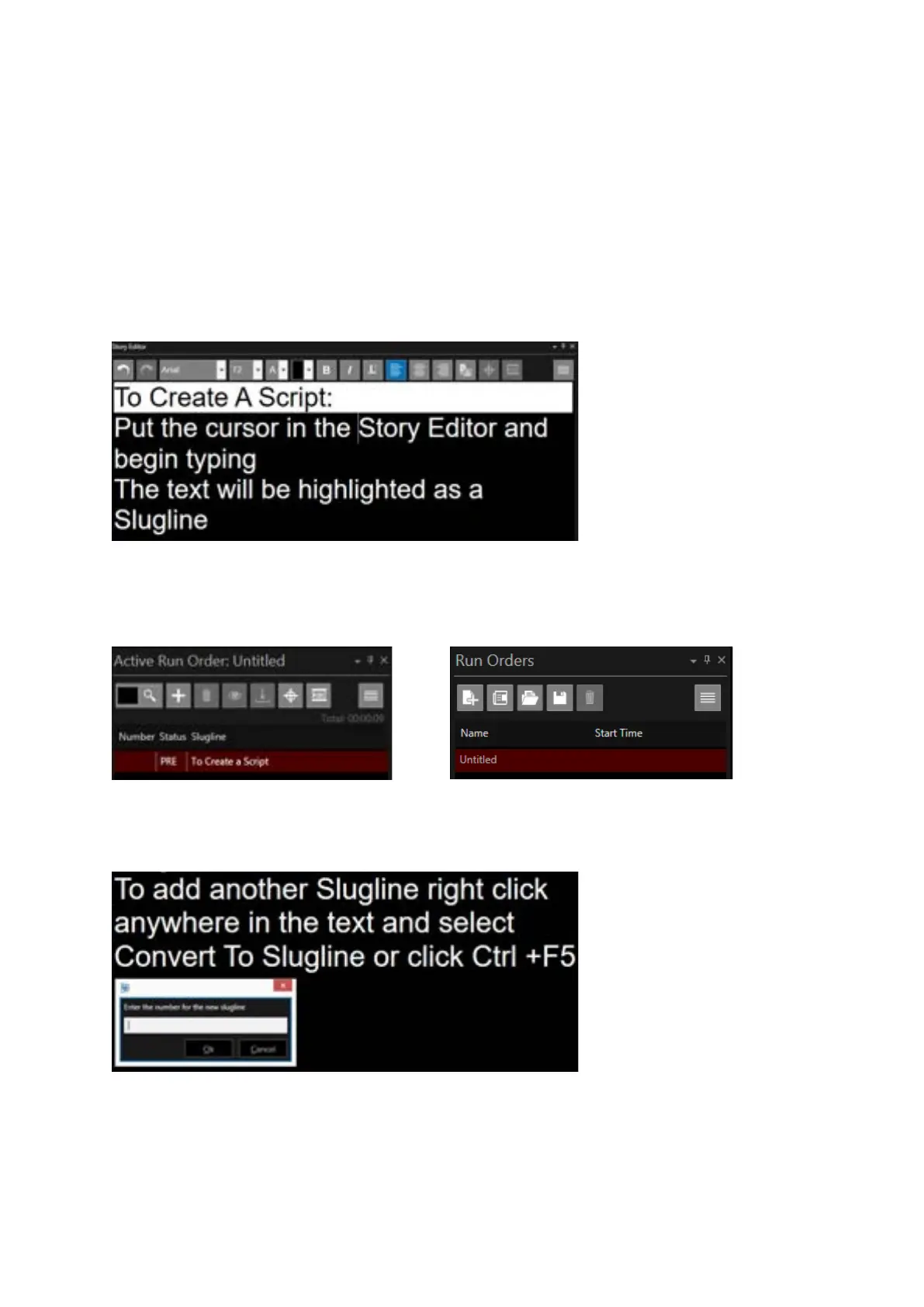
Place the cursor in the Story Editor window and begin typing or copy and paste text into the Story
Editor window.
When typing a new script, the text will be highlighted as a Slugline. This will continue until the first
carriage return:
The slugline text will appear in the Active Run Order window and Untitled will appear in the Run
Orders window:
To add another Slugline right click anywhere in the text and select Convert To Slugline or click
Ctrl +F5. You will then be given the option to add an alphanumeric identifier to the Slugline:
Enter the desired identifier and hit Ok. This new slugline will be added to the Run Order. Repeat this
operation for additional stories you would like to appear in the Run Order.
To remove a Slugline, put the cursor on the Slugline text, right click and select “Convert to Story
Text” or click Ctrl+F5.



 To Next Page