Page | 57
Adding Machine Status Information
Additional information regarding the processing being used by the machine which WinPlus-IP is
running can be displayed on the right side of the Status Bar
This includes the CPU usage of WP-IP and the memory available.
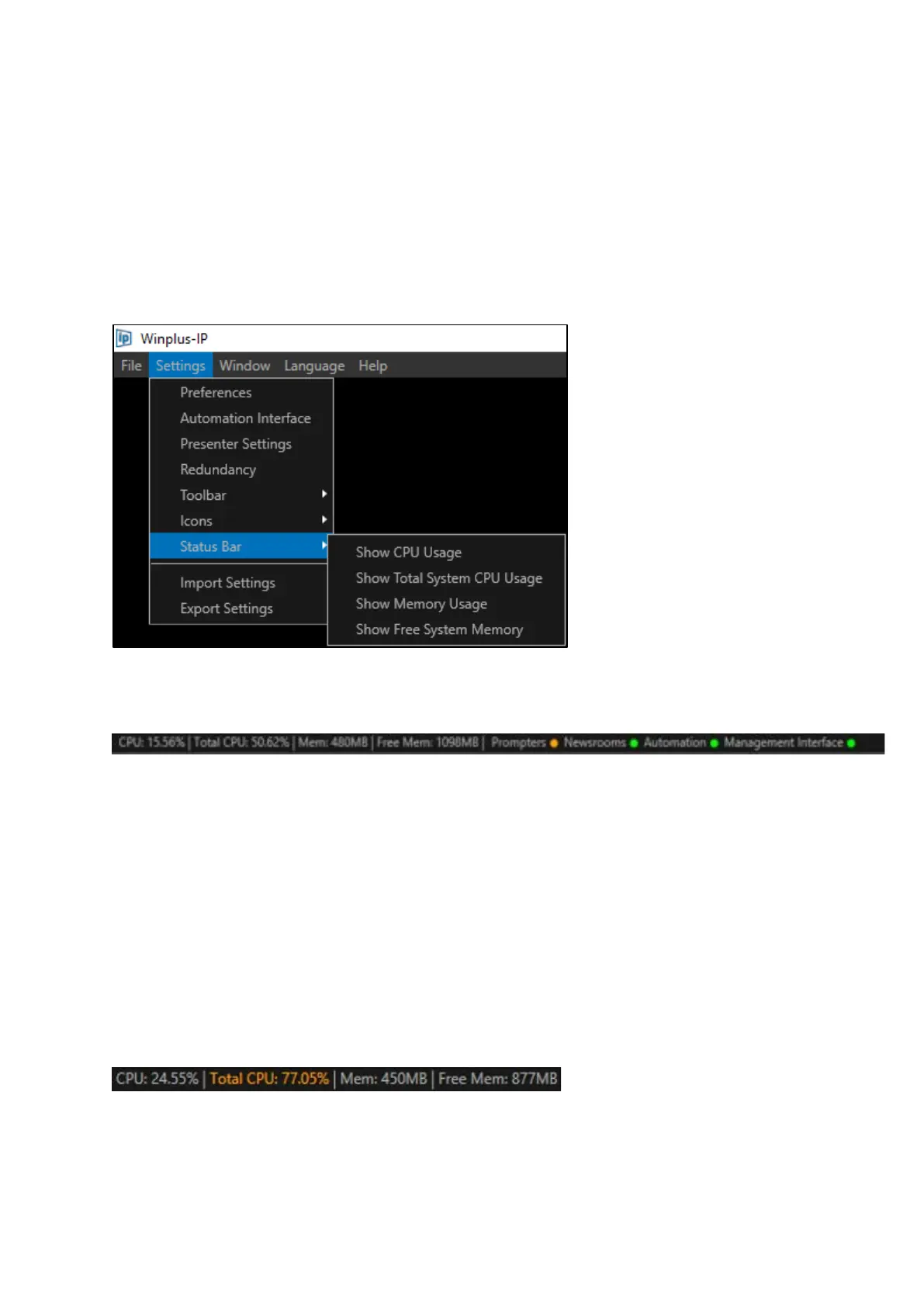
To add this information to the Status Bar, click on Settings in the main toolbar and then Status Bar,
then click on whichever information you would like to add to the Status Bar:
The select status information will be added:
Show CPU Usage (shown in the Status Bar as “CPU”): This is the % of the CPU being used by WP-IP
Show Total System CPU Usage (shown in the Status Bar as “Total CPU”): This is the % of the CPU
being used by all applications
Show Memory Usage (shown in the Status Bar as “Mem”): This is the amount of RAM being used by
WP-IP
Show Free System Memory (shown in the Status Bar as “Free Mem”): This is the amount of RAM
available after the RAM being used by WP-IP is subtracted.
Please Note: If the total Memory Usage exceeds 1GB, and/or if the Total System CPU usage exceeds
75%, it will display in orange



 To Next Page