Page | 93
Text Colours
Default Colours
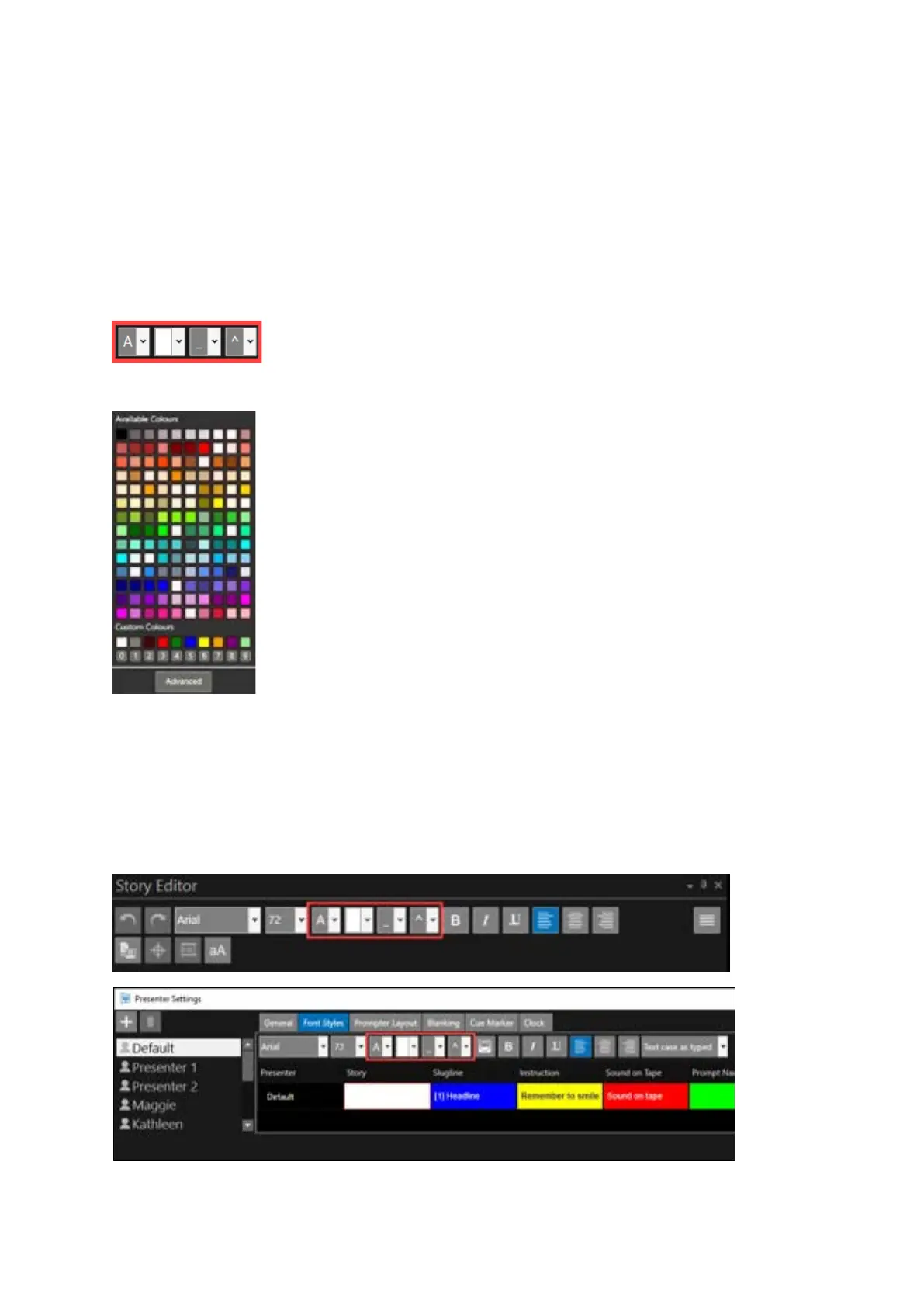
To apply a colour to selected text, other than the colour which is already set, select the text then
click the dropdown arrow wherever you see the Forecolour, Back Colour, Underline Colour or
Diacritic Colour options:
This will bring up the Available Colours pane:
Edit the Custom Colours
The custom colours may be edited wherever a colour option is available.
For example, they may be set via the Story Editor pane or the Presenter Settings pane.
Select the colour to apply that colour to the selected text. Selecting the colour will
then automatically close the Available Colours window.
You can also click on the Custom Colour itself, not the number below it.



 To Next Page