Page | 45
They can also be pinned to the sidebar or tabbed.
Panes can be pinned to the sidebar using Auto-Hide button (see Common Icons)
Panes can be moved to any position within the application either by:
• Right clicking in the title bar and selecting Float
• Left clicking in the title bar and dragging
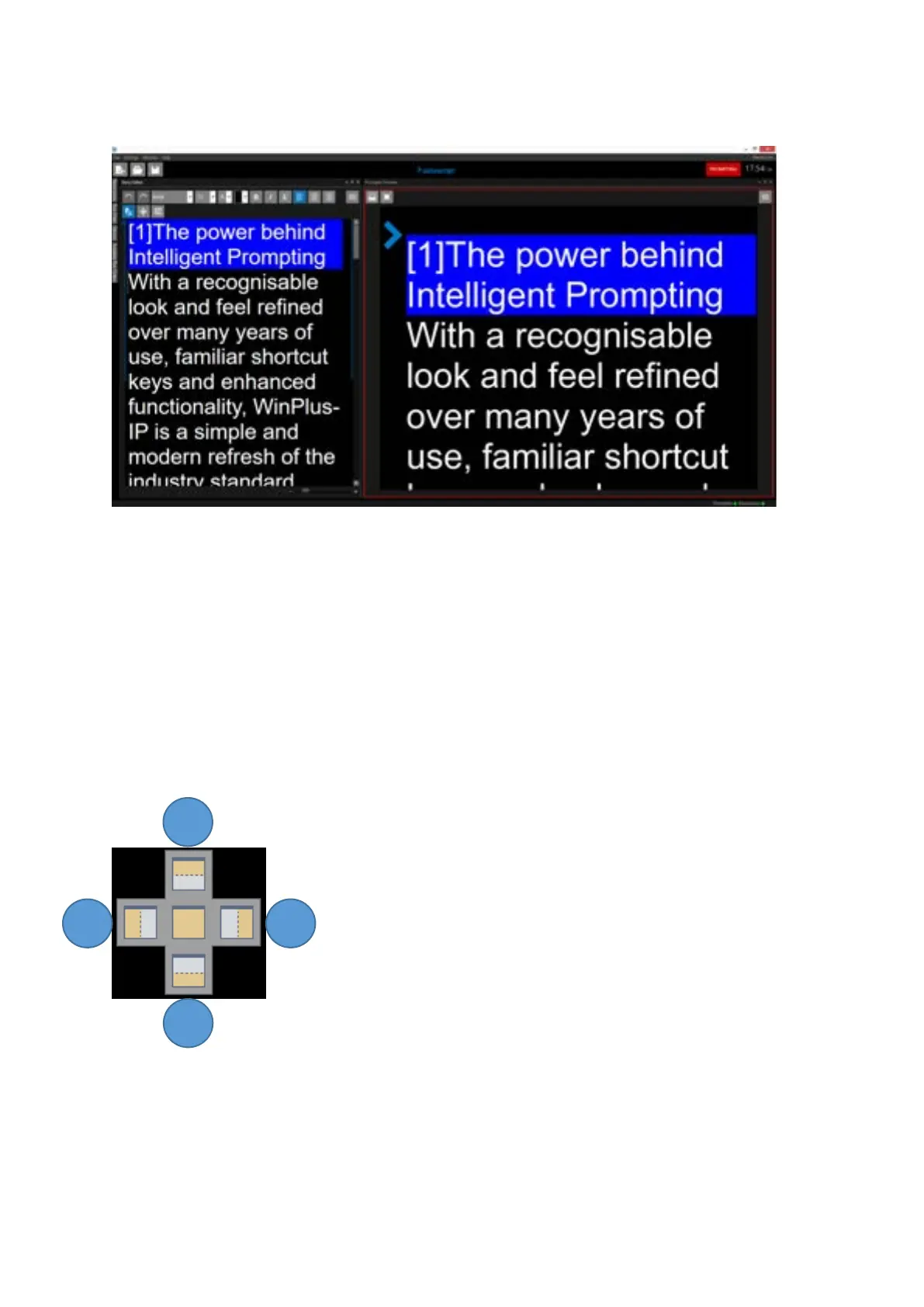
When dragging the pane a positioning box will appear. Icons will indicate the position the dragged
pane will be in when dropped relative to the pane they are hovering over
Tabbing Panes
Central Position: When dropped the dragged pane will be tabbed with the pane which it is hovering
over. Multiple panes can be tabbed to the same pane.
Pos 1: When dropped the dragged pane will be positioned
above the pane which it is hovering over
Pos 2: When dropped the dragged pane will be positioned to
the right of the pane which it is hovering over
Pos 3: When dropped the dragged pane will be positioned
below the pane which it is hovering over
Pos 4: When dropped the dragged pane will be positioned to
the left the pane which it is hovering over



 To Next Page