Page | 179
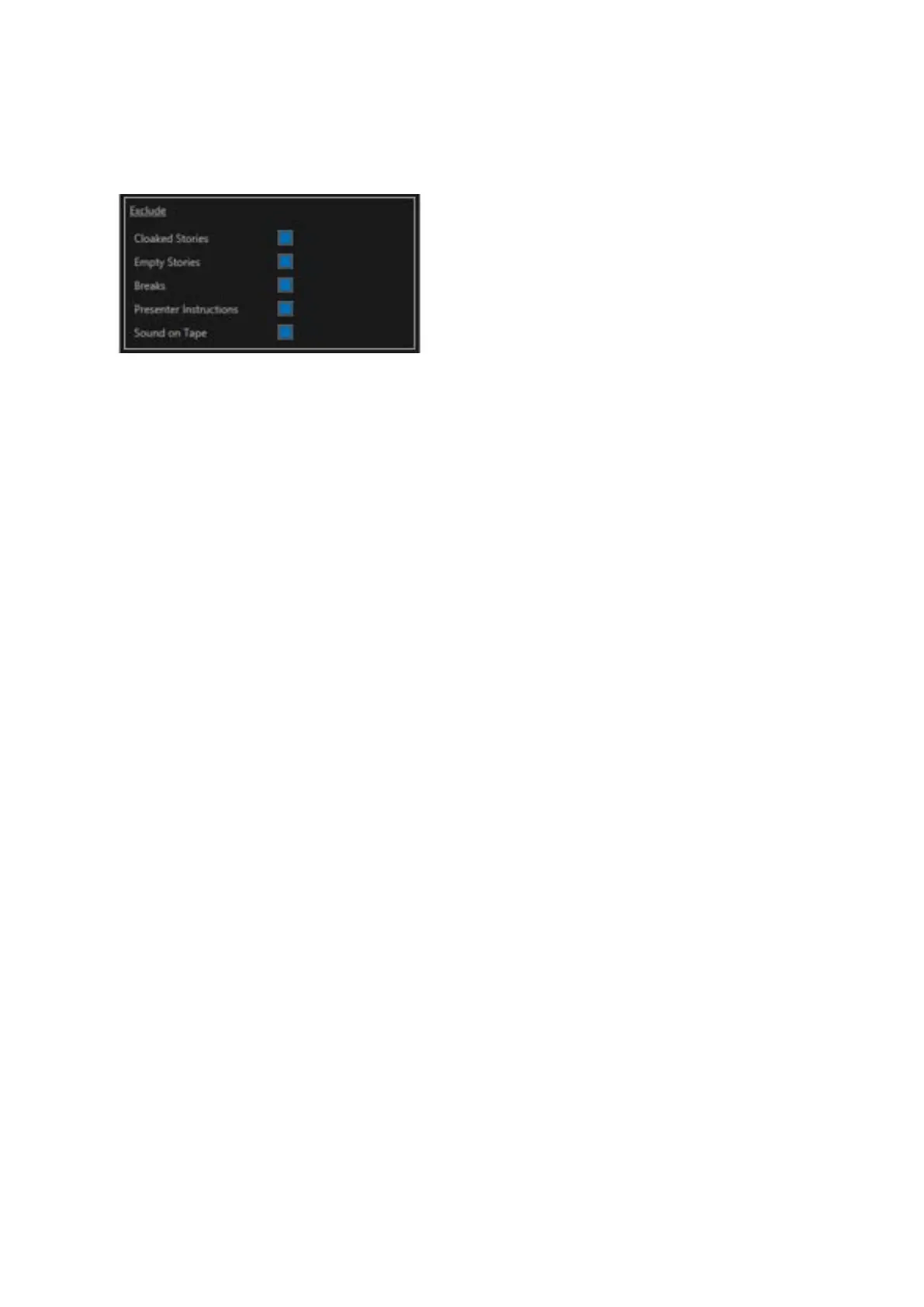
Exclusion Options
Excluded items will not be displayed in the Active Run Order or the Prompt Preview
Cloaked Stories on (excluded): Any cloaked stories will not be displayed in the Story Editor or the
prompt output
Cloaked Stories off (included): Any floated stories will be displayed in the Story Editor but not in the
prompt output
Please Note: Dependent on the Newsroom the functionality associated with the name “Cloak” can
also be applied to systems where this is referred to as “Float”
Empty Stories on (excluded): Any empty stories will not be displayed in the Story Editor or the
prompt output
Empty Stories off (included): Any empty stories will be displayed in the Story Editor & the prompt
output
Breaks on (excluded): Any story breaks will not be displayed in the Story Editor or the prompt output
Breaks off (included): Any story breaks will be displayed in the Story Editor & the prompt output
Presenter Instructions on (excluded): Presenter Instructions will not be displayed in the Story Editor
or the prompt output
Presenter Instructions off (included): Presenter Instructions will be displayed in the Story Editor &
the prompt output
Sound On Tape on (excluded): SOT’s will not be displayed in the Story Editor or the prompt output
Sound On Tape off (included): SOT’s will be displayed in the Story Editor & the prompt output
Bracket Options
This is a function of the Newsroom licence. Bracket options allow the user to set the parameters of
the text imported from a Newsroom which is enclosed in various brackets.
The bracket settings are accessed via the Newsroom pane.
Select a Newsroom and then click on the burger in the pane then Preferences.



 To Next Page